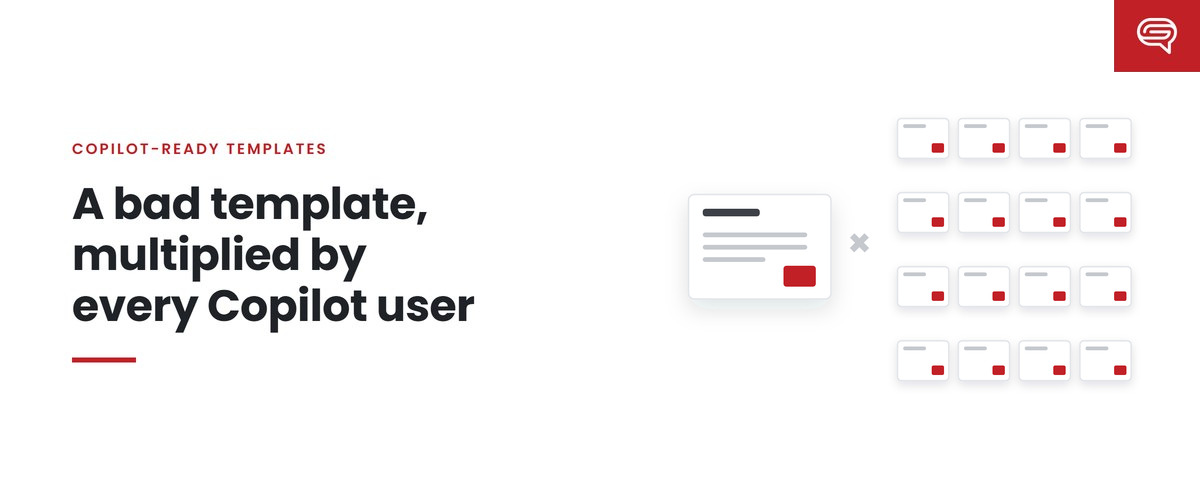
A bad template, multiplied by every Copilot user

Every organization has lived with an imperfect template. A layout that never quite fits. Colors that print badly. A title area too small for real titles. People grumble, work around it, and move on. The cost is real but diffuse — a few minutes here and there, absorbed by whoever is making the deck.

Copilot changes the arithmetic of template flaws. When a model learns from the template and generates decks for many people, a flaw is no longer absorbed by individual judgment. It’s reproduced. And the cost of a reproduced flaw is multiplied by everyone who generates a deck.

How a flaw becomes a multiplier

Consider three common template flaws and what happens to each when Copilot is involved.

Hardcoded brand colors. The template looks right because a designer painted every element. The theme underneath holds defaults. Before Copilot, people reused the painted elements and the problem was mostly invisible. With Copilot, every new chart and shape it creates takes its colors from the theme — so every generated chart can come out in default colors. Microsoft’s guidance is specifically to define brand colors and fonts in the theme for this reason.

No example slides. Before Copilot, a template without examples was merely less helpful. With Copilot, Microsoft states that without enough sample slides it “falls back to the Slide Master — which may result in less optimal output.” Every generated deck inherits that fallback.

A missing layout. Before Copilot, someone who needed a comparison layout that didn’t exist built one by hand. With Copilot — especially with strict brand adherence, which restricts it to approved layouts — comparisons get forced into whatever layout exists, in every deck that needs one.

In each case, a flaw that once cost a few minutes per affected deck now affects every deck Copilot generates for that kind of content.

Thinking about the multiplied cost

We won’t put a dollar figure on this, because it depends entirely on your organization, and we don’t publish numbers we haven’t measured. But the structure of the cost is simple enough to estimate with your own inputs:

Cost of a template flaw = extra fix-up time per affected deck × number of affected decks × loaded hourly cost

Two things make this larger with Copilot than without:

  • More affected decks. Generated decks are produced faster and by more people, so more of them pass through the flaw.
  • Fixes don’t stick. When a person fixes a generated slide by hand, the template isn’t changed. The next generated deck has the same problem. The fix-up cost recurs every time.

There’s also a cost that doesn’t appear in hours: decks that go out with the flaw unfixed. Most generated decks never pass through a brand team. A flaw that people don’t bother fixing reaches meetings, clients and partners.

Why the fix is cheap by comparison

Here’s the other side of the multiplier. If a flaw’s cost is multiplied across every generated deck, so is the benefit of fixing it.

Moving brand colors into the theme is done once. Every future generated chart benefits. Adding a well-designed comparison layout and example is done once. Every future comparison benefits. Writing a note instruction or Brand Skill rule for a recurring problem is done once. Every future deck is guided by it.

That’s the fundamental economics of a Copilot-ready template: the cost of fixing the system is paid once, and the benefit is collected on every deck. The same effort spent fixing individual generated decks is paid again and again, and collects nothing beyond the deck in front of you.

How to find your multiplied flaws

  1. Run a fixed set of realistic prompts against your current template — the kinds of decks your people actually make.
  2. Score the output for how much fixing it needs, from usable as generated to rebuild.
  3. Tag the reason for each fix: technical, brand, hierarchy, structure, density, visualization and so on.
  4. Look for repetition. Any fix that appears across many decks is a multiplied flaw — and a candidate for fixing once in the template.
  5. Fix the biggest one, rerun, compare.

A useful habit is to keep a short list of the top three multiplied flaws at any time, and work down it.

The leadership question

For a marketing or brand leader, the question isn’t “is our template perfect?” None is. It’s: “which of our template’s flaws are now being multiplied, and what would it take to fix them once?”

Usually the answer is a handful of structural problems — theme, placeholders, missing examples, missing layouts — that can be fixed in a focused piece of work. Left alone, they cost a little on every deck, indefinitely.

Common questions

How do we know which flaws are being multiplied?
Run a fixed set of realistic prompts, score the output and tag the reason for each fix. Any fix that recurs across many decks is a multiplied flaw.

Are some flaws worse than others?
Flaws that affect common deck types matter most, because they’re multiplied most. A flaw in a layout used once a month matters less than one in the everyday content layout.

Can Brand Skills fix template flaws?
Rules can reduce some problems, such as density or titles. They can’t fix a theme without brand colors, a missing layout or missing examples. Those need template work.

Key takeaways

  • Before Copilot, template flaws were absorbed by people’s judgment; with Copilot, they’re reproduced.
  • Hardcoded colors, missing examples and missing layouts become multipliers across every generated deck.
  • The cost of a flaw is extra fix-up per deck × affected decks × hourly cost — and hand fixes don’t stick.
  • Fixing the template is paid once and collected on every future deck.
  • Find repeated fixes in generated output; those are your multiplied flaws.

Want to find the flaws your template is multiplying? Have your template scored.**

Related reading

Sources

What creative teams get back when routine decks go to Copilot

Ask an in-house creative team what fills their week and presentations are usually near the top, and not the interesting ones. Weekly updates that need “tidying up.” A slide someone built at midnight that needs to be “made to look like us.” The same project status format rebuilt for the fifth team this quarter.

That work matters to the people requesting it. It rarely uses what the creative team is best at, and it crowds out the work that does.

Copilot in PowerPoint changes the math on this category of work. Done well, it gives creative teams something they’ve rarely had: time, and a way to shape far more of the organization’s output than they could ever touch by hand. This post is about what they get back, and how to make sure they actually keep it.

The work that moves

Routine decks share a profile: high volume, recurring structure, moderate stakes, internal audiences. They’re exactly what Copilot is suited to draft — particularly when it’s working from a template built to teach it the organization’s visual language.

When employees can generate a reasonable, on-brand first draft from a prompt or a source document, a large share of “can you make this look right?” requests stop arriving. Not all of them, and not immediately. But the queue changes character.

We’re careful not to put a number on this. It depends on the organization, the template, and how well the system is built and maintained. What’s consistent is the direction: routine formatting work moves away from the creative team, and more of what remains is work that genuinely needs them.

What they get back

1. Time for the decks that matter

Every organization has presentations where the stakes are high: board meetings, investor updates, major pitches, keynotes, leadership announcements. These are the decks where design judgment — structure, emphasis, story — makes a measurable difference, and they’re often the ones that got squeezed when the queue was full of routine work.

When the routine work shrinks, those projects can get the time they always deserved.

2. Leverage

This is the bigger change, and the less obvious one. When a designer improves one deck, one deck improves. When a designer improves the example slide Copilot learns from, every future deck of that kind improves.

Microsoft’s guidance describes a template’s sample slides as Copilot’s primary learning source. That makes the example set one of the highest-leverage design assets an organization owns. Designing it well — the right slide types, realistic densities, strong hierarchy, durable content — is creative work with a reach no individual deck ever had.

3. A seat at the system

Historically, creative teams had influence over templates only at rebrand time. With Copilot, the template, its examples, the Brand Kit and the written rules need continuous attention. Microsoft introduced strict brand adherence and note instructions in September 2026, and Brand Skills later the same month. Someone has to decide how those are used, and design judgment is central to most of those decisions.

That positions the creative team as the owner of the system that produces most of the organization’s presentations — a more strategic role than servicing requests.

4. Better inputs

Generated first drafts also change the decks that do reach designers. Instead of a rough document and a request, designers increasingly receive a structured draft to elevate. That can make high-stakes projects faster to start — though it creates its own discipline: a generated draft can look finished while hiding a weak argument, so the first job is still to check the intent.

What to protect

The gains aren’t automatic. A few things tend to erode them.

Fixing output by hand. If designers spend their reclaimed time correcting generated decks one at a time, nothing has really changed — the work has just moved. When the same fix comes up repeatedly, the answer is to fix the template, example or rule that caused it.

Nobody owning the system. If the template isn’t maintained, generated output degrades and requests drift back to the creative team. Ownership needs a name — in Microsoft 365, a designated brand manager — and time allocated for it.

Framing it as headcount reduction. “Do more with fewer designers” produces teams that resist the system they should be building. “Stop producing routine decks and get the strategic work back” produces teams that champion it. The second framing is also more accurate.

Letting high-stakes work drift to Copilot. A generated board deck can look finished. That’s precisely why the decks that matter should keep experienced people on them. Copilot can draft; the judgment is still human.

A practical way to start

  1. Sort last quarter’s requests into routine decks, decks that matter, and system work. The routine pile is the opportunity.
  2. Invest in the system first: a template rebuilt for how Copilot learns, a set of example slides approved by designers, and written rules for the recurring fixes.
  3. Set aside designer time each month to review generated output and fix causes, not symptoms.
  4. Redirect the reclaimed time on purpose, toward high-stakes work and toward the system itself.

Common questions

Will routine requests stop completely?
No. Some routine decks will still need design help, especially where the template doesn’t yet cover a deck type, or where a deck turns out to matter more than expected. The shift is in proportion, not a switch.

How do we stop designers becoming Copilot’s cleanup crew?
Track repeated fixes. When the same correction appears across many generated decks, fix the example, layout or rule that caused it, once, rather than fixing each deck.

What should designers do with the time they get back?
Put it deliberately into the decks that matter, into the system that shapes everything else, and into reviewing samples of generated output to find and fix patterns.

Key takeaways

  • Routine decks — high volume, recurring, internal — are what Copilot drafts best, and what creative teams least need to hand-build.
  • Creative teams get back time for the decks that matter, leverage through the example set, and ownership of the system.
  • Protect the gains: fix causes not slides, name an owner, avoid the headcount framing, and keep people on high-stakes work.

Want your designers’ judgment built into what Copilot learns from? Have your template scored.**

Related reading

Sources

Light, medium, heavy: designing for content density

Ask presentation designers what goes wrong most often in slides made by non-designers, and the answer is nearly always the same: too much on the slide. Ask the same question about slides generated by Copilot, and you will hear the same answer, with a twist — sometimes there is too little.

Density is the amount of content a slide carries and how much space surrounds it. It is one of the most consequential decisions on any slide, and one of the hardest for a model to get right without being shown. That is why Microsoft’s guidance for Copilot templates asks specifically for examples at three densities: light, medium and heavy.

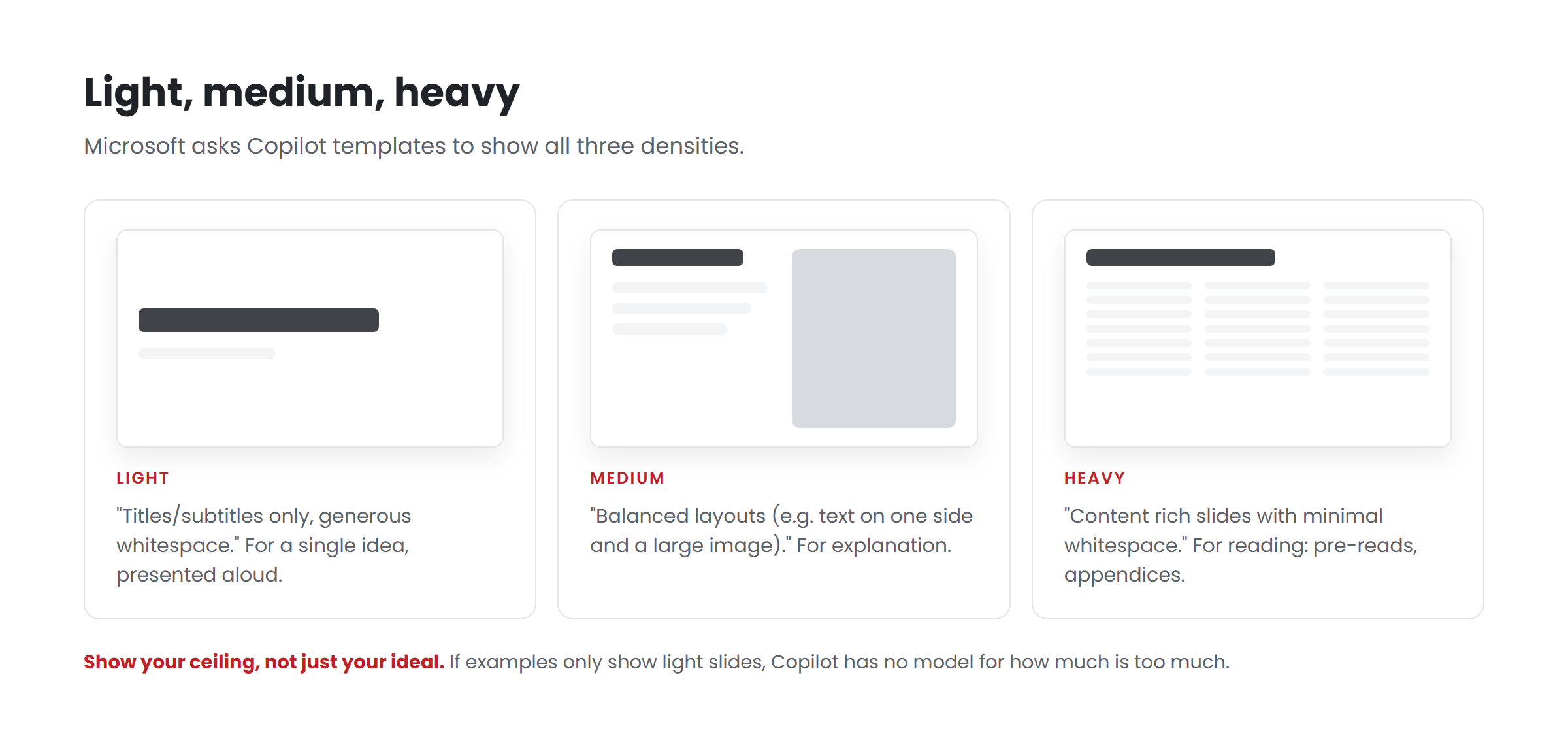
Diagram showing a light, a medium and a heavy slide, with Microsoft's description of each content density

Microsoft’s three densities

Microsoft describes them this way:

  • Light: “Titles/subtitles only, generous whitespace.”
  • Medium: “Balanced layouts (e.g. text on one side and a large image).”
  • Heavy: “Content rich slides with minimal whitespace, including dense text.”

The point of including all three is not that every presentation should use all three. It is that Copilot needs to see what your brand looks like at each density, so that when content arrives it has a model for how much to put on a slide and how to arrange it.

What each density is for

It helps to think of density as matching the job the slide does and the way it will be consumed.

Light slides: for a single idea, spoken

Light slides carry one message: a title, a statement, a section break, a single number. They work when a presenter is speaking and the slide’s job is to anchor attention. They are the natural choice for keynotes, openings, transitions and moments of emphasis.

Design notes: the typography does all the work, so hierarchy has to be unmistakable. Whitespace is part of the design, not leftover space. A light slide with a small title floating in empty space looks unfinished; one with a confident, well-sized statement looks deliberate.

Medium slides: for explanation

Medium slides balance a message with support — a few points and an image, a short explanation and a chart, a comparison of two options. They are the workhorses of most business presentations.

Design notes: the relationship between the elements matters most. Which comes first? Which is dominant? Microsoft’s example — text on one side and a large image — is a classic medium layout because it gives each element a clear zone.

Heavy slides: for reading

Heavy slides carry detail: dense text, full tables, multi-part diagrams. They are right when the slide will be read rather than presented — pre-reads, appendices, reference material, documents sent by email.

Design notes: heavy doesn’t mean crowded. A well-designed heavy slide uses a strong grid, clear grouping and careful type sizes so that a reader can navigate it. The failure mode isn’t density itself; it’s density without structure.

Why density is where generated decks go wrong

Copilot has to make a density decision on every slide it generates, and generated slides can go wrong in two directions.

Overfilling. Given a rich source document, a model will often carry too much of it onto each slide. Text shrinks to fit, bullets multiply, and a slide designed to be presented becomes a slide that has to be read.

Underfilling. Given a light layout and substantial content, a model may compress something important into a single line, losing the substance the audience needed.

Both failures often share a root cause: the model didn’t have a good example of what your organization does with that kind of content at that density. With only one example per slide type — often a sparse, idealized designer’s version — Copilot sees a single density and applies it to everything.

Designing density examples for Copilot

A practical approach:

Build density variants for the slide types that need them. Content slides and data slides almost always need all three. Title slides and closing slides usually need one. Don’t create variants that nobody would use.

Make each variant a finished, realistic slide. Microsoft recommends complete end-to-end layouts demonstrating a single use case. A density example should look like a real slide from a real deck, with realistic amounts of text, not placeholder filler.

Show your limits, not just your ideal. If your organization genuinely makes heavy slides for pre-reads, show the heaviest slide you consider acceptable. That teaches Copilot a ceiling. If you only show light slides, it has no idea where the ceiling is.

Size placeholders to match. Microsoft notes that Copilot uses placeholder size to decide how much content belongs in a slot. A light layout with a huge body placeholder sends a mixed signal. And because “Copilot does not change the font size or placeholder size,” a heavy layout needs a body placeholder and type size that genuinely fit heavy content.

Keep structure visible in heavy examples. Clear grouping, consistent alignment, a visible grid. The model learns structure from structure.

Using rules to reinforce density

Examples teach density by showing. Since September 2026, you can also reinforce it by telling:

  • Note instructions in a template slide’s speaker notes — “Keep the text minimal,” “Title only,” “No more than four bullets” — guide how Copilot uses that slide. “Keep the text minimal” is one of Microsoft’s own examples.
  • Brand Skills can set organization-wide rules: “One idea per slide,” “Move supporting detail to the speaker notes,” “Keep slide titles under twelve words.”

Rules and examples work best together. An example shows what a good medium slide looks like; a rule tells Copilot when to choose it.

Testing density

When you test a template, include prompts that push density in both directions:

  • a short, simple request that should produce light slides;
  • a long source document that tempts overfilling;
  • a request for a pre-read that should produce heavy but structured slides.

Look specifically at text size, bullet count and whitespace. If Copilot overfills, strengthen heavy examples’ structure and add density rules. If it underfills, check that medium and heavy examples exist for that slide type.

Key takeaways

  • Microsoft asks Copilot templates to show light, medium and heavy slides.
  • Light is for single ideas presented aloud; medium for explanation; heavy for reading.
  • Generated decks often fail on density — overfilling from rich sources, or compressing too much.
  • Build finished, realistic variants for slide types that need them, and show your ceiling.
  • Reinforce with note instructions and Brand Skills, and test both directions.

Want your template to teach Copilot how much belongs on a slide? Have your template scored.**

Related reading

Sources

Seat depth: why your savings depend on who has a license

Two organizations can buy the same number of Microsoft 365 Copilot licenses and get very different returns on presentation work. One gives them to the executive team and a few senior managers. The other gives them to the people who actually build most of the organization’s decks: analysts, coordinators, account managers, project leads.

The difference is seat depth — how far down the organization licenses reach, and whether they land with the people who make presentations. It’s one of the least discussed variables in Copilot planning, and one of the most consequential for presentation value.

Who actually makes the decks

In many organizations, senior leaders present more than they build. The slides a vice president shows on Tuesday were often assembled by an analyst on Monday night, restructured by a manager, and polished by a designer or an agency. The people who spend the most hours inside PowerPoint are frequently not the people most likely to be first in line for a new license.

That matters because Copilot saves time for the person using it. A license held by someone who presents but rarely builds saves relatively little presentation time. A license held by someone who builds several decks a week has far more to work with.

How seat depth changes the math

Using a simple model of presentation value — hours saved per deck, times decks per year, times loaded hourly cost, minus the costs of running the system — seat depth affects two inputs directly.

Decks per licensed person. Deeper seats reach the people who produce more decks. The same license price is spread over more presentation work.

Which deck types are affected. Deeper seats reach more routine work — updates, briefings, internal proposals — which is exactly where generated drafts need the least judgment and the most formatting. Shallow seats concentrate licenses around high-stakes presentations, where experienced people still do most of the valuable work.

Neither of these means licensing everyone is right. Licenses cost the same whether they’re used for three decks a week or three a year. Microsoft’s US list price for Microsoft 365 Copilot enterprise was $30.00 per user per month paid yearly as of 22 September 2026, on top of a qualifying Microsoft 365 plan. The question is whether each license lands where the work is.

How seat depth changes the template

Seat depth has a second effect that’s easier to miss: it changes what the template has to handle.

When only senior people have Copilot, generated decks tend to be infrequent and closely watched. When licenses reach deep into the organization, generated decks become a large share of routine output — produced by many people with different skills, from different source material, for different audiences, mostly without review by the brand team.

That raises the stakes on everything the template teaches:

  • Coverage — deeper seats bring a wider variety of deck types. Layouts and example slides need to cover what those people actually make.
  • Density — analysts and coordinators often work from detailed source material. Examples need to show your heavier densities well, or generated decks overfill.
  • Rules — people newer to your organization’s presentation habits benefit most from written rules in Brand Skills and note instructions.
  • Enforcement — strict brand adherence, which restricts Copilot to approved layouts, becomes more valuable as more people generate decks — and more costly if the template has gaps.

Put simply: the deeper your seats, the more your template determines what the organization’s routine presentations look like.

Questions to answer before deciding

  1. Who builds most of our decks today? Not who presents them. Ask the design team where requests come from, and look at who creates presentation files.
  2. What deck types do those people make? Routine, important internal, high-stakes?
  3. How many decks do they make? A rough monthly estimate per role is enough.
  4. Does our template cover what they make? If licenses go deep, the template has to handle the everyday work of many roles, not just the showpieces.
  5. Who will review their output? Microsoft states that generated presentations should be human-reviewed. Deep seats mean many reviewers — mostly the people themselves.

A sensible approach

Many licensing decisions are made for reasons that have nothing to do with presentations — email, meetings, documents, data. That’s appropriate; presentations are one use among many. But if presentation work is part of the justification, it’s worth:

  • identifying the roles that build decks most often and checking whether they’re licensed;
  • piloting with a mix of builders, not only presenters;
  • measuring fix-up time for generated decks from each group;
  • preparing the template for the breadth of work deep seats will bring.

Common questions

Should we license everyone?
Licensing decisions usually rest on many uses besides presentations. If presentations are part of the case, make sure the people who build decks are among those licensed.

Does seat depth change what the template needs?
Yes. Deeper seats bring a wider variety of deck types and more people generating decks without brand review, so coverage, density examples and written rules matter more.

How do we find who builds decks?
Ask the design team where requests come from, and look at who creates presentation files. The answer may be more junior than expected.

Key takeaways

  • Seat depth — how far licenses reach and whether they land with deck builders — strongly affects presentation value.
  • Senior people often present more than they build; builders are where presentation time is spent.
  • Deeper seats spread license cost over more routine work, where generated drafts are most useful.
  • Deeper seats also make the template more consequential: more coverage, more density, more rules, more enforcement.
  • Find out who builds your decks before deciding who gets licenses.

Licensing deep into the organization? Have your template scored before it has to carry everyone’s decks.

Related reading

Sources

Why a beautiful template can still produce generic Copilot decks

It’s one of the most common and most confusing experiences in a Copilot rollout. The brand team has a template it’s proud of — carefully designed, recently refreshed, admired internally. Copilot is pointed at it. And what comes out looks like the brand in the most superficial way: the right logo, roughly the right colors, and slides that could belong to any company.

The natural conclusion is that Copilot just isn’t very good at design. Sometimes that’s part of it. But very often the problem is that the template, for all its beauty, teaches Copilot almost nothing. The things that make a template look good to people and the things that make it teach well to a model overlap less than you’d expect.

Here are the four most common reasons.

1. It’s painted, not defined

Walk through a beautiful template’s layouts and every element is exactly the right color. Now open the theme underneath — Slide Master > Colors — and look at what’s defined there. In many templates, it’s a default Office palette, or something close to it. The brand colors were applied by hand, element by element, by a skilled designer.

For a person reusing those elements, that works. For Copilot, it doesn’t, because much of what Copilot produces is new: charts from your data, shapes for a process, tables. New objects take their colors and fonts from the theme. If the theme doesn’t hold the brand, generated objects don’t either.

Microsoft’s guidance is explicit: define brand colors through theme colors and heading and body fonts in the theme, and apply consistent styles to charts, icons, shapes and image placeholders. A painted template looks identical to a defined one — until Copilot builds a chart.

2. It has layouts but no examples

Many beautiful templates are architecture without behavior: a long list of well-crafted layouts and not a single finished slide showing how they’re used.

Microsoft describes sample slides as Copilot’s primary learning source and says that without enough of them, Copilot “falls back to the Slide Master — which may result in less optimal output.” It asks for examples across the slide types the organization uses, at light, medium and heavy densities, showing how the brand uses color, typography, imagery and data.

Layouts tell Copilot what’s possible. Examples tell it what’s normal. A template with no examples leaves Copilot to guess what your brand does with its own layouts — and its guesses are generic by nature.

3. It’s built for skilled hands

Beautiful templates are often built by designers, for designers. They rely on the user’s judgment: a text box you’re meant to fill carefully, a decorative shape that frames a photo if you crop it just right, a title area sized for the elegant four-word headlines designers write.

Copilot doesn’t have that judgment. Microsoft notes that Copilot uses placeholder type, position and size to decide what to generate and where — and that it doesn’t read placeholder text as instructions. So:

  • Text boxes aren’t slots Copilot can fill. Microsoft recommends real text placeholders instead.
  • Decoration over content areas produces clipped images and colliding text when a model fills them. Microsoft advises keeping decoration off text and image areas.
  • Placeholders sized for ideal copy overflow when they receive ordinary copy.

What a designer handles gracefully, a model handles literally.

4. It shows the showpieces, not the everyday

When templates do include example slides, they’re often the showpieces — the most striking slides from the launch deck. Bold statements, dramatic photography, elegant white space.

Copilot will mostly be asked for everyday decks: status updates, explanations, proposals, summaries. If every example is a keynote moment, Copilot has no model for a dense operations update or a detailed comparison. It either stretches the showpiece pattern over content it doesn’t fit, or falls back to something generic.

A template teaches what it shows. A template that shows only its best moments teaches very little about the rest.

Why nobody notices until the decks arrive

All four problems share one property: they’re invisible when you look at the template. A painted theme, missing examples, text-box layouts and showpiece-only examples all look fine in the file. The template gets approved on how it looks, because that’s how templates have always been judged.

The problems only surface in generated output — and much of that output never passes through the brand team. It goes straight from an employee to a meeting or a client. By the time the pattern is noticed, it’s already been repeated many times.

With strict brand adherence, introduced in September 2026, the stakes rise further. Copilot is restricted to the approved template and layouts, so it can’t improvise around a weak spot. Whatever the template gets wrong, every locked deck gets wrong.

What to do instead

The fix isn’t to make the template less beautiful. It’s to make its beauty legible to a model:

  1. Move the brand into the theme — colors, fonts, chart and shape styles.
  2. Rebuild layouts with real, well-sized placeholders, with decoration clear of content areas.
  3. Design a set of everyday examples at the densities your people use, with realistic, durable content.
  4. Write the unwritten rules where Copilot reads them — note instructions and Brand Skills.
  5. Test with realistic prompts before and after, and judge the template by what it produces.

That last step is the real change of mindset. A template’s quality used to be judged by looking at it. Now it has to be judged by what comes out of it.

Key takeaways

  • A template can look immaculate and still teach Copilot very little.
  • The four usual causes: painted instead of theme-defined, layouts without examples, built for skilled hands, and showpieces instead of everyday slides.
  • All four are invisible in the file and only appear in generated output.
  • Strict brand adherence makes these problems harder to escape.
  • Judge a template by what it produces, not only by how it looks.

Proud of your template but disappointed by the output? Have your template scored.**

Related reading

Sources

How many example slides does a Copilot template need?

It is the first question almost every team asks once they learn that Copilot in PowerPoint learns from a template’s sample slides. How many do we need? Ten? Fifty? A hundred?

The honest answer is that nobody can give you a number that is right for every organization, including Microsoft. What we can give you is a way to work out the right set for yours — one that is grounded in how Copilot uses examples and in the slides your people actually make.

What Microsoft says

Microsoft’s guidance does not set a count. It says a template should include representative sample slides across the kinds of slides an organization uses, and it lists the slide intents that are usually needed:

  • Generic: title, agenda, section header or divider, content (text, bullets, icons, images), data visualization (tables, charts, statistics, dashboards), timelines, process diagrams and flow charts, lists, quotes and statements, Q&A, summary or key takeaways, conclusion, thank-you.
  • Specialized, where relevant: introductions, team slides, contacts, maps, calendars, case studies.

It also asks for three densities — light, medium and heavy — and for examples of how the brand uses color, typography, imagery and data.

And it says what happens when there aren’t enough: “Copilot falls back to the Slide Master — which may result in less optimal output.”

So the requirement is coverage, not a count. The set needs to cover the slide intents your organization uses, at the densities it uses them, in the visual language it uses.

Why “more” isn’t the answer

If coverage matters, it is tempting to conclude that more examples are always better. They aren’t, for three reasons.

Examples teach patterns, including accidental ones. Every example is a lesson. If you include twelve cover variations and two content slides, you have taught Copilot that your brand is mostly covers. Proportion matters.

Near-duplicates blur the lesson. Three slightly different comparison slides don’t teach “comparison” three times as well. They teach that the differences don’t matter — or leave Copilot choosing arbitrarily between them.

Every example is maintenance. Examples have to be updated when the brand changes, the template changes or Microsoft’s behavior changes. A set nobody can maintain drifts.

The goal is the smallest set that covers what your people make. Anything beyond that should have to earn its place.

A method for finding your set

This is the approach we use.

Step 1: Start from real decks, not a list of slide types

Collect a sample of recent presentations from across the organization — the everyday ones, not just the showpieces. Sort their slides by what each slide is for: introducing a topic, comparing options, showing a trend, explaining a process, making a recommendation, summarizing.

You will usually find that a surprisingly small number of intents covers most slides, plus a long tail of rare ones.

Step 2: Map intents to layouts

For each common intent, identify the layout that should serve it. If there isn’t one, that is a gap in the template — and no number of examples will fix a missing layout.

Step 3: Add densities where they’re real

For each common intent, ask whether your people make it at more than one density. A title slide usually has one density. A content slide very often has three: a single statement, a balanced text-and-image slide, and a dense slide of detail. Build examples only for densities that actually occur.

Step 4: Add the brand’s distinctive patterns

Then add examples for the things that make your decks look like yours rather than anyone’s: how you highlight a statistic, how you lay text over photography, how you structure a chart title, how a section divider looks. Microsoft specifically calls out highlighted statistics, key takeaways and image treatments.

Step 5: Cut

Remove anything that duplicates another example’s lesson, anything for an intent nobody uses, and anything that exists only because it looked good in the template launch deck.

Why we won’t quote a typical number

The number is an output of that method, not a target, and it varies with what an organization makes. One that produces mostly data-heavy analytical decks needs more data examples; one that produces mostly narrative decks needs more content variations; one with several distinct audiences may need density variants that another can skip. We are still measuring how set size affects output across different templates, and we would rather tell you that than invent a benchmark. Be suspicious of anyone who quotes a number before looking at your decks.

Quality matters more than count

A small set of excellent examples teaches more than a large set of mediocre ones. What makes an example good for a model:

  • One clear purpose. Microsoft recommends slide types with a clear, recognizable purpose and complete end-to-end layouts demonstrating a single use case.
  • Realistic content. Real-looking titles, real-length text, plausible data. “Lorem ipsum” teaches nothing about how much text belongs on a slide.
  • Durable content. Nothing that would be false if copied: no market statistics, no dated figures, no customer names. Models can reproduce example content closely.
  • Good judgment on display. The most important element is the most visible. The hierarchy is obvious. This is where design quality directly becomes output quality.

How to know you have enough

The only reliable test is behavior. Build a fixed set of realistic prompts, run them against the template, and look at where Copilot struggles. Slides that come out generic, or content forced into the wrong layout, point to an intent or density your examples don’t cover. Add an example, rerun the same prompts, and see if it helped.

When new examples stop changing the output, you are close. When they start making it worse — Copilot choosing between too many similar options — you have gone too far.

Key takeaways

  • Microsoft sets no count; it asks for coverage of real slide intents at light, medium and heavy densities.
  • Without enough examples, Copilot falls back to the Slide Master.
  • More isn’t better: examples teach patterns, including accidental ones, and every example needs maintaining.
  • Find your set from real decks: intents, then layouts, then densities, then distinctive patterns, then cut.
  • Test with fixed prompts. The right number is the one where new examples stop improving the output.

Want your example set built from how your people actually present? Have your template scored.**

Related reading

Sources

Where the savings in generated decks come from, and where they leak

The promise of Copilot for presentations is easy to state: people spend less time making decks. The reality is more like a pipe with a strong flow at one end and several leaks along the way. Time saved at the start can quietly drain away before a deck is actually used.

This post maps both: where the savings genuinely come from, and the six places they most often leak. We don’t attach percentages to any of it — the size of each depends on your organization, and the honest way to know is to measure. But knowing where to look is most of the work.

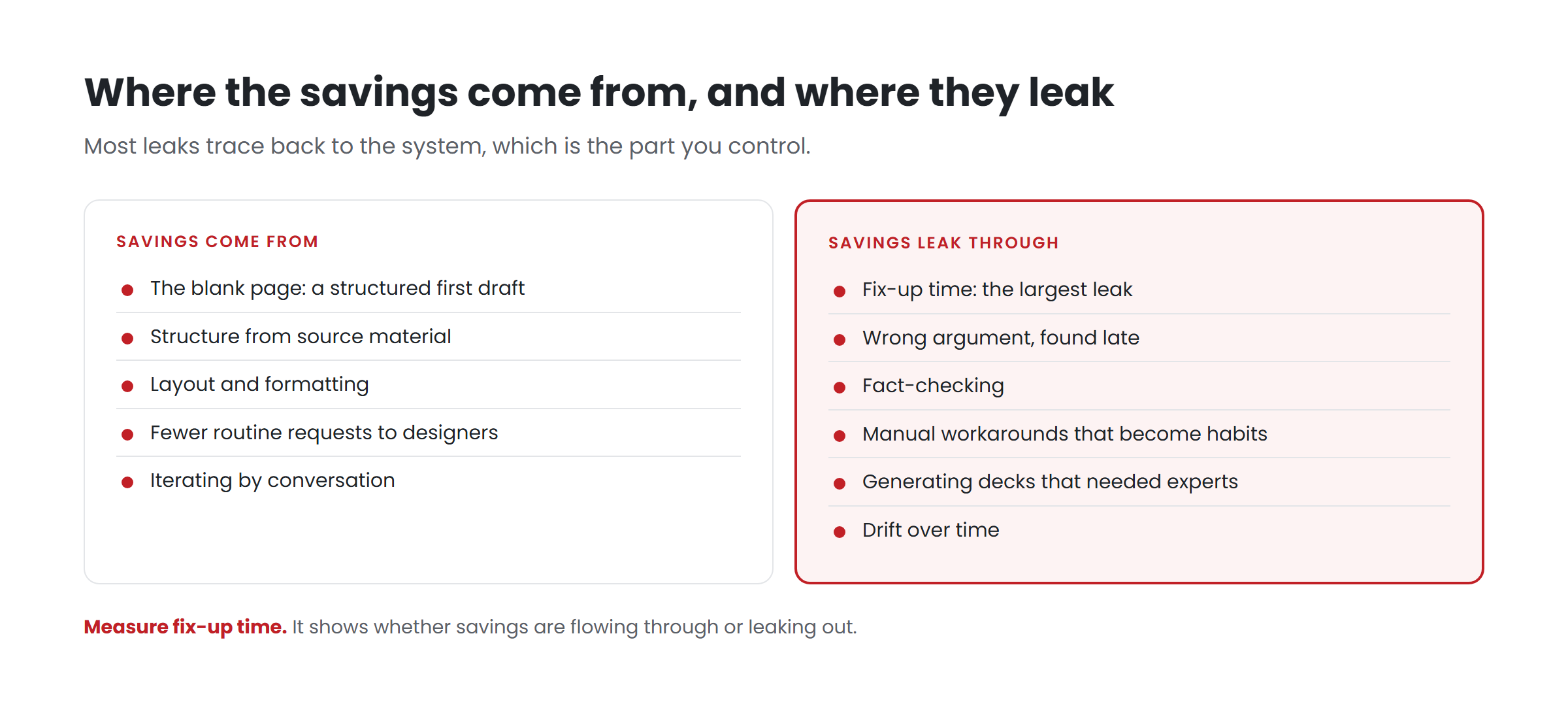
Diagram listing where presentation savings come from and the six places they leak, with fix-up time as the largest leak

Where the savings come from

1. The blank page

The hardest part of many decks is starting. Turning a document, a set of notes or a request into a structured first draft is exactly what Copilot is built to do. Microsoft’s workflow lets people start from a prompt or source material, answer clarifying questions, and shape an outline before any slides are generated.

2. Structure from source material

Much corporate presentation work is translation: a report becomes a briefing, a plan becomes an update. Copilot can draft that translation quickly, drawing on the source and, where available, its images.

3. Layout and formatting

Placing content into layouts, applying brand colors and fonts, sizing text — the mechanical part of slide-making. With a well-built template and an official Brand Kit, Copilot does much of this automatically.

4. Routine requests to designers

When employees can produce acceptable routine decks themselves, fewer “can you make this look right?” requests reach the design team or an agency. That’s the saving most likely to show up as reduced spending rather than freed time.

5. Iteration

Changing a deck by conversation — “make slide 3 a comparison,” “shorten every title” — can be faster than rebuilding slides by hand.

Where the savings leak

Leak 1: Fix-up time

The largest leak, and the one most often ignored. Every minute spent correcting a generated deck — restructuring, re-emphasizing, re-laying-out, recoloring charts — is subtracted from the time saved on drafting.

Main cause: a template that teaches Copilot poorly. Microsoft’s guidance is that Copilot learns primarily from a template’s sample slides and falls back to the Slide Master when there aren’t enough, “which may result in less optimal output.” Hardcoded colors, text boxes instead of placeholders, and missing examples all show up as fix-up.

Plug it: rebuild the template for how Copilot learns — theme-defined brand, real placeholders, example slides at realistic densities — and add written rules for recurring fixes.

Leak 2: Wrong argument, discovered late

A deck that’s well formatted but makes the wrong point, or makes it in the wrong order, often isn’t discovered until review — or until the meeting. Rebuilding the argument after slides exist costs more than getting it right before.

Plug it: teach one habit — fix the outline before generating slides. Microsoft’s workflow provides the outline step; it’s easy to skip.

Leak 3: Fact-checking

Microsoft states that generated presentations “should be human-reviewed and edited accordingly.” Checking every figure and claim against the source takes time, especially where a draft has summarized loosely.

Plug it: can’t be eliminated, and shouldn’t be. It can be reduced: written rules such as “include a source line under every statistic” make checking faster; a rule against inventing figures reduces what needs catching. Test that such rules actually hold.

Leak 4: Manual workarounds that become habits

When the template lacks a layout people need, they generate a deck and then rebuild the missing slide by hand — every time. With strict brand adherence on, Copilot can’t create the layout itself.

Plug it: sample real generated decks regularly, look for repeated manual fixes, and add the missing layout or example once.

Leak 5: Decks that shouldn’t have been generated

High-stakes presentations — board, investor, major pitch — are hard because of argument, audience and stakes. Generating them can create a polished draft that has to be substantially reworked by experienced people, sometimes after time has been lost believing it was nearly done.

Plug it: be explicit about which deck types go to Copilot and which start with experienced people, even if they use a generated draft as raw material.

Leak 6: Drift

A system that worked at launch degrades as the platform changes, the organization changes and examples go stale. Microsoft made two significant template-related changes in September 2026 alone. Degradation shows up as creeping fix-up time.

Plug it: a quarterly cycle — re-test with fixed prompts, review real output, fix the system, report.

The pattern

Look at the leaks together and a pattern appears. Most of them trace back to the system — the template, examples, rules and upkeep — rather than to the people or to Copilot itself. That’s good news, because the system is the part an organization controls, and a fix there applies to every future deck.

It’s also why we’d encourage anyone measuring Copilot’s value for presentations to measure fix-up time explicitly. It’s the single number that shows whether savings are flowing through or leaking out.

Key takeaways

  • Savings come from the blank page, structure from sources, formatting, fewer routine design requests and faster iteration.
  • They leak through fix-up time, late-discovered argument problems, fact-checking, manual workarounds, generating the wrong decks, and drift.
  • Most leaks trace back to the system — template, examples, rules and upkeep — which is the part you control.
  • Measure fix-up time; it tells you whether the savings are real.

Want to find your biggest leak? Have your template scored.**

Related reading

Sources

Your template is now the ceiling on every deck your company makes

For most of its life, a corporate PowerPoint template has been a modest asset. It set the colors and the logo, gave people a head start, and was mostly ignored by anyone who knew what they were doing. The best decks in the company were good despite the template, because a skilled person made them good.

That relationship has quietly inverted. With Copilot in PowerPoint generating presentations for employees, and Microsoft now letting organizations lock Copilot to their approved template, the template has become the ceiling on the quality of thousands of decks nobody in marketing will ever see. This is worth thinking through, because it changes what the template is worth and who should care about it.

How the template got promoted

Three changes, in sequence, turned the template from a starting point into a control point.

Copilot learns from it. Microsoft’s guidance for Copilot in PowerPoint describes the template’s sample slides as Copilot’s primary learning source, its placeholders as the map of where content goes, and its theme as the source of colors and fonts. When there aren’t enough sample slides, Microsoft says Copilot falls back to the Slide Master, “which may result in less optimal output.” In other words, Copilot’s output is shaped by what the template teaches.

Employees use Copilot for everyday decks. Updates, briefings, internal proposals, first drafts. The work that used to be done badly by hand, or waited in a design team’s queue, increasingly starts with a prompt.

The template can now be enforced. In September 2026, Microsoft introduced strict brand adherence, a Brand Kit setting that restricts Copilot to the approved template and slide master layouts. Copilot can’t create new layouts or add or remove placeholders, and employees can’t override the setting.

Put those together and the logic is simple. The template teaches Copilot. Copilot makes a large share of the company’s routine decks. And the template can now be made mandatory. So the template sets the upper limit on what those decks can be.

Ceiling, not floor

People often describe a template as a floor: it stops the worst mistakes — the wrong logo, the wrong colors. That was always true, and it still is.

What’s new is the ceiling. A skilled person using a weak template can rise above it, because they bring their own judgment about hierarchy, density and structure. Copilot learns those things from the template. If the template doesn’t demonstrate good hierarchy, Copilot doesn’t reliably produce it. If the template has no example of a strong data slide, generated data slides won’t be strong. If a layout for comparing options doesn’t exist, comparisons get squeezed into whatever does — and with strict mode on, there’s no escape hatch.

So a template that was “good enough” as a floor can be a very low ceiling.

Why this is a leadership issue, not a design detail

It’s tempting to treat this as a technical matter for the design team or IT. It’s more than that, for three reasons.

Scale. A weakness in one designer’s deck affects one deck. A weakness in the template affects every deck Copilot generates from it, every day, across the organization.

Invisibility. Most generated decks never pass through marketing. They go from an employee’s screen to a meeting room or an inbox. The first time leadership sees the template’s limits may be in a deck a customer received.

Accountability. When a generated deck embarrasses the company, someone will ask who was responsible for the template. In Microsoft 365, the honest answer is the brand manager — the role that controls the official Brand Kit and its template settings. If nobody has been deliberately given that role, the answer is nobody.

What a template worth locking looks like

If the template is now the ceiling, raising the ceiling means building a template for how Copilot learns, not just for how people use it. Concretely:

  • Theme-defined brand. Colors and fonts in the theme, not painted onto shapes, so everything Copilot creates inherits them.
  • Layouts for real jobs. One layout per real communication job — comparison, process, highlighted statistic, timeline — built from correctly typed, correctly sized placeholders.
  • Example slides that teach. Finished slides showing each job done well, at the light, medium and heavy densities Microsoft recommends, with realistic but durable content.
  • Rules where Copilot reads them. Note instructions in template speaker notes and Brand Skills published through Brand Kit, rather than guidance in a PDF.
  • Tested before it’s locked. A fixed set of realistic prompts, run before and after changes, so you know what the template actually produces.
  • Owned after launch. A named brand manager, and a routine for re-testing as Microsoft changes the product — which, in September 2026, it did twice.

None of this is exotic. It’s the work good presentation designers have always cared about. What’s changed is the return on it. The same effort that once improved one deck now improves every deck Copilot helps make.

The question to ask this quarter

If you lead marketing or brand, one question captures all of this: if we switched on strict brand adherence tomorrow, would we be happy with every deck our template produced?

If the honest answer is “I don’t know,” that’s the finding. The template is already shaping those decks, locked or not. The only choice is whether it does so on purpose.

Key takeaways

  • Copilot learns from your template, makes a growing share of routine decks, and can now be locked to the template.
  • That makes the template the ceiling on generated decks, not just a floor against mistakes.
  • Weaknesses scale, are invisible to marketing, and land on whoever owns the brand manager role.
  • Raise the ceiling with a theme-defined brand, real layouts, teaching examples, written rules, testing and ownership.

Would you be happy with every deck your template produces? Have your template scored and find out.

Related reading

Sources

The Copilot-ready template checklist

A corporate PowerPoint template used to have one audience: the people who opened it. If it was a little messy underneath — colors painted by hand, a few layouts built from text boxes, no guidance about when to use what — skilled people compensated.

Now it has a second audience. Copilot in PowerPoint learns from your template and applies what it learned to every presentation your employees generate. It does not compensate. It copies.

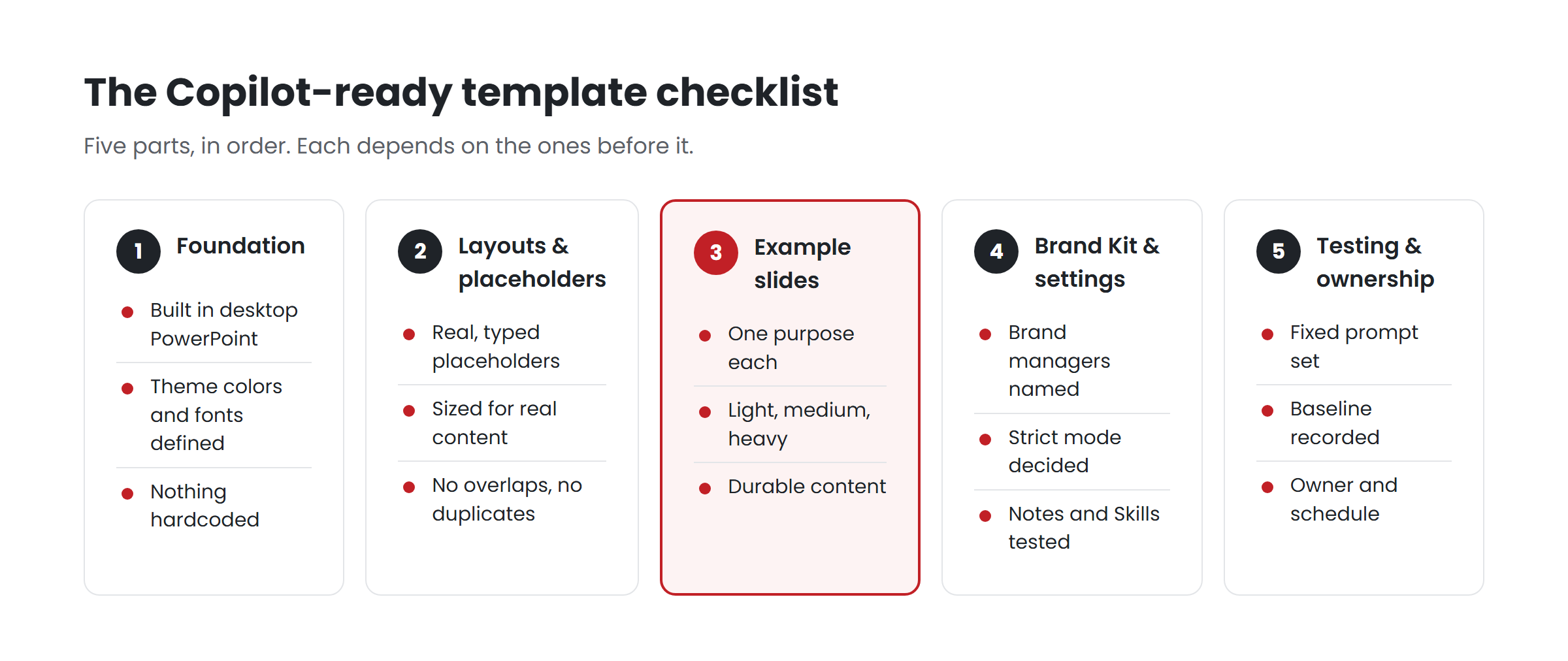
This checklist is what we use to judge whether a template is ready for that second audience. It starts with Microsoft’s published guidance, which is the baseline, and adds the checks that experience shows matter once real people start generating real decks. Work through it in order; each section depends on the ones before it.

Diagram of the five-part Copilot-ready template checklist: foundation, layouts and placeholders, example slides, Brand Kit and settings, testing and ownership

Part 1 — The foundation

☐ Built in desktop PowerPoint. Microsoft states that Copilot templates must be created in PowerPoint for Windows or Mac, not the web.

☐ One Slide Master (or a deliberate few). Multiple masters are sometimes justified — genuinely different formats or sub-brands. More often they are leftovers from merges and old versions. Every extra master is another set of layouts Copilot may choose from.

☐ Theme colors defined in the theme. Created through Slide Master > Colors > Create New Theme Colors, with the brand palette assigned to the theme slots, including accents used for charts. Microsoft recommends theme settings rather than manual formatting.

☐ Theme fonts defined in the theme. Heading and body fonts set in the theme, so anything Copilot creates inherits them.

☐ No hardcoded brand colors in layouts. Open each layout and check that shapes, text and lines use theme colors, not typed-in values. This is a common problem in corporate templates, and a damaging one, because hardcoded colors look right while teaching Copilot nothing.

☐ Chart, table and shape styles set. Microsoft recommends consistent styles for charts, icons, shapes and image placeholders. Default chart colors in a generated deck almost always trace back here.

Part 2 — Layouts and placeholders

☐ Every variable content area is a placeholder. Titles, subtitles, body text, images, charts, captions, dates. Microsoft recommends text placeholders instead of text boxes; Copilot uses placeholder type, position and size to decide what to generate and where.

☐ The right placeholder types. Picture placeholders for images, chart placeholders for charts, text for text. Generic content placeholders are flexible for people and ambiguous for a model.

☐ Placeholders sized for real content. Check a title placeholder against the titles your people actually write, not a designer’s four-word ideal.

☐ No overlaps. Microsoft advises keeping placeholders non-overlapping and ensuring objects’ negative space, especially around text, doesn’t overlap other elements.

☐ No decoration on content areas. Microsoft recommends avoiding decorative elements on top of text or image areas.

☐ Fixed elements on the layout, not in placeholders. Logos, footers, page numbers and legal lines as layout objects, so they appear consistently.

☐ Layouts named for their job. “Comparison — two options” rather than “Layout 14.” Names are for the people maintaining the template, and they force the question of what each layout is for.

☐ No duplicates and no orphans. Remove layouts that are near-identical to others, and layouts nobody uses. A bloated layout list gives Copilot more ways to choose badly.

☐ Coverage of what people actually make. Microsoft’s recommended slide types include title, agenda, section divider, content with text, icons and images, data visualization, timelines, processes, lists, quotes, Q&A, summary, conclusion and closing. Check each one you need has a layout.

Part 3 — Example slides

☐ Example slides exist. Microsoft is explicit: if a template doesn’t contain enough sample slides, Copilot falls back to the Slide Master, which may result in less optimal output. Templates built before Copilot often have no finished examples at all; they were never needed.

☐ One clear purpose per example. Microsoft recommends slide types “with a clear, recognizable purpose” and complete, end-to-end layouts demonstrating a single use case.

☐ Three densities. Light (titles only, generous whitespace), medium (balanced, e.g. text and a large image) and heavy (content-rich, minimal whitespace), per Microsoft’s guidance.

☐ Data shown well. Highlighted statistics, key takeaways, charts, tables, timelines, processes and diagrams, styled the way your brand presents data.

☐ Imagery shown the way your brand uses it. Full-bleed, inset, cropping and text-over-image treatments that reflect your real practice.

☐ Realistic, durable content. Example text written like real content, but containing nothing that would be wrong if copied into another deck — no market statistics, no dated figures, no customer names. Generative models can reproduce example content closely; a figure in an example can become a false fact in someone else’s deck.

☐ No instruction slides. Microsoft recommends keeping instructional or guidance content outside the template. “How to use this template” slides are examples too.

Part 4 — Brand Kit and settings

☐ Brand managers designated. Only designated brand managers can create and edit official Brand Kits. Name at least two.

☐ One official kit per real brand. Multiple kits are supported; use them for genuine sub-brands, not for competing versions of one.

☐ Approved assets curated. Logos, icons and imagery in the kit — or a curated SharePoint Organization Assets Library connected to it.

☐ Strict brand adherence decided deliberately. Restricts Copilot to approved layouts; employees can’t override it. Turn it on only after testing shows the layouts cover real content.

☐ Note instructions written where they help. Plain-language rules in template speaker notes: required slides, protected slides, density limits.

☐ Brand Skill drafted and tested. Short, specific, checkable rules for structure, writing, density and data — published only after testing.

Part 5 — Testing and ownership

☐ A fixed test prompt set exists. Realistic scenarios across densities, intents, content types and audiences — the same prompts every time.

☐ Baseline recorded. What the template produced before changes, so you can tell whether changes helped.

☐ Results reviewed by a designer. Not just “is it on brand” but “is this how we would structure it.”

☐ An owner and a schedule. Someone responsible for rerunning tests and updating the template, and a date to do it — at least quarterly, and after every significant Microsoft change.

How to use the checklist

Score each item yes, partly or no. A common pattern is a template that passes most of Part 1 at a glance, fails parts of Part 2, and has little or nothing in Part 3. That happens because Parts 1 and 2 were always visible to people, and Part 3 only became essential when a model started learning from the file.

Fix in order. Example slides built on a template with hardcoded colors will teach the hardcoded colors. Settings applied to a template with no examples will lock in the fallback behavior.

Key takeaways

  • Build the foundation first: theme colors, theme fonts and styles, with nothing hardcoded.
  • Every variable content area should be a correctly typed, correctly sized placeholder.
  • Example slides are the part most templates are missing, and the part Copilot learns from most.
  • Decide Brand Kit settings deliberately, after testing — not on launch day.
  • A fixed test prompt set and a named owner keep the template working as things change.

Want us to run this checklist on your template? Have your template scored.**

Related reading

Sources

Getting approved images into generated decks: Brand Kit and your asset library

Colors and fonts are the easy part of brand. They are defined once, in the theme, and applied everywhere. Imagery is harder. It is where brands carry most of their personality, and where generated decks most often go wrong: a stock photo that could belong to any company, a picture cropped through someone’s face, an image style your brand retired two years ago.

This post covers how imagery reaches Copilot-generated presentations, what controls you have over it, and how to teach Copilot not only which images are approved, but how your brand uses them.

Two separate questions

When people say “Copilot used the wrong image,” they usually mean one of two different problems:

  1. Source: the image itself isn’t approved — wrong library, off-brand photography, an outdated logo.
  2. Treatment: the image may be fine, but it’s used in a way your brand wouldn’t — wrong crop, wrong size, text laid over a busy area, a full-bleed photo where your brand uses a small inset.

The controls for each are different, so it helps to handle them separately.

Controlling the source: Brand Kit and the asset library

An official Brand Kit in the Microsoft Copilot app can hold approved imagery, icons and illustrations alongside your logos, palettes, fonts and templates. According to Microsoft’s documentation, it can also reference your SharePoint Organization Assets Library directly, so images already managed there don’t need to be uploaded again.

When an employee selects the brand kit in Copilot in PowerPoint, Copilot uses that kit’s approved templates, colors, fonts and assets.

For brand teams, this points to some practical housekeeping before launch:

  • Curate before you connect. If your asset library holds every photo ever approved, including retired campaigns, connecting it hands all of them to Copilot. Prune first, or connect a curated subset.
  • Keep logos current and complete. Microsoft notes kits can hold primary and secondary logos and variations. Include the versions you want used — and remove the ones you don’t.
  • Decide on icons. If your brand has an icon set, put it in the kit. Otherwise, generated slides will draw icons from elsewhere, in styles that won’t match.
  • Name and describe assets well. A library organized for people who browse visually may be hard for anything else to navigate. Clear names and descriptions help both.
  • Coordinate with IT. The asset library lives in SharePoint, and its permissions are IT’s. Official Brand Kits are controlled by designated brand managers. The two need to agree on who maintains what.

Controlling the treatment: example slides and placeholders

Approved images can still be used badly. Treatment is taught by the template, not the asset library.

Show how your brand uses images. Microsoft’s template guidance recommends including examples “that reflect how your brand uses images,” demonstrating composition and layout styles — for example, “full bleed background images on title slides or inset images on content slides.” If your brand has a distinctive treatment — duotones, circular crops, a consistent photo position — the example slides are where Copilot learns it.

Use picture placeholders. Microsoft notes that Copilot recognizes picture placeholders and places images in the appropriate position. A layout with a real picture placeholder tells Copilot where an image belongs and how large it should be. A layout where the image area is just a drawn shape tells it nothing.

Keep decoration off image areas. Microsoft recommends avoiding decorative elements placed on top of text or image areas. A brand graphic that overlaps a picture placeholder may look intentional when a designer chose the photo, and wrong when a model did.

Define image placeholder styles in the template. Microsoft suggests applying consistent styles for image placeholders, alongside chart, icon and shape styles. Borders, corner rounding and crop shapes set on the placeholder carry through to every generated slide.

Demonstrate text over images carefully. If your brand lays titles over photographs, show it in examples where the image has clear space for text. Examples teach patterns; if every example has text over a calm sky, Copilot learns something about where text should sit.

Generated images

Copilot can also generate images. Whether that is appropriate for your brand is a policy decision, not a technical one. Some organizations welcome generated illustrations for internal decks; others restrict imagery to photography of real people, places and products. Whichever you choose, write it down — in your Brand Skill or presentation standards — and test that generated decks respect it.

A useful rule for many brands: generated imagery for concepts and abstract illustrations; approved photography for anything that depicts your people, customers, products or places.

Testing imagery specifically

Imagery problems are easy to miss in a quick review, because a slide with a good-looking photo feels finished. When you test a template or Brand Kit, include prompts that specifically demand imagery:

  • a title slide for a customer event;
  • a slide introducing a team;
  • a content slide about a product;
  • a section divider;
  • a slide about a place or region.

For each, check source (is the image approved?) and treatment (is it cropped, sized and positioned the way your brand would?). Record what you see, fix the template or kit, and rerun the same prompts. Repeat whenever the kit, the template or Microsoft’s product changes.

Key takeaways

  • Separate image source (is it approved?) from treatment (is it used the way your brand uses images?).
  • Control source through an official Brand Kit and a curated SharePoint Organization Assets Library.
  • Control treatment through example slides that show your image style, real picture placeholders, and image placeholder styles in the template.
  • Decide and write down your policy on generated images.
  • Test imagery with prompts that demand it, and retest after every change.

Want your image style built into what Copilot learns from? Have your template scored.**

Related reading

Sources