Colors and fonts are the easy part of brand. They are defined once, in the theme, and applied everywhere. Imagery is harder. It is where brands carry most of their personality, and where generated decks most often go wrong: a stock photo that could belong to any company, a picture cropped through someone’s face, an image style your brand retired two years ago.
This post covers how imagery reaches Copilot-generated presentations, what controls you have over it, and how to teach Copilot not only which images are approved, but how your brand uses them.
Two separate questions
When people say “Copilot used the wrong image,” they usually mean one of two different problems:
- Source: the image itself isn’t approved — wrong library, off-brand photography, an outdated logo.
- Treatment: the image may be fine, but it’s used in a way your brand wouldn’t — wrong crop, wrong size, text laid over a busy area, a full-bleed photo where your brand uses a small inset.
The controls for each are different, so it helps to handle them separately.
Controlling the source: Brand Kit and the asset library
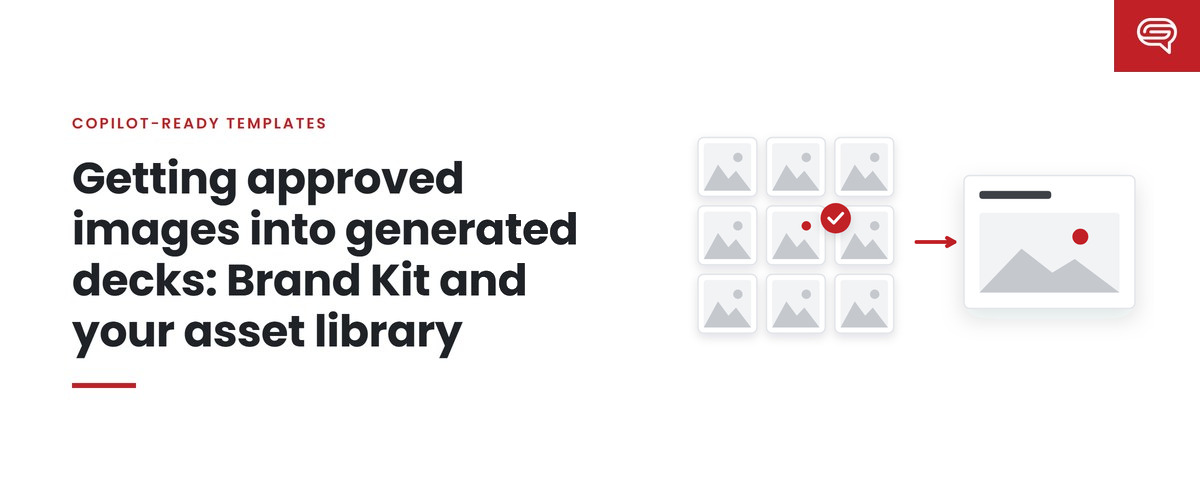
An official Brand Kit in the Microsoft Copilot app can hold approved imagery, icons and illustrations alongside your logos, palettes, fonts and templates. According to Microsoft’s documentation, it can also reference your SharePoint Organization Assets Library directly, so images already managed there don’t need to be uploaded again.
When an employee selects the brand kit in Copilot in PowerPoint, Copilot uses that kit’s approved templates, colors, fonts and assets.
For brand teams, this points to some practical housekeeping before launch:
- Curate before you connect. If your asset library holds every photo ever approved, including retired campaigns, connecting it hands all of them to Copilot. Prune first, or connect a curated subset.
- Keep logos current and complete. Microsoft notes kits can hold primary and secondary logos and variations. Include the versions you want used — and remove the ones you don’t.
- Decide on icons. If your brand has an icon set, put it in the kit. Otherwise, generated slides will draw icons from elsewhere, in styles that won’t match.
- Name and describe assets well. A library organized for people who browse visually may be hard for anything else to navigate. Clear names and descriptions help both.
- Coordinate with IT. The asset library lives in SharePoint, and its permissions are IT’s. Official Brand Kits are controlled by designated brand managers. The two need to agree on who maintains what.
Controlling the treatment: example slides and placeholders
Approved images can still be used badly. Treatment is taught by the template, not the asset library.
Show how your brand uses images. Microsoft’s template guidance recommends including examples “that reflect how your brand uses images,” demonstrating composition and layout styles — for example, “full bleed background images on title slides or inset images on content slides.” If your brand has a distinctive treatment — duotones, circular crops, a consistent photo position — the example slides are where Copilot learns it.
Use picture placeholders. Microsoft notes that Copilot recognizes picture placeholders and places images in the appropriate position. A layout with a real picture placeholder tells Copilot where an image belongs and how large it should be. A layout where the image area is just a drawn shape tells it nothing.
Keep decoration off image areas. Microsoft recommends avoiding decorative elements placed on top of text or image areas. A brand graphic that overlaps a picture placeholder may look intentional when a designer chose the photo, and wrong when a model did.
Define image placeholder styles in the template. Microsoft suggests applying consistent styles for image placeholders, alongside chart, icon and shape styles. Borders, corner rounding and crop shapes set on the placeholder carry through to every generated slide.
Demonstrate text over images carefully. If your brand lays titles over photographs, show it in examples where the image has clear space for text. Examples teach patterns; if every example has text over a calm sky, Copilot learns something about where text should sit.
Generated images
Copilot can also generate images. Whether that is appropriate for your brand is a policy decision, not a technical one. Some organizations welcome generated illustrations for internal decks; others restrict imagery to photography of real people, places and products. Whichever you choose, write it down — in your Brand Skill or presentation standards — and test that generated decks respect it.
A useful rule for many brands: generated imagery for concepts and abstract illustrations; approved photography for anything that depicts your people, customers, products or places.
Testing imagery specifically
Imagery problems are easy to miss in a quick review, because a slide with a good-looking photo feels finished. When you test a template or Brand Kit, include prompts that specifically demand imagery:
- a title slide for a customer event;
- a slide introducing a team;
- a content slide about a product;
- a section divider;
- a slide about a place or region.
For each, check source (is the image approved?) and treatment (is it cropped, sized and positioned the way your brand would?). Record what you see, fix the template or kit, and rerun the same prompts. Repeat whenever the kit, the template or Microsoft’s product changes.
Key takeaways
- Separate image source (is it approved?) from treatment (is it used the way your brand uses images?).
- Control source through an official Brand Kit and a curated SharePoint Organization Assets Library.
- Control treatment through example slides that show your image style, real picture placeholders, and image placeholder styles in the template.
- Decide and write down your policy on generated images.
- Test imagery with prompts that demand it, and retest after every change.
Want your image style built into what Copilot learns from? Have your template scored.**
Related reading
- Brand Kit in Microsoft 365 Copilot, explained for brand teams
- Placeholders, not text boxes: why Copilot ignores what your placeholders say
- Where Copilot reads your brand from: a map of the five inputs
Sources
- Microsoft Support, Create and manage official Brand kits in the Microsoft Copilot app (July 2026)
- Microsoft Support, Keep your presentation on-brand with Copilot (July 2026)
- Microsoft Tech Community, PowerPoint: Edit with Copilot, Brand Kit and Image Gen — March 2026 M365 Champions call (March 2026)