A corporate PowerPoint template used to have one audience: the people who opened it. If it was a little messy underneath — colors painted by hand, a few layouts built from text boxes, no guidance about when to use what — skilled people compensated.
Now it has a second audience. Copilot in PowerPoint learns from your template and applies what it learned to every presentation your employees generate. It does not compensate. It copies.
This checklist is what we use to judge whether a template is ready for that second audience. It starts with Microsoft’s published guidance, which is the baseline, and adds the checks that experience shows matter once real people start generating real decks. Work through it in order; each section depends on the ones before it.
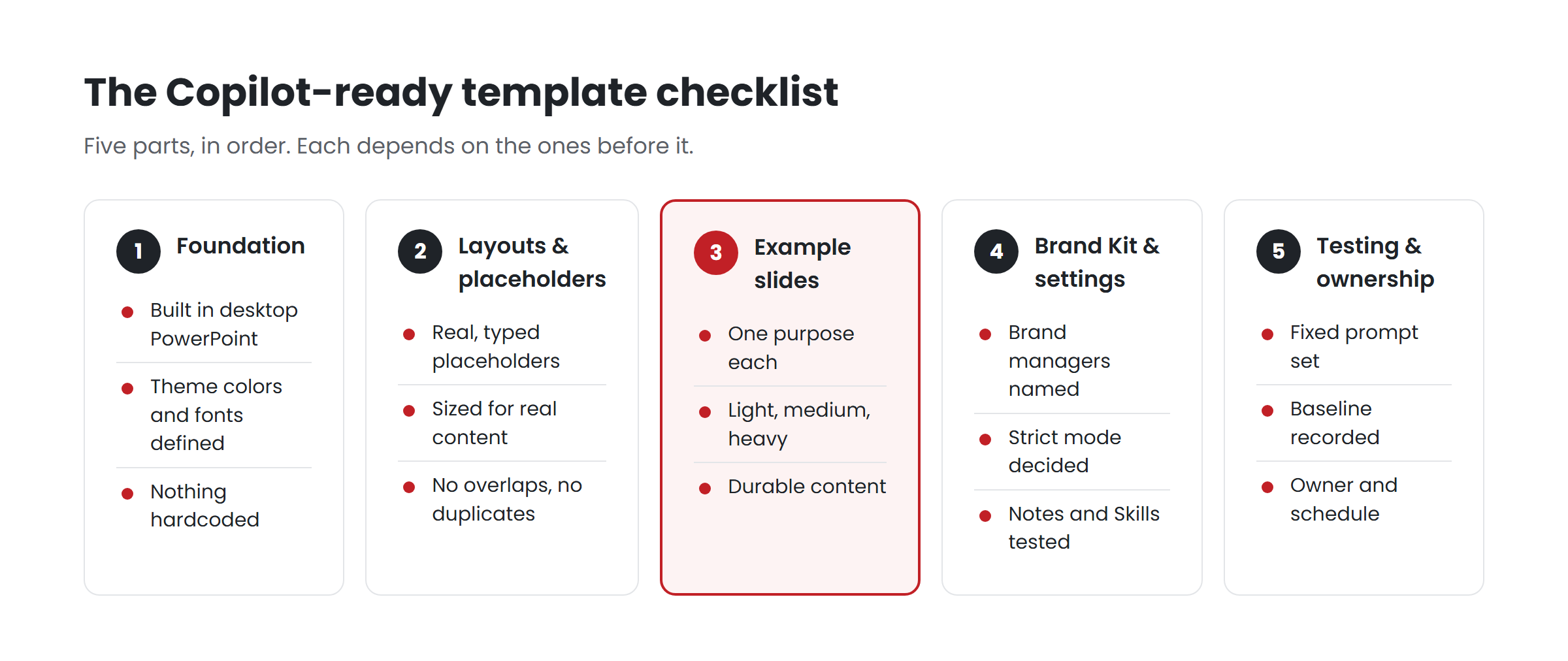
Part 1 — The foundation
☐ Built in desktop PowerPoint. Microsoft states that Copilot templates must be created in PowerPoint for Windows or Mac, not the web.
☐ One Slide Master (or a deliberate few). Multiple masters are sometimes justified — genuinely different formats or sub-brands. More often they are leftovers from merges and old versions. Every extra master is another set of layouts Copilot may choose from.
☐ Theme colors defined in the theme. Created through Slide Master > Colors > Create New Theme Colors, with the brand palette assigned to the theme slots, including accents used for charts. Microsoft recommends theme settings rather than manual formatting.
☐ Theme fonts defined in the theme. Heading and body fonts set in the theme, so anything Copilot creates inherits them.
☐ No hardcoded brand colors in layouts. Open each layout and check that shapes, text and lines use theme colors, not typed-in values. This is a common problem in corporate templates, and a damaging one, because hardcoded colors look right while teaching Copilot nothing.
☐ Chart, table and shape styles set. Microsoft recommends consistent styles for charts, icons, shapes and image placeholders. Default chart colors in a generated deck almost always trace back here.
Part 2 — Layouts and placeholders
☐ Every variable content area is a placeholder. Titles, subtitles, body text, images, charts, captions, dates. Microsoft recommends text placeholders instead of text boxes; Copilot uses placeholder type, position and size to decide what to generate and where.
☐ The right placeholder types. Picture placeholders for images, chart placeholders for charts, text for text. Generic content placeholders are flexible for people and ambiguous for a model.
☐ Placeholders sized for real content. Check a title placeholder against the titles your people actually write, not a designer’s four-word ideal.
☐ No overlaps. Microsoft advises keeping placeholders non-overlapping and ensuring objects’ negative space, especially around text, doesn’t overlap other elements.
☐ No decoration on content areas. Microsoft recommends avoiding decorative elements on top of text or image areas.
☐ Fixed elements on the layout, not in placeholders. Logos, footers, page numbers and legal lines as layout objects, so they appear consistently.
☐ Layouts named for their job. “Comparison — two options” rather than “Layout 14.” Names are for the people maintaining the template, and they force the question of what each layout is for.
☐ No duplicates and no orphans. Remove layouts that are near-identical to others, and layouts nobody uses. A bloated layout list gives Copilot more ways to choose badly.
☐ Coverage of what people actually make. Microsoft’s recommended slide types include title, agenda, section divider, content with text, icons and images, data visualization, timelines, processes, lists, quotes, Q&A, summary, conclusion and closing. Check each one you need has a layout.
Part 3 — Example slides
☐ Example slides exist. Microsoft is explicit: if a template doesn’t contain enough sample slides, Copilot falls back to the Slide Master, which may result in less optimal output. Templates built before Copilot often have no finished examples at all; they were never needed.
☐ One clear purpose per example. Microsoft recommends slide types “with a clear, recognizable purpose” and complete, end-to-end layouts demonstrating a single use case.
☐ Three densities. Light (titles only, generous whitespace), medium (balanced, e.g. text and a large image) and heavy (content-rich, minimal whitespace), per Microsoft’s guidance.
☐ Data shown well. Highlighted statistics, key takeaways, charts, tables, timelines, processes and diagrams, styled the way your brand presents data.
☐ Imagery shown the way your brand uses it. Full-bleed, inset, cropping and text-over-image treatments that reflect your real practice.
☐ Realistic, durable content. Example text written like real content, but containing nothing that would be wrong if copied into another deck — no market statistics, no dated figures, no customer names. Generative models can reproduce example content closely; a figure in an example can become a false fact in someone else’s deck.
☐ No instruction slides. Microsoft recommends keeping instructional or guidance content outside the template. “How to use this template” slides are examples too.
Part 4 — Brand Kit and settings
☐ Brand managers designated. Only designated brand managers can create and edit official Brand Kits. Name at least two.
☐ One official kit per real brand. Multiple kits are supported; use them for genuine sub-brands, not for competing versions of one.
☐ Approved assets curated. Logos, icons and imagery in the kit — or a curated SharePoint Organization Assets Library connected to it.
☐ Strict brand adherence decided deliberately. Restricts Copilot to approved layouts; employees can’t override it. Turn it on only after testing shows the layouts cover real content.
☐ Note instructions written where they help. Plain-language rules in template speaker notes: required slides, protected slides, density limits.
☐ Brand Skill drafted and tested. Short, specific, checkable rules for structure, writing, density and data — published only after testing.
Part 5 — Testing and ownership
☐ A fixed test prompt set exists. Realistic scenarios across densities, intents, content types and audiences — the same prompts every time.
☐ Baseline recorded. What the template produced before changes, so you can tell whether changes helped.
☐ Results reviewed by a designer. Not just “is it on brand” but “is this how we would structure it.”
☐ An owner and a schedule. Someone responsible for rerunning tests and updating the template, and a date to do it — at least quarterly, and after every significant Microsoft change.
How to use the checklist
Score each item yes, partly or no. A common pattern is a template that passes most of Part 1 at a glance, fails parts of Part 2, and has little or nothing in Part 3. That happens because Parts 1 and 2 were always visible to people, and Part 3 only became essential when a model started learning from the file.
Fix in order. Example slides built on a template with hardcoded colors will teach the hardcoded colors. Settings applied to a template with no examples will lock in the fallback behavior.
Key takeaways
- Build the foundation first: theme colors, theme fonts and styles, with nothing hardcoded.
- Every variable content area should be a correctly typed, correctly sized placeholder.
- Example slides are the part most templates are missing, and the part Copilot learns from most.
- Decide Brand Kit settings deliberately, after testing — not on launch day.
- A fixed test prompt set and a named owner keep the template working as things change.
Want us to run this checklist on your template? Have your template scored.**
Related reading
- Getting approved images into generated decks: Brand Kit and your asset library
- Placeholders, not text boxes: why Copilot ignores what your placeholders say
- Where Copilot reads your brand from: a map of the five inputs
Sources
- Microsoft Support, Keep your presentation on-brand with Copilot (July 2026)
- Microsoft Support, Manage template settings in your Brand Kit for Copilot in PowerPoint (August 2026)
- Microsoft Support, Create and manage official Brand kits (July 2026)
- Microsoft 365 Message Center, MC1473166 — Brand Skill support (16 Sep 2026)