Copilot and your designers: which work belongs to whom

When Copilot arrives in an organization, in-house designers often hear one question underneath all the others: does this replace us?

It is the wrong question, but it deserves a straight answer. Copilot takes over a category of work that designers have long carried and rarely enjoyed: the routine internal deck. It does not take over the work that needs judgment, and it creates a new category of work that only designers are equipped to do well. The teams that do best are the ones that redraw the line on purpose, rather than waiting for it to move on its own.
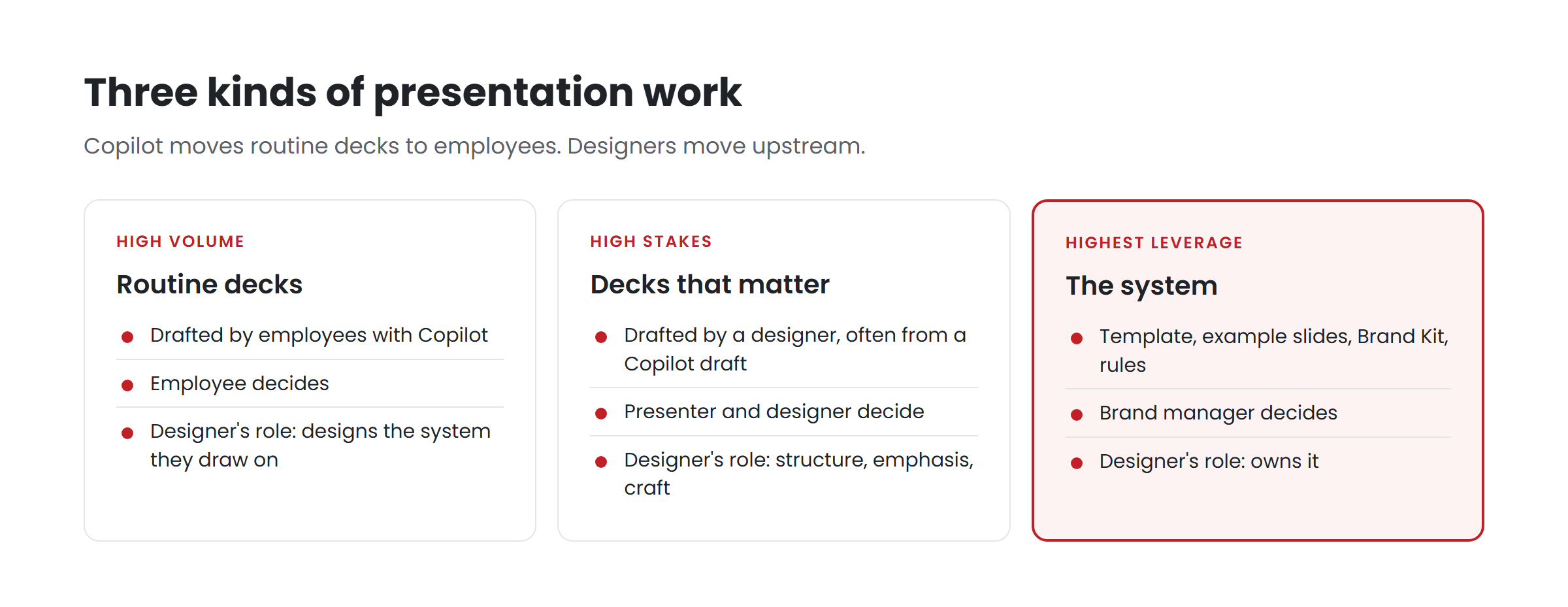
Diagram of three kinds of presentation work: routine decks drafted by employees with Copilot, decks that matter led by designers, and the system owned by designers

Three kinds of presentation work

It helps to stop thinking about “presentations” as one kind of work. In most organizations, there are three.

Routine decks. Weekly updates, project status, team meetings, internal briefings, first drafts. High volume, moderate stakes, repetitive structure. Historically these either consumed designer time or were built badly by the people who needed them.

Decks that matter. Board presentations, investor materials, keynotes, major pitches, executive announcements. Lower volume, high stakes, specific audiences. Their difficulty is the argument and the emphasis, not the formatting.

The system. The template, its example slides, the Brand Kit, and the written rules that decide what everyone else produces. Historically this was a periodic project — a rebrand, a template refresh. With Copilot it becomes an ongoing responsibility.

Who should do each

Work Who drafts Who decides Designer’s role
Routine decks Employees with Copilot Employee Designs the system they draw on
Decks that matter A designer, often starting from a Copilot draft Presenter and designer together Structure, emphasis, craft
The system Designers Brand manager Owns it

The shift is in the first row. Routine decks move from “designer builds it” or “employee struggles with it” to “employee generates it from a system designers built.” The designer’s influence doesn’t disappear. It moves upstream, into the template and rules that shape thousands of decks instead of dozens.

Why the system is design work

There is a temptation to treat Copilot setup as an IT task. The settings are. Designating brand managers, uploading a template, switching on strict brand adherence — an administrator can do those in an afternoon.

But what Copilot learns from is not the settings. Microsoft’s guidance is that Copilot learns primarily from a template’s sample slides, uses placeholder type, position and size to place content, and draws colors and fonts from the theme. It recommends example slides across the slide types an organization actually uses — agendas, data, timelines, processes, quotes, summaries — at light, medium and heavy densities, showing how the brand uses color, typography and imagery.

That is a body of design work. Deciding which slide types the organization actually needs, designing examples that demonstrate good hierarchy and emphasis, sizing placeholders for real content, choosing when a full-bleed image is right and when an inset works better — these are the judgments designers make every day. The difference is that each example now teaches a model, and the model applies the lesson at scale.

What designers get back

When routine decks move to Copilot, the most immediate change is time. The weekly request for “just tidy up these slides” becomes less frequent, because the slides come out of Copilot already in a usable structure and the brand’s visual language.

That time is worth redirecting deliberately, toward:

  • The decks that matter, which rarely got enough attention when the queue was full of routine work.
  • The system, which now determines the quality of everything else.
  • Review, especially early on: looking at what employees actually generate, spotting patterns in what goes wrong, and fixing the template or rules rather than fixing slides one at a time.

That last one is a real change in how designers work. Fixing a slide helps one deck. Fixing the example slide that taught Copilot the mistake helps every future deck.

What to say to your design team

If you lead a creative team, a few messages are worth being explicit about:

  • The routine queue will shrink, and that is the point. Nobody’s value was in reformatting status updates.
  • You own the system. The template, the examples and the rules are design assets, and the brand manager relies on you to make them good.
  • Your approval matters more, not less. Every example slide in the template is a pattern Copilot will repeat. Designers should approve them.
  • The decks that matter still need you. Generated first drafts can make those projects faster to start; the decisions still need a designer.

We would avoid framing any of this as “doing more with fewer designers.” That framing tends to produce a team that resists the system. Framed as “stop producing routine decks and get the strategic work back,” the same change is usually something designers ask for.

A practical first step

Take last month’s design requests and sort them into the three categories: routine, decks that matter, system. You may find the routine pile is larger than you expected. That pile is the opportunity — and the template Copilot learns from is how you capture it.

Common questions

Will Copilot reduce the need for in-house designers?
It changes what designers spend time on more than whether they are needed. Routine decks move toward employees working from a well-built system; the template, its example slides, the written rules and the decks that matter all still need design judgment. Microsoft describes sample slides as Copilot’s primary learning source, and designing those is skilled work.

Should designers edit generated decks or fix the template?
Both, but in different proportions than before. For a high-stakes deck, editing the deck is right. For a problem that keeps recurring across many generated decks, fixing the example slide, layout or rule that caused it is far better value, because the fix applies to every future deck.

Who should approve example slides?
Designers should create them and whoever owns the brand should approve them. Every example is a pattern Copilot may repeat at scale, so approval deserves the same care as approving a campaign asset.

Key takeaways

  • There are three kinds of presentation work: routine decks, decks that matter, and the system.
  • Copilot takes over routine decks; designers move upstream to design the system everyone draws on.
  • What Copilot learns from — example slides, placeholders, theme — is design work, not an IT setting.
  • Fix patterns in the template, not slides one at a time.
  • Keep designers on the decks that matter, and on approving the examples Copilot will repeat.

Want your designers’ judgment built into what Copilot learns from? Have your template scored.**

Related reading

Sources

What Copilot in PowerPoint still can’t do

Every Copilot rollout eventually hits the same moment. Someone sends a generated deck that looks finished and says something wrong, or says the right thing in a way nobody would present. The reaction is usually either “Copilot doesn’t work” or “people need better prompts.” Both are too simple.

Copilot in PowerPoint is genuinely useful. It is also a generative model with specific, predictable limits. Knowing those limits is what lets you decide which work to hand it, which to keep, and which gaps a better template can close. This post lists them plainly.

1. It can’t know what you’re trying to achieve

Copilot works from the prompt and the material you give it. It can structure that material into a presentation. It cannot know that the real goal is to get a budget approved, that the audience is skeptical, or that the most important fact is buried in an appendix.

What closes the gap: a person who knows the intent. Describe the audience and the decision you need in the prompt, and fix the outline before any slides are generated. Microsoft’s workflow lets you do both.

What doesn’t: a better template. Intent is not a design problem.

2. It can’t guarantee accuracy

Microsoft’s documentation says the output of the create-a-presentation feature “is AI-generated content and should be human-reviewed and edited accordingly.” That is the correct stance. Generated slides can summarize incorrectly, drop a qualifier that changes a number’s meaning, or state something with more confidence than the source supports.

What closes the gap: review against the source — every number, name and date — before a deck leaves the building. Brand Skills can add rules like “include a source line under every statistic,” which make review faster. They don’t replace it.

3. It can’t reliably make judgment calls about emphasis

Deciding what matters most on a slide, and making that thing the most visible, is one of the harder skills in presentation design. Copilot applies patterns. When the pattern fits, emphasis is fine. When the content is unusual — a small number that is the headline, a caveat that changes everything — the emphasis often lands in the wrong place.

What closes the gap, partly: example slides in the template that demonstrate your emphasis patterns — highlighted statistics, key takeaways, a single message per slide. Microsoft recommends including layouts for highlighted statistics and key takeaways for exactly this reason. For high-stakes slides, a person’s judgment is still the fix.

4. It can’t do better than the template it learns from

This is the limit organizations most often misdiagnose as a Copilot problem. Microsoft’s guidance is that Copilot learns primarily from a template’s sample slides, uses placeholder type, position and size to decide where content goes, and “falls back to the Slide Master” when there aren’t enough sample slides.

So a template with hardcoded colors, text boxes instead of placeholders and no finished examples produces generic slides, however good the prompt. With strict brand adherence switched on, Copilot can’t even improvise around the gaps.

What closes the gap: rebuilding the template for how Copilot reads it — theme-linked colors and fonts, real placeholders sized for real content, and a set of example slides covering the slide types and densities your people actually use.

5. It can’t read instructions you put in the wrong place

Microsoft is explicit that Copilot does not treat placeholder text as instructions. “Insert three bullets, max ten words each” in a placeholder is a note for a person, not a rule for the model.

What closes the gap: putting rules where Copilot reads them. Since September 2026, brand managers can write note instructions in template speaker notes and publish Brand Skills — written rules — through Brand Kit.

6. It can’t guarantee it follows every rule every time

Even rules in the right place are influence, not code. Strict brand adherence constrains which layouts Copilot uses; note instructions and Brand Skills guide it. A generative model will still occasionally ignore or misapply an instruction.

What closes the gap: testing. A fixed set of realistic prompts, run before and after every change, tells you which rules are working and how often. It also tells you when Microsoft’s changes have altered behavior — which, in September 2026, happened twice.

7. It can’t hold a consistent standard across people on its own

Two employees asking for “a project update” will get different decks, because they wrote different prompts, started from different files and gave different source material. Copilot doesn’t enforce consistency by itself.

What closes the gap: central controls. An official Brand Kit, a single approved template, strict brand adherence, note instructions and Brand Skills all push output toward one standard regardless of who prompts. This is the strongest argument for investing in the template and rules rather than in prompt training alone.

8. It can’t replace the work that carries the most risk

Board presentations, investor decks, keynotes, major pitches, sensitive internal announcements. These are rarely hard because of formatting. They are hard because the stakes are high, the audience is specific and the argument has to be exactly right. Copilot can help draft them. The decisions that make them work are human.

What closes the gap: keeping experienced people — in-house or outside — on the decks that matter, and letting Copilot take the routine ones.

A useful way to sort the work

Put simply, Copilot’s limits fall into three groups:

Limit Fixed by
Generic look, wrong layouts, off-brand output The system: template, Brand Kit, strict mode, notes, skills
Inconsistent behavior, drift over time Testing and oversight: a fixed prompt set, rerun regularly
Intent, accuracy, emphasis, high stakes People: review, judgment, and designers for the decks that matter

The instinct is to invest in the third group through training and review, and to neglect the first. That is backwards. The first group is where a single investment improves every deck every employee generates.

Key takeaways

  • Copilot can’t know your intent, guarantee accuracy or make reliable judgment calls on emphasis.
  • It can’t outperform the template it learns from — the most common cause of generic output.
  • It ignores instructions in placeholders; use note instructions and Brand Skills instead.
  • Rules influence it but don’t bind it, so test and retest.
  • Fix look and consistency with the system, drift with oversight, and intent and stakes with people.

Seeing generic output? Find out whether the template is the cause. Have your template scored.**

Related reading

Sources

From prompt to deck: what happens when Copilot creates a presentation

Most people meet Copilot in PowerPoint the same way. They type a sentence, wait a few seconds, and get ten slides. Sometimes the slides are useful. Sometimes they are a polished version of the wrong presentation.

The difference is rarely the model. It is usually what happened — or didn’t happen — at each step before the slides appeared. This post walks through those steps, based on Microsoft’s documentation as of September 2026, and shows where a few minutes of attention make the biggest difference.

Step 0: Start from the right file

Before you prompt, open the right starting point. Microsoft recommends that if your organization uses a standard presentation template, you start with that file before creating a presentation with Copilot, so the presentation keeps its theme and design.

If your organization has set up an official Brand Kit, you can instead select it in the Copilot pane — through the + button and Select brand — so Copilot works from the kit’s approved templates, colors, fonts and assets.

This single choice decides more about how the deck will look than anything you type afterwards. A blank default file gives Copilot nothing to learn from about your brand.

Step 1: Describe the presentation, not just the topic

You open the Copilot pane and describe the presentation you want. The weakest prompts name a topic: “Q3 results.” The strongest describe a presentation:

  • Who it is for: “for the regional leadership team, who know the business well.”
  • What they should do afterwards: “so they approve the budget shift to the northern region.”
  • How long: “about eight slides.”
  • What it’s built from: “using the attached quarterly report.”
  • Any constraints: “lead with the recommendation; keep financial detail in an appendix.”

That is still only three or four sentences. But it hands Copilot the things it cannot infer: audience, purpose and priority.

Step 2: Answer the clarifying questions

Microsoft’s documentation notes that Copilot may ask clarifying questions before drafting — for example about the target audience, and about presentation and image style. Treat these as a gift rather than an interruption. Every question Copilot asks is something it would otherwise have guessed.

If Copilot does not ask about something you know matters — the decision you need, the objection you expect — add it.

Step 3: Fix the outline before any slides exist

Copilot then proposes an outline, which you can refine before it generates slides. This is the most valuable step in the whole process, and the easiest to skip.

The outline is the argument. It decides what comes first, what is grouped together, and what is left out. Changing it takes seconds. Changing the same thing after slides exist means regenerating or rebuilding them.

A quick outline check:

  • Is the main point in the first two slides, or buried at the end?
  • Does each slide carry one idea?
  • Is anything there only because it was in the source document, not because this audience needs it?
  • Is anything missing that the audience will ask about?

Step 4: Generate the slides

Now Copilot builds slides from the outline, using your template. This is where the template’s quality becomes visible. Copilot learns from the template’s sample slides, uses its placeholders to decide what goes where, and applies its theme colors and fonts. Where the template lacks enough example slides, Microsoft notes that Copilot falls back to the Slide Master, which may produce less optimal output.

If your brand managers have turned on strict brand adherence, Copilot will use only the approved layouts and cannot add or remove placeholders. If they have written note instructions into the template, Copilot follows those too — for example, always including a particular cover slide.

You don’t control any of this from the prompt. It is decided by whoever owns the template and the Brand Kit.

Step 5: Refine by conversation

Once the slides exist, you can keep working with Copilot to add, remove, edit and refine them. Useful follow-ups are specific:

  • “Make slide 3 a comparison of the two options with pros and cons.”
  • “Shorten every slide title to a single sentence stating the takeaway.”
  • “Move the detailed figures on slide 5 to the notes.”
  • “Add a final slide with next steps, owners and dates.”

Vague follow-ups (“make it better,” “more professional”) tend to produce changes that are different rather than better.

Step 6: Review like it’s going to be sent

Microsoft is direct about this: the output of the create-a-presentation feature “is AI-generated content and should be human-reviewed and edited accordingly.”

A practical review, in the order that catches the most important problems first:

  1. Facts. Every number, name and date against the source. Generated text can state things confidently that the source does not support.
  2. Argument. Does the deck make the point you need, in the order the audience needs?
  3. Emphasis. Is the most important thing on each slide the most visible thing?
  4. Density. Anything too crowded to read in the time the slide will be on screen?
  5. Brand. Colors, fonts, imagery and tone.

Note what brand comes last. With a well-built template and Brand Kit, brand problems should be the rarest. The first four are the ones only a person can judge.

A few practical limits

Microsoft’s documentation lists some constraints worth knowing: only one output language is supported at a time; Word source files must be under 24 MB; and in the newer Agent Mode experience, referencing files is described as “coming soon.” Copilot in PowerPoint is available in PowerPoint for Microsoft 365 on Windows and Mac and on iPad, subject to your organization’s licensing and settings.

What makes the biggest difference

If you only change two habits, make them these: start from your organization’s template or Brand Kit, and fix the outline before generating slides. The first gives Copilot the right visual language. The second gives it the right argument. Everything else is refinement.

And if your team consistently gets well-structured but visually generic slides even after doing both, the problem is probably not the prompts. It is the template Copilot is learning from.

Key takeaways

  • Start from your organization’s template or official Brand Kit; it shapes the output more than your prompt does.
  • Describe the audience, purpose, length and source — not just the topic.
  • Answer Copilot’s clarifying questions and fix the outline before any slides are generated.
  • Refine with specific requests, then review facts and argument before brand.

Getting good structure but generic slides? Have your template scored.**

Related reading

Sources

The brand manager role in Microsoft 365, and why someone must own it

There is a role in Microsoft 365 that now decides what your company’s generated presentations look like. Make sure someone in your organization has been deliberately given it.

It is called brand manager. It sounds like a job title. In Microsoft 365 it is a permission, granted by IT under the organization’s brand manager policy, and it controls the official Brand Kit that Copilot uses to create on-brand content. As of September 2026, it also controls whether Copilot is locked to your approved template, what instructions sit inside that template, and which written rules Copilot follows across the organization.

That is a lot of authority for a checkbox in an admin policy. This post explains what the role controls, who should hold it, and what happens when the question goes unanswered.

What the brand manager controls

According to Microsoft’s documentation, only designated brand managers can create, edit, rename and update official Brand Kits — the kits shared with everyone in the tenant. IT designates them, and Microsoft notes that the permission can take up to 24 hours to take effect.

From that position, a brand manager decides:

  • What the brand is, for Copilot’s purposes: logos, colors, fonts, imagery, templates, voice guidance, photography rules and brand guideline documents in the official kit.
  • Which template Copilot learns from, by uploading it to the kit.
  • Whether Copilot is locked to that template, through the strict brand adherence setting, which restricts Copilot to approved layouts and prevents it adding or removing placeholders.
  • What rules live inside the template, through note instructions written in template speaker notes.
  • Which written standards Copilot follows, through Brand Skills, published as Markdown files to the kit from late September 2026.

Only the Brand Kit owner or a brand manager can change these template settings. Employees generating presentations cannot override them.

Put simply: the brand manager decides what “on brand” means for every deck Copilot helps make.

What happens when nobody owns it

When the role is left unassigned, one of three things usually happens.

IT fills the gap. The Microsoft 365 administrator is the person who can grant the permission, so they grant it to themselves, or to whoever asked first. IT teams are rarely the right owners of brand decisions, and most of them know it. They end up uploading whatever template is on SharePoint because it is the one they can find.

Several people fill it at once. A regional marketing lead creates a kit for their region. A business unit creates another. A well-meaning designer uploads last year’s template. Microsoft supports multiple official kits, which is useful for genuine sub-brands and chaotic for everything else.

Nobody fills it. Copilot works without an official kit, applying whatever the user’s file happens to contain. Every employee’s deck is only as on-brand as the file they started from.

None of these is a disaster on day one. All of them are hard to unwind once thousands of decks have been generated and people have learned to expect what they get.

Who should hold the role

We would give the brand manager role to the person who already owns brand decisions — typically someone in brand, marketing operations or creative operations — and pair them with a second person so the role survives a vacation or a departure.

The right person:

  • has authority to say no. They will be deciding which template is official and which isn’t. That is often a political decision.
  • understands how templates work, or has someone who does. The template is the most consequential asset in the kit.
  • can commit to looking after it. The role is not set-and-forget. Microsoft changed these settings twice in September 2026 alone, and templates drift as teams add slides and new use cases appear.
  • works closely with IT, because the permission, the licensing and the asset library all sit on IT’s side.

A starter charter for the role

If you are designating brand managers now, it helps to write down what the role is responsible for. A short version:

  1. Own the official Brand Kit(s): decide what goes in, and what doesn’t.
  2. Own the Copilot template: approve it, keep it current, retire old versions.
  3. Decide the template settings: whether strict brand adherence is on, and what note instructions say.
  4. Own the Brand Skills: write, review, test and publish them, and audit them on a schedule, as Microsoft recommends.
  5. Test before and after every change: rerun a fixed set of realistic prompts and compare output.
  6. Report: a short written note to marketing leadership each quarter on what changed and what drifted.

That last point matters more than it looks. When a generated deck goes wrong in front of a customer, leadership will ask who was responsible for the template. It is much better to have answered that question in advance.

A note for IT leaders

If you are the Microsoft 365 administrator reading this, the most useful thing you can do is decline to be the brand manager. Grant the permission to the people who own brand, document who they are, and make sure they know what the role now controls. Then help them with the parts that are genuinely yours: licensing, the SharePoint asset library, and access policies.

The settings are the easy half of this work. Deciding what the brand is, and building a template that teaches it well, is the other half — and it belongs with the brand team.

Key takeaways

  • In Microsoft 365, “brand manager” is a permission that controls official Brand Kits and Copilot’s template settings.
  • It decides the template Copilot learns from, whether Copilot is locked to it, and which written rules Copilot follows.
  • Left unassigned, it drifts to IT, to several competing owners, or to nobody.
  • Give it to the person who owns brand decisions, add a backup, and write down what the role is responsible for.

Naming your brand managers this quarter? Have your template scored so they start with a file worth making official.

Related reading

Sources

Brand Skills: writing the rules Copilot follows

Every organization has presentation standards. Most of them are written for people: a brand book, a style guide, a “how we present” page on the intranet. People read them once, remember some of them, and apply them with judgment.

In late September 2026, Microsoft began rolling out a way to give those standards to Copilot directly. Brand Skills let brand managers upload written instructions to Brand Kit and publish them across the organization, so Copilot in PowerPoint follows them when it creates presentations. It is the first time a company’s presentation standards can be written in a form a model reads every time.

This post explains what a Brand Skill is, how it fits with the other controls, and — the hard part — how to write one that actually changes what Copilot does.

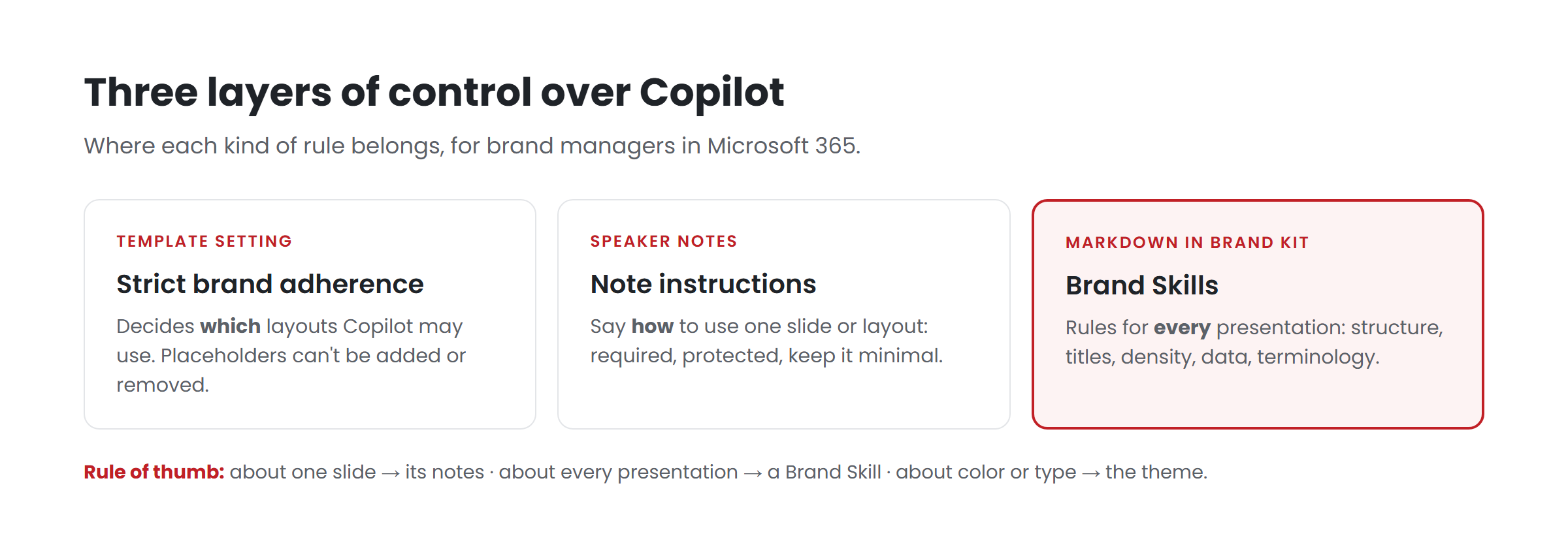
Diagram of three layers of control over Copilot: strict brand adherence decides which layouts, note instructions say how to use one slide, Brand Skills set rules for every presentation

What a Brand Skill is

According to Microsoft’s announcement, brand managers can upload custom presentation skills to Brand Kit as Markdown (.md) files, or as .zip packages, and share them across the organization. Eligible users then get those skills in Copilot in PowerPoint, where they provide “reusable instructions to guide how Copilot creates presentations.”

A few details from the announcement are worth underlining:

  • It is not automatic. The capability arriving in your tenant does nothing on its own. A brand manager has to write, upload and publish a skill.
  • Microsoft recommends governance. It suggests review for security, privacy, accessibility, legal and brand before publishing, testing before broad release, communicating availability to users, and auditing published skills periodically.
  • Rollout: Frontier customers from mid-to-late September 2026, worldwide general availability from late September 2026. Check your own tenant for current status.

Where Brand Skills fit

Microsoft now gives brand managers three layers of written and structural control over Copilot in PowerPoint:

Control What it governs Where it lives
Strict brand adherence Which layouts Copilot may use; placeholders can’t be added or removed A template setting in Brand Kit
Note instructions How to use a specific slide or layout Speaker notes on template slides
Brand Skills How presentations are created across the organization Markdown files published in Brand Kit

A simple test for where a rule belongs: if it is about one slide, put it in that slide’s notes. If it is about every presentation, it belongs in a skill. If it is about color or typography, it belongs in the theme, where it applies automatically.

What belongs in a Brand Skill

The instinct is to paste in the brand book. Don’t. A brand book is written to inspire and inform people. A skill should instruct a model. The content that tends to be useful:

Structure rules. “Open with a one-slide summary of the recommendation.” “Put the agenda on slide two for any deck longer than eight slides.” “End with next steps, each with an owner.”

Writing rules. “Write slide titles as full-sentence takeaways, not topics.” “Use sentence case in titles.” “Spell out acronyms on first use.” “Use US English.”

Density rules. “No more than five bullets per slide.” “One idea per slide.” “Move supporting detail to the speaker notes.”

Data rules. “Every chart needs a title that states the finding.” “Include a source line under any statistic.” “Don’t round percentages below one decimal place in financial slides.”

Terminology. Approved product names, how to refer to the company, words to avoid. Keep this short and literal.

Hard limits. “Do not invent statistics.” “Do not include customer names unless they appear in the source material.” Rules like these are among the most important a skill can carry — and among the ones most worth testing.

How to write rules a model can follow

A model is a literal reader with no context about your organization’s history. Rules that work for it share a few properties.

Specific beats aspirational. “Our presentations are clear and confident” gives Copilot nothing to act on. “Every slide title is a complete sentence under twelve words stating the slide’s main point” does.

Checkable beats vague. If you cannot look at a generated slide and say whether the rule was followed, the model cannot reliably follow it either.

Short beats complete. A skill with forty rules dilutes each one. Start with the eight or ten that would fix the problems you actually see, then add more only when testing shows they help.

Positive beats negative. Say what to do. Add a “never” only for failures you have observed.

Explain the purpose when it helps. “Put the recommendation first, because our executives read only the first slide” gives the model a principle to generalize from, not just a rule to obey.

Test before you publish, and after

Brand Skills influence a generative model; they do not program it. The only way to know whether a skill helps is to measure:

  1. Build a fixed set of realistic prompts — the kinds of decks your people actually make, with messy source material as well as tidy material.
  2. Run them without the skill. Record what happens.
  3. Add the skill. Rerun the same prompts. Compare, rule by rule.
  4. Keep the rules that change behavior. Rewrite the ones that don’t. Remove the ones that make things worse — it happens.

Then keep that prompt set. Rerun it whenever you edit the skill, update the template, or Microsoft changes the product. Microsoft’s own guidance to audit published skills periodically is a strong hint that the behavior will move.

The skill is only as good as the template underneath

A final caution. A Brand Skill can tell Copilot to use one idea per slide, but it cannot make a template contain the right layouts for one-idea slides. It can say “use the comparison layout for two options,” but it cannot create that layout if the template lacks it. It can ask for charts in brand colors, but the colors come from the theme.

Skills, note instructions and strict mode are all ways of directing Copilot. The template — its theme, placeholders and example slides — is what Copilot has to work with. Written rules on top of a weak template produce well-behaved generic decks. Written rules on top of a template built for how Copilot learns produce something much closer to what your best designers would make.

Key takeaways

  • Brand Skills are Markdown instructions a brand manager publishes to Brand Kit; Copilot in PowerPoint follows them across the organization.
  • They are not automatic: someone must write, test and publish them, and Microsoft recommends governance and periodic audits.
  • Write rules that are specific, checkable, short and positive — not a pasted-in brand book.
  • Test every rule against a fixed prompt set, and retest whenever anything changes.
  • Skills direct Copilot; the template determines what it has to work with.

Need your standards written as rules Copilot can follow? Have your template scored and ask us about Brand Skill authoring.

Related reading

Sources

Notes steering: guiding Copilot from your template’s speaker notes

Every corporate template comes with rules that are not visible in the file. Always open with the approved cover. Never edit the legal slide. Keep section dividers to a title. Use the quote layout only for real quotes. For years those rules lived in a brand guidelines PDF, a SharePoint page, or the head of a senior designer.

In September 2026, Microsoft gave those rules a home inside the template itself. The feature is called note instructions — “notes steering” in Microsoft’s announcement — and it lets brand managers write plain-language instructions in a template’s speaker notes that Copilot in PowerPoint follows when it generates presentations.

How it works

Note instructions are one of two template settings in Brand Kit, alongside strict brand adherence. A brand manager enables the setting for a template, and writes instructions in the speaker notes of the relevant slides. Microsoft’s examples are deliberately simple:

  • “Always include this cover slide.”
  • “Don’t modify this slide.”
  • “Keep the text minimal.”

When employees create presentations from that template through Copilot, those instructions guide what Copilot does. Only the Brand Kit owner or a brand manager can change the setting, and end users cannot override it.

The point, as Microsoft describes it, is to embed reusable guidance directly in the template, so that employees do not have to repeat the same instructions in every prompt — and, more realistically, so the rules apply even when employees do not know them.

Why this matters more than it looks

It would be easy to treat note instructions as a small convenience. We think they are more significant than that, for three reasons.

They put rules where the model reads them. Microsoft is explicit that Copilot does not treat the text inside a placeholder as an instruction; placeholder wording is styling only. So until now, the only way to tell Copilot “use this layout sparingly” was to hope every employee typed it into every prompt. Speaker notes on template slides are now a proper channel.

They make usage rules testable. A rule in a PDF can’t be checked. A rule in a template’s notes can be tested: run the same prompt with and without it and see whether behavior changes.

They keep the rule with the layout. When the template is updated, the instruction moves with the slide it governs, rather than living in a separate document that drifts out of date.

What to write: five kinds of useful instruction

Useful note instructions tend to fall into five groups.

1. Required slides

“Always include this cover slide.” “End every presentation with this contact slide.” These are the easiest to write and to verify.

2. Protected slides

“Don’t modify this slide.” For legal disclaimers, safe-harbor statements, regulated language, or approved boilerplate that must appear exactly as written.

3. Density

“Keep the text minimal.” “Title only; no body text.” “No more than four bullets.” Density instructions are some of the most valuable you can give, because too much text is the most common failure in generated slides.

4. When to use a layout

“Use this layout only when comparing two options.” “Use for a single statistic with a short explanation.” These help Copilot choose between layouts that look similar but do different jobs.

5. What never to do

“Do not place text over the photograph.” “Do not use this layout for agendas.” Negative instructions are useful for failures you have actually observed in testing.

How to write instructions Copilot can follow

A model follows instructions best when they are short, specific and checkable. A few rules of thumb:

  • One idea per instruction. “Keep the text minimal and always include a source line and never use more than two colors” is three instructions competing for attention.
  • Say what to do, then what not to do. Positive instructions are clearer than prohibitions alone.
  • Use concrete limits. “Keep it short” is vague. “One sentence, under fifteen words” can be checked.
  • Avoid brand-book language. “Confident, human, forward-looking” is valuable to a copywriter and nearly useless to a model deciding how many bullets to write.
  • Don’t duplicate the theme. Colors and fonts belong in the theme, where they apply automatically. Restating them in notes adds noise.

Test every instruction

Note instructions are influence, not a guarantee. Copilot is a generative model and will not follow every instruction every time. The only way to know whether an instruction is working is to test it:

  1. Write a fixed set of realistic prompts — the kinds of decks your people actually make.
  2. Run them against the template before adding the instruction, and record what happens.
  3. Add the instruction, rerun the same prompts, and compare.
  4. Keep instructions that change behavior in the direction you want. Rewrite or remove the ones that don’t.

Repeat the tests whenever Microsoft changes the product. September 2026 alone brought two significant changes to how templates and instructions work.

Notes steering, strict mode and Brand Skills

Microsoft now offers three levels of control, and they fit together:

  • Strict brand adherence decides which layouts Copilot may use.
  • Note instructions say how to use a particular slide or layout.
  • Brand Skills, rolling out from late September 2026, hold broader written rules for how presentations are created across the organization.

A useful division: if the rule is about one slide, it belongs in that slide’s notes. If it applies to every presentation, it probably belongs in a Brand Skill.

Key takeaways

  • Note instructions let brand managers write rules in template speaker notes that Copilot follows.
  • They give usage rules a home the model actually reads — unlike placeholder text, which Copilot ignores as instruction.
  • The most useful instructions cover required slides, protected slides, density, layout purpose and observed failures.
  • Keep them short, specific and checkable, and test every one against real prompts.

Want your template’s rules written where Copilot reads them? Have your template scored.**

Related reading

Sources

Strict brand adherence: what Microsoft’s template lock does and doesn’t do

On 10 September 2026, Microsoft announced a setting that brand teams have been asking for since Copilot first started making slides. It is called strict brand adherence, and it lets an organization restrict Copilot in PowerPoint to its approved template and layouts, with no override for employees.

It is a genuinely important change. It is also easy to misread as “problem solved.” This post explains exactly what the setting does, what it does not do, and what it means for the template you lock Copilot to.

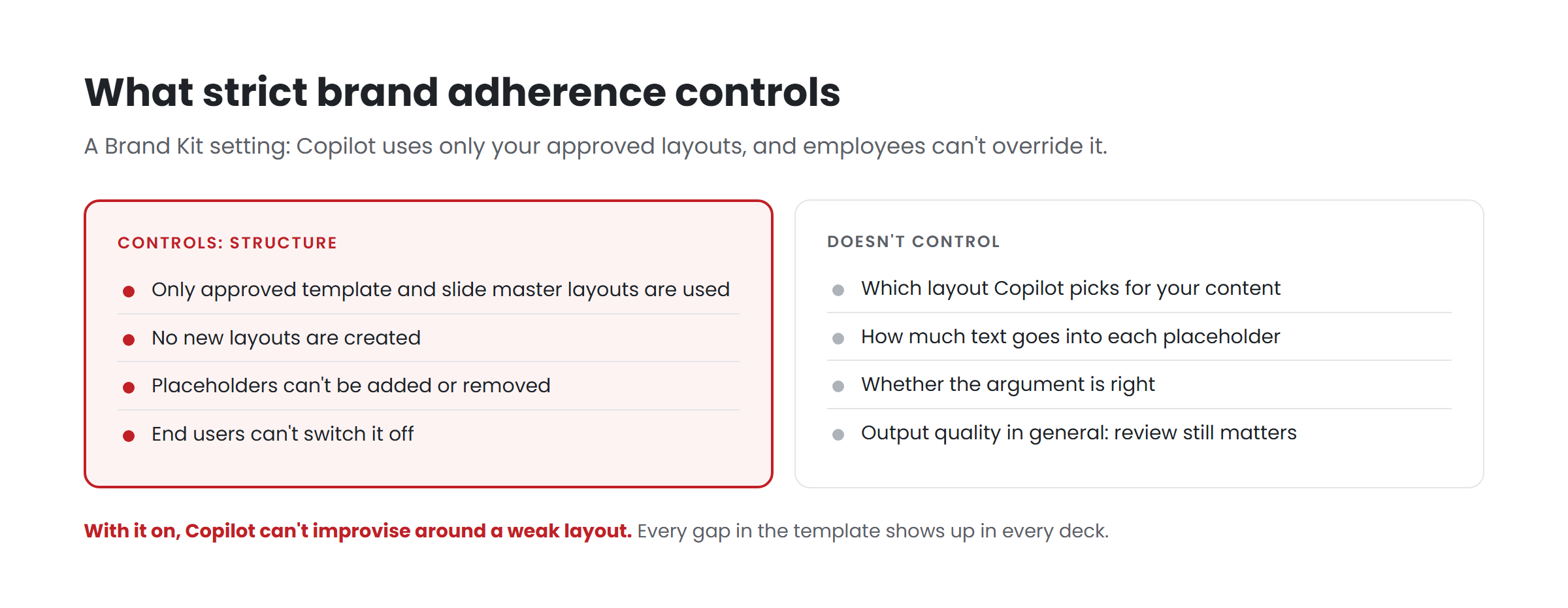
Diagram comparing what strict brand adherence controls (approved layouts only, no new layouts, no added or removed placeholders, no user override) with what it does not (layout choice, text volume, the argument, overall quality)

What the setting does

Strict brand adherence is one of two template settings that brand managers control in a Brand Kit. According to Microsoft’s documentation:

  • When it is on, “your template is always followed. Copilot uses only the template and slide master layouts and can’t add or remove placeholder content.” Copilot cannot create new layouts.
  • When it is off, “your template isn’t strictly followed. Copilot may reuse some template layouts or get more creative, while still applying your brand colors, fonts, and assets.”

Only the Brand Kit owner or a brand manager can change the setting, and “end users who create presentations from your templates can’t override them.”

Microsoft positions it as especially valuable for customer-facing, executive, regulatory and other business-critical presentations — the places where a creative detour is least welcome.

What it controls, precisely

It is worth being exact, because the name promises a little more than the setting delivers.

Strict brand adherence controls structure: which layouts may be used, and that their placeholders stay as designed. It stops Copilot from inventing a layout your brand team never approved, from adding a text area where none belongs, or from removing the picture placeholder from your cover.

It does not, by itself, control:

  • Which layout Copilot chooses for a given piece of content. Copilot still decides that a set of four points belongs on your two-column layout rather than your process layout. If it chooses badly, strict mode keeps the bad choice perfectly on brand.
  • How much content goes into each placeholder. A layout designed for a twelve-word headline can still receive forty words.
  • Whether the argument is right. Strict mode governs the frame, not what goes in it.
  • Output quality in general. Copilot is still a generative model. Microsoft still says its output should be reviewed by a person.

Why it raises the stakes on your template

Before strict mode existed, a weak template had a kind of safety valve. If a layout did not fit the content, Copilot could improvise something that at least held the content. The result might drift off brand, but it was usually legible.

With strict mode on, that valve is closed. Copilot must use the layouts it has been given. So every gap in the template becomes a gap in every deck:

  • No layout for a comparison? Comparisons get forced into whatever layout is closest.
  • Placeholders sized for a designer’s careful copy? Copilot’s longer text overflows or shrinks.
  • Twenty covers and one content layout? Expect a lot of decks built from that one content layout.
  • No example slides? Microsoft’s guidance is that Copilot falls back to the Slide Master when sample slides are missing — and now it has nowhere else to go.

We think of it this way: strict brand adherence turns your template from a suggestion into a rule. That is excellent if the template is good. It is expensive if it is not, because the cost is repeated in every deck every employee generates.

When to turn it on

We would not recommend switching it on the day it appears in your tenant. A sensible sequence:

  1. Test with it off first. Run a fixed set of realistic prompts against your template and see which layouts Copilot reaches for and where it improvises. The places it improvises are a map of what your template is missing.
  2. Close the gaps. Add the layouts and example slides your real content needs, fix placeholder sizes, and move hardcoded formatting into the theme.
  3. Turn it on and rerun the same prompts. Compare. You want to see content landing in appropriate layouts, not being squeezed into the nearest one.
  4. Decide scope. Organizations with more than one official Brand Kit can make different choices per kit — strict for the customer-facing kit, looser for an internal-only one.

Its companion setting: note instructions

The same announcement introduced note instructions, often called notes steering. Brand managers can put plain-language instructions in the speaker notes of template slides — “Always include this cover slide,” “Don’t modify this slide,” “Keep the text minimal” — and Copilot follows them.

The two settings work well together. Strict mode says which layouts are allowed. Note instructions say how to use them. A cover slide that must always appear, a legal disclaimer slide that must never be edited, a section divider that should carry only a title — these are exactly the rules that used to live in a PDF nobody read, and can now live inside the template where Copilot reads them.

What this means for your brand team

Strict brand adherence is the strongest signal yet that Microsoft sees the organization’s template as the control point for generated presentations. For brand and creative teams, that is a meaningful shift in responsibility. The quality of thousands of decks you will never review is now largely determined by one file you own.

That makes the template the highest-leverage asset the brand team has. It deserves a rebuild designed for how Copilot reads it, a test before it is locked, and a review whenever Microsoft changes the product — which, in September 2026 alone, happened twice.

Key takeaways

  • Strict brand adherence restricts Copilot to approved layouts and placeholders; employees can’t override it.
  • It controls structure, not layout choice, content density or quality.
  • It removes Copilot’s ability to improvise around a weak template, so template gaps show up in every deck.
  • Test with it off, fix what you learn, then turn it on and retest.
  • Pair it with note instructions to put your usage rules inside the template itself.

Before you lock Copilot to your template, have your template scored.

Related reading

Sources

Brand Kit in Microsoft 365 Copilot, explained for brand teams

If your organization has rolled out Microsoft 365 Copilot, there is a feature in it that belongs to the brand team, whether or not the brand team has heard of it yet. It is called Brand Kit, and it is where Copilot learns what your brand is.

This post explains what a Brand Kit is, what goes into one, who controls it, and — most importantly — the decisions worth making before anyone uploads a file. Details are drawn from Microsoft’s documentation as of September 2026.

What a Brand Kit is

A Brand Kit is a central collection of brand assets inside the Microsoft Copilot app. When an employee selects a brand kit in the Copilot pane in PowerPoint (through the + button and Select brand) and then prompts, Copilot uses that kit’s approved templates, colors, fonts and assets to keep the generated slides aligned with your brand.

According to Microsoft, an official kit can hold:

  • logos, including primary, secondary and variations;
  • color palettes with specific hex values;
  • fonts and typography choices;
  • approved imagery, icons and illustrations;
  • PowerPoint templates and layout patterns;
  • brand voice, tone, terminology and writing guidance;
  • photography rules and visual treatment guidelines;
  • brand guideline documents, including PDFs, from which Copilot can help extract information.

Kits can also reference your SharePoint Organization Assets Library, so approved images already managed there do not have to be uploaded again.

Official kits and who controls them

There is an important distinction between a brand kit an individual makes for themselves and an official Brand Kit. Official kits are made available to everyone in the tenant through the Organization tab. Your organization can have more than one.

Only brand managers can create, edit, rename and update official kits. Brand managers are designated by IT under the organization’s brand manager policy, and Microsoft notes that after designation it can take up to 24 hours for the permission to take effect.

Microsoft’s support page also lists a Copilot license requirement for this feature. License names have changed several times, so confirm the current requirement with your Microsoft administrator before you plan a rollout around it.

Template settings: the September change

In September 2026, Microsoft added two settings that brand managers control for templates in a Brand Kit:

  • Strict brand adherence restricts Copilot to your approved template and slide master layouts. Copilot cannot add or remove placeholders or create new layouts.
  • Note instructions let brand managers put plain-language guidance in a template’s speaker notes, such as “Always include this cover slide” or “Keep the text minimal,” which Copilot then follows.

End users cannot override either setting. We explain both in detail in their own posts.

Later the same month, Microsoft began rolling out Brand Skills, which let brand managers upload written instructions as Markdown files to the Brand Kit and publish them across the organization.

Five decisions to make before you upload anything

A Brand Kit is easy to set up. That is exactly why it is worth slowing down. Whatever goes into an official kit becomes, in effect, the definition of your brand for every employee who generates a deck. Here are the decisions we would make first.

1. Who is the brand manager?

Name a person, not a department. The brand manager decides what the organization’s official kit contains and how strictly Copilot follows the template. If nobody is named, IT tends to become the de facto owner, and IT is rarely the right owner for brand decisions. It’s worth naming at least two brand managers, so the role survives a vacation or a resignation.

2. One kit or several?

Multiple official kits are supported. That is useful for organizations with genuinely distinct sub-brands or business units. It is a trap for organizations that simply have drifted into several template versions. Before creating a second kit, ask whether you are describing two brands or failing to decide on one.

3. Is the template ready to be taught from?

This is the decision that’s easiest to skip. They upload the current corporate template because it is the one they have. But Copilot learns from a template’s sample slides, placeholders and theme, and falls back to the Slide Master when the examples are missing. A template that works well for a careful designer can teach a model very little. Uploading it to an official kit turns its weaknesses into policy.

4. What should the voice guidance say?

Brand Kit can hold voice and tone guidance, and Brand Skills can hold detailed written rules. Resist the urge to paste the whole brand book in. A model follows short, specific, testable instructions better than long aspirational ones. “Use sentence case in titles” is followable. “Our voice is bold yet approachable” is not, at least not consistently.

5. How will you know it is working?

Before publishing, run a fixed set of realistic prompts against the kit and look at what comes out. Keep that set, and rerun it whenever the kit, the template or Microsoft’s product changes. Without a baseline, you will only discover drift when someone forwards a deck that should never have been sent.

What Brand Kit does not do

It is worth being clear about the limits.

  • It does not design your examples. Brand Kit stores and applies your assets. It does not create the finished sample slides Copilot learns from.
  • It does not fix the template. If colors are hardcoded or layouts use text boxes instead of placeholders, the kit carries those problems to every user.
  • It does not remove the need for review. Microsoft’s own guidance is that Copilot output should be reviewed by a person. A good kit reduces what has to be fixed. It does not make generated decks self-approving.

Where to start

If you are a brand manager looking at Brand Kit for the first time, the order that works is: name the owners, decide how many kits you need, get the template into a state a model can learn from, write short rules, test against real prompts, then publish. In that order, the kit becomes the most useful brand governance tool you have. Out of order, it becomes the fastest way to distribute a weak template to everyone at once.

Key takeaways

  • A Brand Kit is where Copilot learns your brand: logos, colors, fonts, imagery, templates, voice and guidelines.
  • Official kits are shared tenant-wide, and only designated brand managers can create or edit them.
  • Brand managers now control strict brand adherence, note instructions and Brand Skills.
  • The template you upload matters more than any other asset in the kit. Get it right before you publish.

Setting up a Brand Kit? Have your template scored before it becomes the official one.

Related reading

Sources

How Copilot builds a deck from your template

When a brand team first sees Copilot generate slides “in their template,” the reaction is usually one of two things. Relief, because the colors and logo are right. Or confusion, because the slides are clearly in the template and yet look nothing like the decks the team actually makes.

Both reactions come from the same misunderstanding. Copilot does not copy a template. It learns from one. And a template built for people to use by hand often has very little in it for a model to learn from.

This post walks through what Copilot actually reads when it builds from your template, using Microsoft’s own guidance, and what that means for how templates should be built from now on.

A template has three layers, and Copilot uses all of them

Think of a PowerPoint template as three layers stacked on top of each other.

The theme sits at the bottom. It defines your theme colors and your heading and body fonts. Anything that references the theme — a chart, a shape, a table, a text style — picks up those definitions automatically.

The Slide Master and its layouts sit in the middle. The Slide Master is the top slide in Slide Master view, and anything defined on it is inherited by the layouts beneath it. Each layout is a reusable arrangement of placeholders: a title here, a picture there, a body area on the right.

The sample slides sit on top. These are real, finished slides built on those layouts, showing how the brand is used in practice.

Copilot draws on all three. But not equally.

Sample slides are the main teaching material

Microsoft’s guidance is unusually direct on this point. It recommends that templates include representative sample slides across the kinds of slides your organization actually makes — title, agenda, section dividers, content slides with text, icons and images, data visualization, timelines, processes, quotes, summaries and closing slides — and that those examples show different amounts of content: light, medium and heavy.

It also says what happens when those examples are missing: “If your template does not contain enough sample slides, Copilot falls back to the Slide Master — which may result in less optimal output.”

That sentence explains a lot of disappointing Copilot output. The template has forty beautifully named layouts and not a single finished example. Copilot has the architecture but not the behavior. It knows where a title goes. It has no idea how your company uses a two-column comparison, how dense your data slides usually are, or when you use a full-bleed photograph.

A useful way to think about it: layouts tell Copilot what is possible. Sample slides tell it what is normal.

Placeholders tell it where things go, not what to say

The second thing Copilot reads is placeholders. Microsoft’s documentation says Copilot “uses placeholder type, position, and size to determine what content should be generated and where it should appear.” It also says Copilot does not rely on the wording inside a placeholder to understand what the layout is for. Placeholder text is styling only.

Two practical consequences:

  1. Text boxes are invisible as structure. If your layouts use drawn text boxes instead of real placeholders, Copilot cannot treat them as slots to fill. Microsoft recommends text placeholders instead of text boxes, inserted through Slide Master > Insert Placeholder.
  2. Instructions typed into placeholders do nothing. “Insert key message here, max 12 words” is a note for a human. Copilot will not read it as a rule. If you want to give Copilot instructions, there are now proper places for them — speaker-note instructions and Brand Skills — which we cover in their own posts.

Placeholders also need room to work. Microsoft advises keeping them non-overlapping and not placing decorative elements over text or image areas. A layout where the photo placeholder sits under a decorative shape might look fine when a designer fills it carefully. When a model fills it, the result is often a clipped image or text colliding with artwork.

The theme carries your brand into everything

The third input is the theme. Microsoft recommends defining your colors through Slide Master > Colors > Create New Theme Colors, and your heading and body fonts in the theme, rather than formatting things by hand.

This matters because Copilot generates new objects — charts, shapes, text — that did not exist in your template. The only way those new objects can come out in your brand is if they inherit it from the theme. A color that is hardcoded onto one shape in one layout teaches Copilot nothing about when to use that color elsewhere.

Hardcoded colors are a common problem in corporate templates. The template looks right because a designer painted every element by hand. The theme underneath is generic.

Where the Brand Kit comes in

If your organization uses Brand Kit, the template is uploaded there by a brand manager (as a .potx or .pptx file), alongside your colors, fonts, logos and approved imagery. When employees select that brand kit in the Copilot pane, Copilot works from the kit’s approved templates and assets.

Since September 2026, brand managers can also turn on strict brand adherence, which restricts Copilot to your approved template and slide master layouts, with no new layouts and no added or removed placeholders. Employees cannot override it.

That is a powerful control, and it raises the stakes on everything above. With strict mode on, Copilot cannot improvise its way around a weak layout. Whatever the template gets wrong, every generated deck gets wrong too.

What this means for how templates are built

For most of the history of corporate templates, the audience was a person: someone who opened the file, picked a layout, and used judgment to fill it in. Weaknesses in the template were absorbed by that person’s judgment.

Now there is a second audience that has no judgment of its own to fall back on. It learns from what is in the file, and it applies what it learned at a scale no design team could review. So the questions a template owner should ask have changed:

  • Does every slide type we actually use have a finished example, at more than one density?
  • Is every content area a real placeholder, sized and positioned for the content it will receive?
  • Does every color and font come from the theme, rather than from hand formatting?
  • Would a model looking at our examples learn how we communicate, or only what our logo looks like?

None of these are exotic. They are the same things a careful designer has always cared about. The difference is that they used to be nice to have, and now they determine the quality of every deck your employees generate.

Key takeaways

  • Copilot learns from three layers: sample slides, placeholders and the theme.
  • Sample slides are the primary teaching material. Without enough of them, Copilot falls back to the Slide Master.
  • Placeholders define where content goes, not what it says. Placeholder wording is ignored as instruction.
  • Theme colors and fonts are the only way new objects Copilot creates can come out in your brand.
  • Strict brand adherence makes the template a rule. That rewards good templates and multiplies the cost of weak ones.

Curious what your template is teaching? Have your template scored.**

Related reading

Sources

What Copilot in PowerPoint can actually do in 2026

Most of what has been written about Copilot in PowerPoint falls into one of two camps. One says it will make every deck for you. The other says it produces generic slides nobody would present. Neither is a useful basis for a decision, and neither describes what the product does today.

This guide is the version we give clients: what Copilot in PowerPoint does, what it depends on, and where a person still has to step in. Every capability below is drawn from Microsoft’s own documentation, linked at the end, as of September 2026. The product changes often, so check the dates.

1. It drafts a presentation from a prompt

The headline feature is still the simplest one to describe. You open PowerPoint, open the Copilot pane, and describe the presentation you want. Copilot may ask clarifying questions — who the audience is, what presentation and image style you want — and then proposes an outline. You can edit that outline before any slides are made, which is the most underused step in the whole process. A good outline is most of a good deck; a bad one produces twelve well-formatted slides of the wrong argument.

Once you accept the outline, Copilot generates the slides, and you can keep chatting with it to add, remove or rework them.

Two constraints are worth knowing before you plan around this:

  • Microsoft states plainly that the output “is AI-generated content and should be human-reviewed and edited accordingly.” That is not boilerplate. It is the correct operating assumption.
  • Only one output language is supported at a time.

2. It works from your source documents

Copilot can build from existing material rather than a blank prompt. Microsoft documents support for referencing files — a Word document under 24 MB, for example — and images from those documents are used where available. In the newer Agent Mode experience, Microsoft lists file referencing as “coming soon,” so the exact path depends on which experience your organization has.

In practice this is where most of the value sits. Very few corporate decks start from nothing. They start from a report, a plan, a proposal or last quarter’s version. Turning that material into a structured first draft is exactly the kind of work Copilot is suited to.

3. It follows your template — to the degree your template teaches it

This is the capability that matters most to a brand or creative team, and the one least understood.

Microsoft recommends starting from your organization’s standard template so the theme and design carry through. But Copilot does not simply copy the look of a template. It learns from it. Microsoft’s guidance is explicit about what it learns from:

  • Sample slides are the primary teaching material. Microsoft recommends representative examples across the slide types you actually use — title, agenda, section divider, content, data, timelines, process, quotes, summary and so on — at light, medium and heavy content densities.
  • Placeholders tell Copilot where content goes. It uses the placeholder’s type, position and size. It does not read the words inside a placeholder as instructions.
  • Theme definitions — theme colors and heading and body fonts — carry your brand into everything Copilot generates.

And one sentence from Microsoft’s documentation deserves to be on every brand team’s wall: “If your template does not contain enough sample slides, Copilot falls back to the Slide Master — which may result in less optimal output.”

In other words, Copilot’s output is capped by the quality of the template it is given. We come back to this idea often in this series, because it changes who is responsible for the quality of your company’s decks.

4. It uses your Brand Kit

A Brand Kit is a central collection of your brand assets inside the Microsoft Copilot app: logos, color palettes, fonts, approved imagery, templates, and even brand voice and photography guidance. When someone selects a brand kit in the Copilot pane before prompting, Copilot uses that kit’s approved templates, colors, fonts and assets.

Official Brand Kits — the ones shared with the whole organization — can only be created and edited by people your IT team designates as brand managers. That is deliberate. It puts control of what Copilot treats as “the brand” in the hands of a named owner.

5. It can be locked to your approved layouts

In September 2026, Microsoft added two template settings to Brand Kit:

  • Strict brand adherence. When it is on, Copilot uses only your approved template and slide master layouts. It cannot add or remove placeholders or invent new layouts. When it is off, Copilot may reuse some of your layouts or “get more creative,” while still applying your colors, fonts and assets.
  • Note instructions (notes steering). Brand managers can write plain-language instructions in a template’s speaker notes — “Always include this cover slide,” “Don’t modify this slide,” “Keep the text minimal” — and Copilot follows them.

Only the Brand Kit owner or a brand manager can change these settings, and employees creating presentations from the template cannot override them.

This is a significant change. Before it, a template was a suggestion. Now it can be a rule. That makes the template far more powerful, and it makes a weak template far more expensive, because every employee is now held to it.

6. It can follow written rules: Brand Skills

Also in September 2026, Microsoft began rolling out Brand Skills: brand managers can upload instructions as Markdown files to Brand Kit and publish them to the organization, so Copilot in PowerPoint follows them when creating presentations. Think of it as your presentation standards written in a form the model reads. Microsoft is clear that this is not switched on automatically — someone has to write, test and publish the skill — and it recommends governance review and periodic audits of published skills.

What it cannot do for you

Knowing the limits is what separates a useful rollout from a disappointing one.

  • It cannot decide what you are trying to say. Copilot will structure the material you give it. It will not tell you that the real recommendation is buried on slide nine, or that the audience needs the conclusion first.
  • It cannot fix a template that teaches the wrong thing. Hardcoded colors, text boxes instead of placeholders, no example slides — Copilot inherits all of it.
  • It cannot guarantee brand conformance. Strict mode constrains layouts; it does not make a generative model deterministic. Review still matters, especially for customer-facing and executive work.
  • It does not remove the need for judgment on the decks that matter. A board presentation, a keynote, a pitch — the stakes are not in the formatting.

What this means for your team

The practical shift is this: for routine internal decks, the person doing the work is increasingly Copilot, and the thing directing it is your template, your Brand Kit and your written rules. The quality of those three assets now sets the floor and the ceiling for thousands of presentations you will never see.

That is why we think the most important Copilot decision a brand team makes is not which prompts to teach people. It is whether the template is built for a model to learn from, rather than only for a person to use.

Key takeaways

  • Copilot drafts decks from prompts and from source documents, and you can shape the outline before any slides exist.
  • It learns from your template’s sample slides, placeholders and theme — and falls back to the Slide Master when examples are missing.
  • Brand Kit, strict brand adherence, notes steering and Brand Skills give brand managers real, central control over what Copilot produces.
  • Microsoft’s own position is that output should be reviewed by a person. Plan for that.

Want to know how your current template would teach Copilot? Have your template scored — we review it against Microsoft’s published guidance and tell you where it stands.

Sources