There is a role in Microsoft 365 that now decides what your company’s generated presentations look like. Make sure someone in your organization has been deliberately given it.
It is called brand manager. It sounds like a job title. In Microsoft 365 it is a permission, granted by IT under the organization’s brand manager policy, and it controls the official Brand Kit that Copilot uses to create on-brand content. As of September 2026, it also controls whether Copilot is locked to your approved template, what instructions sit inside that template, and which written rules Copilot follows across the organization.
That is a lot of authority for a checkbox in an admin policy. This post explains what the role controls, who should hold it, and what happens when the question goes unanswered.
What the brand manager controls
According to Microsoft’s documentation, only designated brand managers can create, edit, rename and update official Brand Kits — the kits shared with everyone in the tenant. IT designates them, and Microsoft notes that the permission can take up to 24 hours to take effect.
From that position, a brand manager decides:
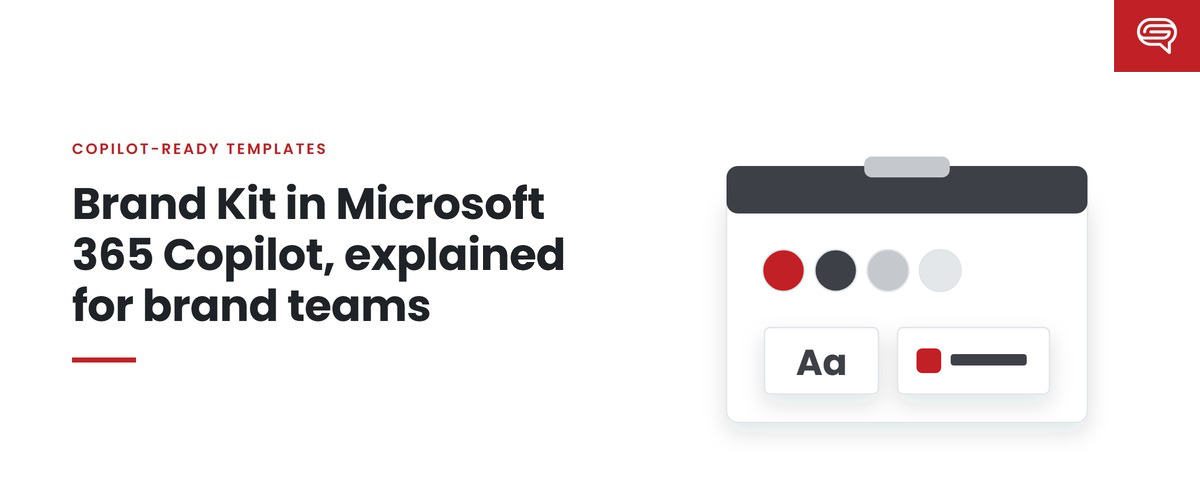
- What the brand is, for Copilot’s purposes: logos, colors, fonts, imagery, templates, voice guidance, photography rules and brand guideline documents in the official kit.
- Which template Copilot learns from, by uploading it to the kit.
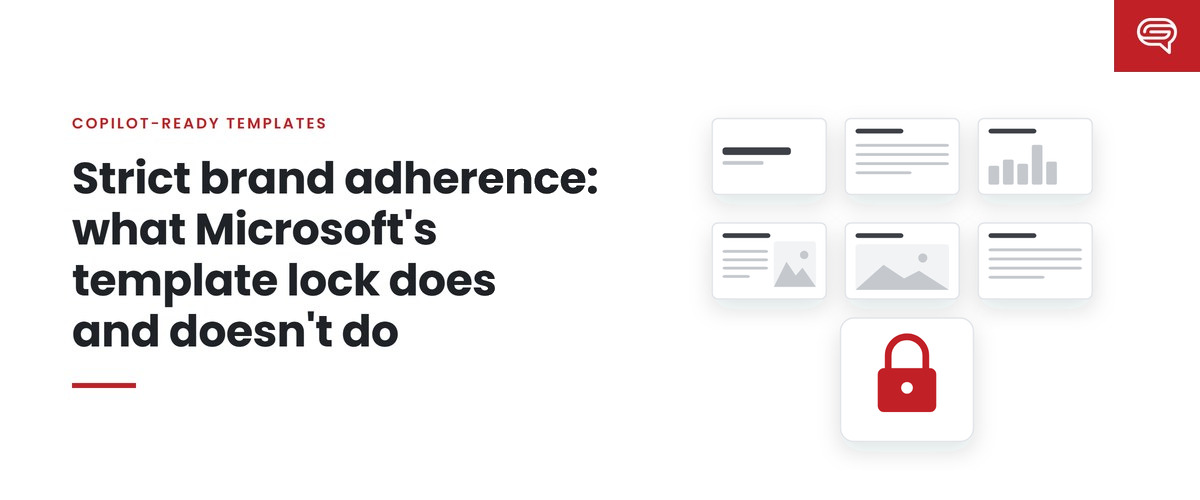
- Whether Copilot is locked to that template, through the strict brand adherence setting, which restricts Copilot to approved layouts and prevents it adding or removing placeholders.
- What rules live inside the template, through note instructions written in template speaker notes.
- Which written standards Copilot follows, through Brand Skills, published as Markdown files to the kit from late September 2026.
Only the Brand Kit owner or a brand manager can change these template settings. Employees generating presentations cannot override them.
Put simply: the brand manager decides what “on brand” means for every deck Copilot helps make.
What happens when nobody owns it
When the role is left unassigned, one of three things usually happens.
IT fills the gap. The Microsoft 365 administrator is the person who can grant the permission, so they grant it to themselves, or to whoever asked first. IT teams are rarely the right owners of brand decisions, and most of them know it. They end up uploading whatever template is on SharePoint because it is the one they can find.
Several people fill it at once. A regional marketing lead creates a kit for their region. A business unit creates another. A well-meaning designer uploads last year’s template. Microsoft supports multiple official kits, which is useful for genuine sub-brands and chaotic for everything else.
Nobody fills it. Copilot works without an official kit, applying whatever the user’s file happens to contain. Every employee’s deck is only as on-brand as the file they started from.
None of these is a disaster on day one. All of them are hard to unwind once thousands of decks have been generated and people have learned to expect what they get.
Who should hold the role
We would give the brand manager role to the person who already owns brand decisions — typically someone in brand, marketing operations or creative operations — and pair them with a second person so the role survives a vacation or a departure.
The right person:
- has authority to say no. They will be deciding which template is official and which isn’t. That is often a political decision.
- understands how templates work, or has someone who does. The template is the most consequential asset in the kit.
- can commit to looking after it. The role is not set-and-forget. Microsoft changed these settings twice in September 2026 alone, and templates drift as teams add slides and new use cases appear.
- works closely with IT, because the permission, the licensing and the asset library all sit on IT’s side.
A starter charter for the role
If you are designating brand managers now, it helps to write down what the role is responsible for. A short version:
- Own the official Brand Kit(s): decide what goes in, and what doesn’t.
- Own the Copilot template: approve it, keep it current, retire old versions.
- Decide the template settings: whether strict brand adherence is on, and what note instructions say.
- Own the Brand Skills: write, review, test and publish them, and audit them on a schedule, as Microsoft recommends.
- Test before and after every change: rerun a fixed set of realistic prompts and compare output.
- Report: a short written note to marketing leadership each quarter on what changed and what drifted.
That last point matters more than it looks. When a generated deck goes wrong in front of a customer, leadership will ask who was responsible for the template. It is much better to have answered that question in advance.
A note for IT leaders
If you are the Microsoft 365 administrator reading this, the most useful thing you can do is decline to be the brand manager. Grant the permission to the people who own brand, document who they are, and make sure they know what the role now controls. Then help them with the parts that are genuinely yours: licensing, the SharePoint asset library, and access policies.
The settings are the easy half of this work. Deciding what the brand is, and building a template that teaches it well, is the other half — and it belongs with the brand team.
Key takeaways
- In Microsoft 365, “brand manager” is a permission that controls official Brand Kits and Copilot’s template settings.
- It decides the template Copilot learns from, whether Copilot is locked to it, and which written rules Copilot follows.
- Left unassigned, it drifts to IT, to several competing owners, or to nobody.
- Give it to the person who owns brand decisions, add a backup, and write down what the role is responsible for.
Naming your brand managers this quarter? Have your template scored so they start with a file worth making official.
Related reading
- Brand Kit in Microsoft 365 Copilot, explained for brand teams
- Brand Skills: writing the rules Copilot follows
- Notes steering: guiding Copilot from your template’s speaker notes
Sources
- Microsoft Support, Create and manage official Brand kits in the Microsoft Copilot app (July 2026)
- Microsoft Support, Manage template settings in your Brand Kit for Copilot in PowerPoint (August 2026)
- Microsoft 365 Message Center, MC1470415 (10 Sep 2026) and MC1473166 (16 Sep 2026)