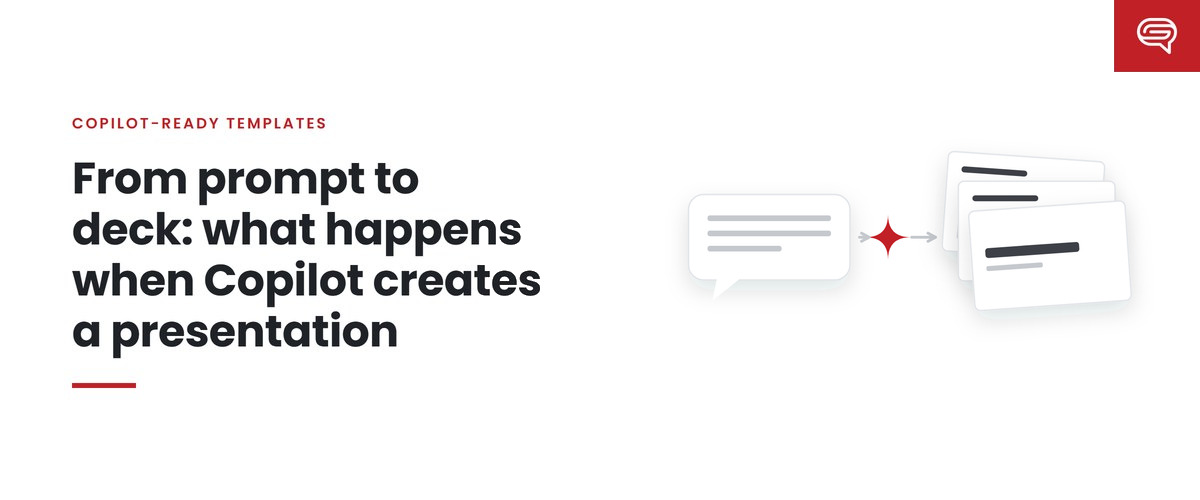
Most people meet Copilot in PowerPoint the same way. They type a sentence, wait a few seconds, and get ten slides. Sometimes the slides are useful. Sometimes they are a polished version of the wrong presentation.
The difference is rarely the model. It is usually what happened — or didn’t happen — at each step before the slides appeared. This post walks through those steps, based on Microsoft’s documentation as of September 2026, and shows where a few minutes of attention make the biggest difference.
Step 0: Start from the right file
Before you prompt, open the right starting point. Microsoft recommends that if your organization uses a standard presentation template, you start with that file before creating a presentation with Copilot, so the presentation keeps its theme and design.
If your organization has set up an official Brand Kit, you can instead select it in the Copilot pane — through the + button and Select brand — so Copilot works from the kit’s approved templates, colors, fonts and assets.
This single choice decides more about how the deck will look than anything you type afterwards. A blank default file gives Copilot nothing to learn from about your brand.
Step 1: Describe the presentation, not just the topic
You open the Copilot pane and describe the presentation you want. The weakest prompts name a topic: “Q3 results.” The strongest describe a presentation:
- Who it is for: “for the regional leadership team, who know the business well.”
- What they should do afterwards: “so they approve the budget shift to the northern region.”
- How long: “about eight slides.”
- What it’s built from: “using the attached quarterly report.”
- Any constraints: “lead with the recommendation; keep financial detail in an appendix.”
That is still only three or four sentences. But it hands Copilot the things it cannot infer: audience, purpose and priority.
Step 2: Answer the clarifying questions
Microsoft’s documentation notes that Copilot may ask clarifying questions before drafting — for example about the target audience, and about presentation and image style. Treat these as a gift rather than an interruption. Every question Copilot asks is something it would otherwise have guessed.
If Copilot does not ask about something you know matters — the decision you need, the objection you expect — add it.
Step 3: Fix the outline before any slides exist
Copilot then proposes an outline, which you can refine before it generates slides. This is the most valuable step in the whole process, and the easiest to skip.
The outline is the argument. It decides what comes first, what is grouped together, and what is left out. Changing it takes seconds. Changing the same thing after slides exist means regenerating or rebuilding them.
A quick outline check:
- Is the main point in the first two slides, or buried at the end?
- Does each slide carry one idea?
- Is anything there only because it was in the source document, not because this audience needs it?
- Is anything missing that the audience will ask about?
Step 4: Generate the slides
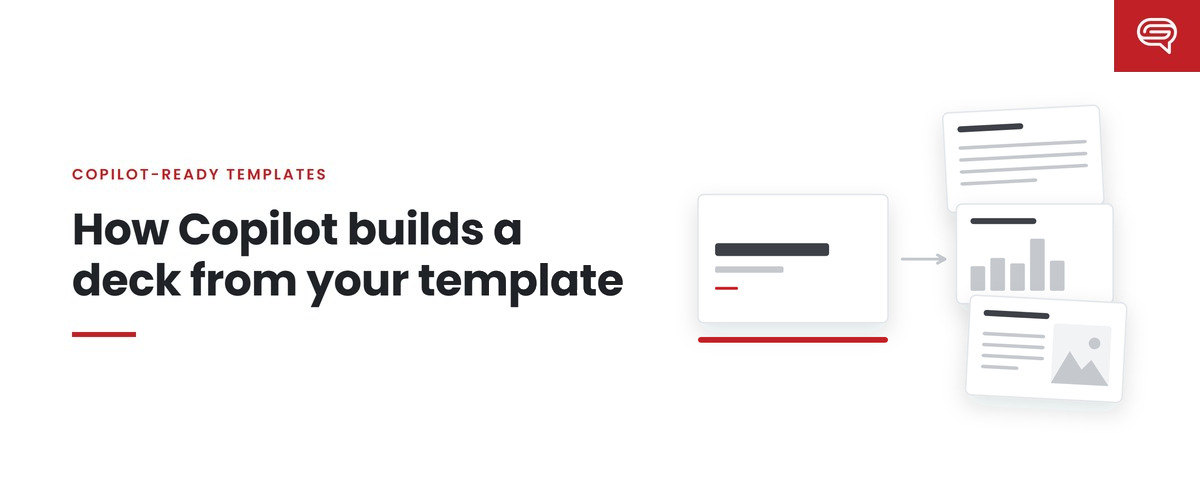
Now Copilot builds slides from the outline, using your template. This is where the template’s quality becomes visible. Copilot learns from the template’s sample slides, uses its placeholders to decide what goes where, and applies its theme colors and fonts. Where the template lacks enough example slides, Microsoft notes that Copilot falls back to the Slide Master, which may produce less optimal output.
If your brand managers have turned on strict brand adherence, Copilot will use only the approved layouts and cannot add or remove placeholders. If they have written note instructions into the template, Copilot follows those too — for example, always including a particular cover slide.
You don’t control any of this from the prompt. It is decided by whoever owns the template and the Brand Kit.
Step 5: Refine by conversation
Once the slides exist, you can keep working with Copilot to add, remove, edit and refine them. Useful follow-ups are specific:
- “Make slide 3 a comparison of the two options with pros and cons.”
- “Shorten every slide title to a single sentence stating the takeaway.”
- “Move the detailed figures on slide 5 to the notes.”
- “Add a final slide with next steps, owners and dates.”
Vague follow-ups (“make it better,” “more professional”) tend to produce changes that are different rather than better.
Step 6: Review like it’s going to be sent
Microsoft is direct about this: the output of the create-a-presentation feature “is AI-generated content and should be human-reviewed and edited accordingly.”
A practical review, in the order that catches the most important problems first:
- Facts. Every number, name and date against the source. Generated text can state things confidently that the source does not support.
- Argument. Does the deck make the point you need, in the order the audience needs?
- Emphasis. Is the most important thing on each slide the most visible thing?
- Density. Anything too crowded to read in the time the slide will be on screen?
- Brand. Colors, fonts, imagery and tone.
Note what brand comes last. With a well-built template and Brand Kit, brand problems should be the rarest. The first four are the ones only a person can judge.
A few practical limits
Microsoft’s documentation lists some constraints worth knowing: only one output language is supported at a time; Word source files must be under 24 MB; and in the newer Agent Mode experience, referencing files is described as “coming soon.” Copilot in PowerPoint is available in PowerPoint for Microsoft 365 on Windows and Mac and on iPad, subject to your organization’s licensing and settings.
What makes the biggest difference
If you only change two habits, make them these: start from your organization’s template or Brand Kit, and fix the outline before generating slides. The first gives Copilot the right visual language. The second gives it the right argument. Everything else is refinement.
And if your team consistently gets well-structured but visually generic slides even after doing both, the problem is probably not the prompts. It is the template Copilot is learning from.
Key takeaways
- Start from your organization’s template or official Brand Kit; it shapes the output more than your prompt does.
- Describe the audience, purpose, length and source — not just the topic.
- Answer Copilot’s clarifying questions and fix the outline before any slides are generated.
- Refine with specific requests, then review facts and argument before brand.
Getting good structure but generic slides? Have your template scored.**
Related reading
- What Copilot in PowerPoint can actually do in 2026
- The brand manager role in Microsoft 365, and why someone must own it
- Brand Skills: writing the rules Copilot follows
Sources
- Microsoft Support, Create a new presentation with Copilot in PowerPoint (June 2026)
- Microsoft Support, Keep your presentation on-brand with Copilot (July 2026)
- Microsoft Support, Manage template settings in your Brand Kit for Copilot in PowerPoint (August 2026)