There is a way to build a PowerPoint template that looks perfect and teaches Copilot almost nothing about your brand. It is very common, and you can’t see it by looking at the slides.
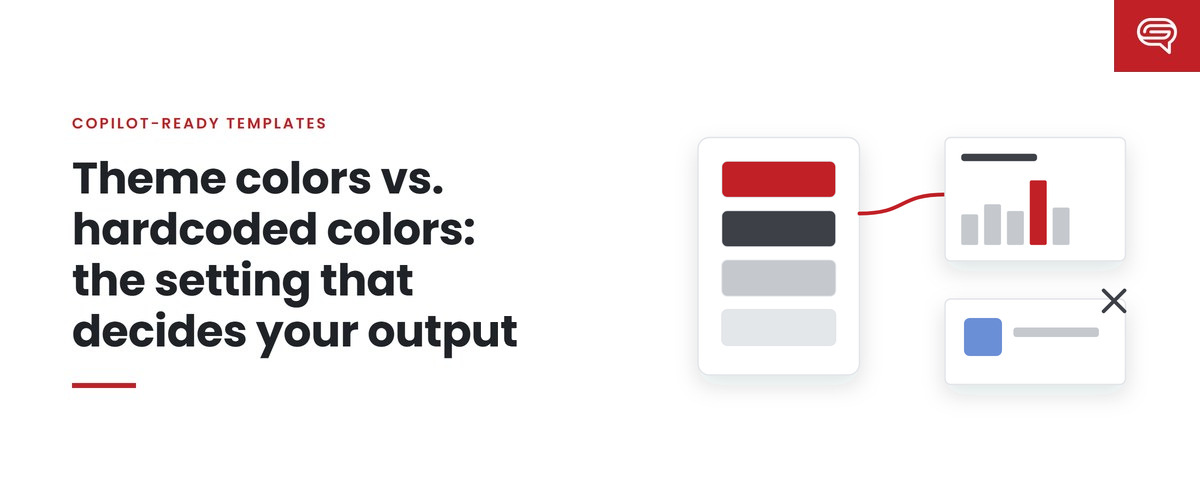
It is hardcoded color. Every shape, line and text element has your brand colors applied directly, by hand — and the theme underneath still holds generic defaults. For a person using the template, it works: they reuse the elements that are already colored. For Copilot, which creates new charts, shapes and text that didn’t exist in the template, it fails. New objects inherit the theme. The theme doesn’t hold your brand.
This post explains the difference, why it matters more with Copilot than it ever did before, and how to fix it.
How PowerPoint themes work
Every PowerPoint file has a theme: a set of named color slots, a pair of theme fonts, and a set of effects. The color slots include two dark and two light colors for text and backgrounds, six accent colors, and colors for hyperlinks.
When you choose a color from the top section of the color picker — the theme colors — you are not choosing a specific color. You are choosing a slot. The object says “use Accent 2,” and whatever Accent 2 is defined as in the theme is what appears. Change the theme’s Accent 2, and every object pointing to it changes.
When you choose a color from More Colors or type a hex value, you are hardcoding. The object says “use this exact color,” permanently, regardless of the theme.
Theme fonts work the same way. Text set to “+Headings” or “+Body” follows the theme. Text set to a named font by hand does not.
Why Copilot depends on the theme
Microsoft’s guidance for Copilot templates is direct: define colors through Slide Master > Colors > Create New Theme Colors, define heading and body fonts in the theme, and apply consistent styles for charts, icons, shapes and image placeholders.
The reason is that much of what Copilot produces is new. It generates a chart from your data. It adds shapes for a process. It writes text into placeholders and sometimes adds elements. Every one of those new objects takes its colors and fonts from the theme, because the theme is the only definition of the brand those objects can see.
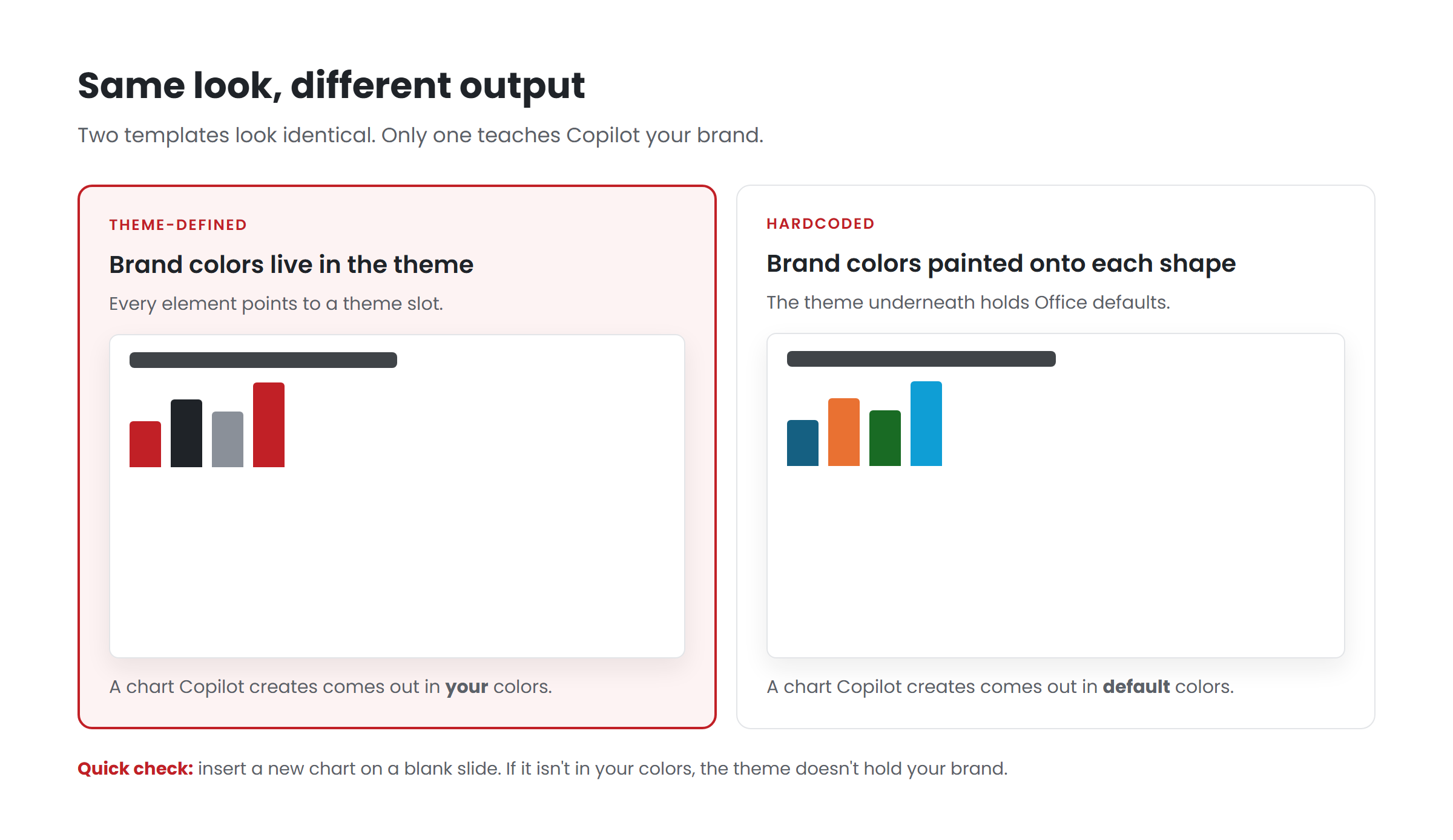
So consider two templates that look identical:
- Template A has the brand palette in the theme. A chart Copilot generates uses the brand accents, in order. A new shape defaults to a brand color. Text defaults to the brand fonts.
- Template B has the brand palette painted onto every existing element, with the Office default theme underneath. A chart Copilot generates comes out in default Office colors. New shapes appear in default blue. Headings may fall back to a default font.
Same appearance. Very different output. And nothing in either file’s slides tells you which one you have.
How to tell which you have
A quick diagnostic:
- Open View > Slide Master and select the top master slide.
- Click Colors in the Slide Master ribbon. The palette shown for the current theme should be your brand palette. If it’s “Office” or an unfamiliar set, the brand isn’t in the theme.
- Click Fonts. The heading and body fonts should be your brand fonts.
- Close Slide Master view. Insert a new chart on a blank slide. If it appears in your brand colors, the theme carries them. If it appears in default colors, it doesn’t.
- Select a colored shape on a layout and open the fill color picker. If the current color is highlighted in the theme colors row, it’s theme-linked. If it’s only in Recent Colors, it’s hardcoded.
How to fix it
Moving a template onto theme colors is methodical work. In order:
1. Decide the slot assignments
Map your brand palette onto the theme slots. The dark and light slots usually take your primary text and background colors. The six accents take your brand colors in the order you want charts to use them, because charts draw accents in sequence. Many brands have more colors than slots; choose the six that matter most for generated content and document the rest.
2. Create the theme colors and fonts
Use Slide Master > Colors > Customize Colors to create a named color set, and Fonts > Customize Fonts for heading and body fonts. Save them with clear names.
3. Re-point every element
This is the laborious step. Go through the master and every layout and change each hardcoded color to the matching theme slot. Do the same for fonts. A template with many layouts can hold hundreds of hardcoded values; a methodical pass, layout by layout, is the only reliable approach.
4. Set chart, table and shape defaults
Format a chart the way your brand presents data and check it draws from theme accents. Set default shape and text box styles. Microsoft recommends consistent styles for charts, icons, shapes and image placeholders; this is where they come from.
5. Check the example slides
Example slides are Copilot’s primary teaching material. If they use hardcoded colors, they teach hardcoded patterns. Re-point them too.
6. Test
Run a set of prompts that force Copilot to create new objects: a chart from data, a process diagram, a comparison table. Check that everything new appears in brand colors and fonts.
What about colors that don’t fit in six accents?
Many brand palettes have secondary colors, tints and special-use colors that don’t fit the theme’s slots. Options:
- Use tints and shades of theme colors, which PowerPoint generates from each slot and which remain theme-linked.
- Demonstrate secondary colors in example slides for the specific uses that need them, accepting that they are taught by example rather than by the theme.
- Put the full palette in the Brand Kit, which can hold color palettes with specific hex values alongside the template.
- Write a rule in a Brand Skill about when secondary colors are appropriate, and test whether it changes behavior.
The core brand colors — the ones that should appear everywhere — belong in the theme.
Key takeaways
- Theme colors are slots; hardcoded colors are fixed values. Only the theme reaches objects Copilot creates.
- A template can look perfectly branded while its theme holds defaults — and Copilot’s output reveals it.
- Diagnose with the Slide Master Colors and Fonts menus and by inserting a new chart.
- Fix by assigning brand colors to theme slots in chart order, re-pointing every element, and testing with prompts that create new objects.
Not sure what’s underneath your template? Have your template scored.**
Related reading
- The Copilot-ready template checklist
- Why a beautiful template can still produce generic Copilot decks
- Light, medium, heavy: designing for content density
Sources
- Microsoft Support, Keep your presentation on-brand with Copilot (July 2026)
- Microsoft Support, Create and manage official Brand kits (July 2026)