Create a Captivating Presentation with Bright PowerPoint Backgrounds

bright background

powerpoint background

presentation

slide

Choosing the right background can make or break a PowerPoint presentation. A bright, vibrant background can energize your slides and capture your audience’s attention, but it needs to be used thoughtfully to avoid overwhelming your message. When done correctly, bright backgrounds add visual interest and create a positive, engaging atmosphere that keeps viewers focused on your content.Here are some tips for creating a captivating presentation using bright PowerPoint backgrounds:


1. Choose a Complementary Color Palette

While bright backgrounds can make your presentation more lively, it’s essential to select a color palette that works well together. Too many clashing colors can make your slides look chaotic, while a harmonious color scheme creates a cohesive and professional look.How to Choose a Color Palette:

  • Use a Limited Palette: Stick to 2–3 bright colors that complement each other. You can use tools like Adobe Color or Coolors to create color combinations that work well together.
  • Pair Bright Colors with Neutrals: To avoid overwhelming the audience, balance bright colors with neutral tones (white, black, or gray). This allows the bright elements to stand out without overpowering the slide.
  • Brand Colors: If you’re creating a presentation for your company, try incorporating your brand’s color palette into the background for a cohesive look.

Example: For a tech startup presentation, you could use a bright blue background with white text and accents of yellow for contrast.


2. Use Gradient Backgrounds for Depth

A gradient background is a subtle yet powerful way to add depth and dimension to your slides. Instead of using a flat, solid color, a gradient shifts gradually from one color to another, creating a more dynamic and visually interesting backdrop.How to Create a Gradient Background:

  1. Right-click on the Slide Background: Choose Format Background from the dropdown menu.
  2. Select “Gradient Fill”: In the Format Background pane, choose Gradient Fill.
  3. Choose Your Colors: Select two or more colors that will transition smoothly into each other. For bright presentations, consider vibrant colors like orange fading into yellow or pink fading into purple.
  4. Adjust the Gradient Stops: You can customize the direction, angle, and smoothness of the gradient for your desired effect.

Example: For a creative industry presentation, a bright pink-to-purple gradient can create a visually appealing and energetic background that adds excitement to the slides.


3. Use Bright Backgrounds Sparingly

While bright backgrounds can be attention-grabbing, it’s important to use them strategically. Too many bright slides can fatigue the eyes, making it harder for your audience to focus on the content. Instead, alternate between bright and neutral backgrounds to keep the presentation balanced.How to Use Bright Backgrounds Effectively:

  • Reserve Bright Colors for Key Slides: Use bright backgrounds for important slides, such as title slides, section dividers, or key points, to draw attention to them.
  • Mix with White Space: Pair bright backgrounds with slides that have more white or neutral space. This contrast gives the eyes a break and helps maintain focus.
  • Use Bright Colors as Accents: Instead of making every slide background bright, use bright colors in key design elements (such as shapes or icons) to add vibrancy without overwhelming the entire slide.

Example: For a marketing strategy presentation, use bright backgrounds for section headers, while keeping the body slides more neutral with bright accent colors for emphasis.


4. Choose the Right Fonts for Bright Backgrounds

When using bright backgrounds, it’s essential to choose fonts that are legible and provide sufficient contrast. The wrong font choice or insufficient contrast can make text difficult to read, undermining the effectiveness of your presentation.How to Choose Fonts:

  • Use Bold Fonts: For bright backgrounds, opt for bold, sans-serif fonts like Arial, Calibri, or Helvetica. These fonts are clean, modern, and easy to read against vibrant colors.
  • Ensure Contrast: Always test your text color against the background to ensure there is enough contrast. White or black text typically works best on bright backgrounds.
  • Avoid Overly Thin Fonts: Thin or script fonts can be hard to read against bright backgrounds. Stick to simple, bold text that stands out clearly.

Example: For a slide with a bright yellow background, use bold black or dark gray text for maximum readability.


5. Incorporate Visuals with Bright Backgrounds

Bright backgrounds work well when paired with clean visuals. However, you need to ensure that your images or graphics don’t get lost or clash with the background.How to Use Visuals with Bright Backgrounds:

  • Use High-Contrast Images: If you’re using a bright background, select images that stand out against the background colors. Ensure that the subject of the image is clear and doesn’t blend into the background.
  • Add Borders or Shadows: If your visuals don’t contrast enough with the bright background, add a white or black border or a subtle shadow to make them pop.
  • Match Visual Style to Background: If your background is playful and bright, choose visuals that match the tone, such as illustrations or icons with similar color schemes.

Example: For a slide with a bright blue background, use high-contrast visuals like white icons or images with vibrant colors that stand out clearly.


Final Thoughts

Bright backgrounds can bring energy and excitement to your PowerPoint presentations, but they need to be used strategically. By choosing complementary colors, incorporating gradients, balancing bright slides with neutral ones, and selecting the right fonts and visuals, you can create a captivating presentation that keeps your audience engaged. With the right approach, bright backgrounds will enhance your slides and help you deliver your message effectively.

Presenting Perfection: How to Avoid Five Common PowerPoint Design Blunders

bullet points

powerpoint presentation

Pwerpoint design mistakes

It’s perfectly normal to make mistakes when creating PowerPoint presentations – the first few times. According to software consultant, Wendy Russell, there are ways to learn the basics of PowerPoint. But when you’re failing repeatedly without seeing the errors of your ways, you may need to be jolted back to reality.

There’s a reason why your audience members tend to stifle a yawn or stare blankly at the open window whenever you deliver a presentation: You have poorly designed PowerPoint slides.

Here are five of the most common PowerPoint design mistakes are probably guilty of:

1. Too Many Details

Slide decks are your visual tools to help you get your message across. When you put too many information details on a slide – be it in the form of text, charts, or images – you run the risk of overwhelming your audience.

Ideally, slides should convey only once concept at a time. To avoid the problem, many professional presenters follow the 6 x 6 rule. This requires limiting the number of lines in a slide to six and keeping the number of words per line to six.

2. Poor Use and Choice of Images

Using images can help you explain an idea in a much simpler way. Inappropriate and low-quality images can create the opposite effect, though. Don’t just include any photos or clipart for the sake of having images up there. Be sure that there are clear connections between the images you choose and the points you are making.

Additionally, check if the images are of good quality by testing it out on a white wall. There are times that images would seem great on your monitor screen yet look bad when blown up and projected on a large screen.

3. Abuse of Effects and Other Fancy Features

If you think using too much animation, transitions, and sound effects can improve your presentation, you couldn’t be more wrong.

When it comes to special effects, less is more. Your audience will not be impressed with bullet points that constantly spin around, zoom in, blink, make sounds, etc. Try to make everything as simple as possible. The end result would be more powerful.

4. Several Bullet Points That Appear at Once

This is where you can apply animation appropriately. You see, having five to six bullet points appear on the slide at one time can be overwhelming to read.

The best thing to do is to reveal the points one at a time. This way, your audience will be able to focus better on each one. It would also keep them from reading ahead and tune you out.

5. Failing to Proofread

Nothing will make your PowerPoint presentation look more amateurish than typographical errors and spelling mistakes.

Apart from this, BBC education correspondent, Sean Coughland, cites online entrepreneur Charles Duncombe’s study in saying that bad grammar does cost companies millions. They won’t just distract your audience, but will also leave a bad impression, which may lead to a drop in revenue.

So always make sure to read your slides a couple times before declaring it good to go.

Conclusion

Remember, a good presentation can save a bad presenter. But a bad presentation would be hard to salvage even by the best presenter.

It would even make him look ridiculous and unprofessional. So which one would you rather be: a bad presenter backed by a well-designed presentation or a great presenter with a disastrous presentation?

It’s time to check what you’ve been doing wrong and apply the necessary changes on your next slides.

References

Coughlan, Sean. “Spelling Mistakes ‘cost Millions’ in Lost Online Sales.” BBC News. July 14, 2011. Accessed May 22, 2014.Russell, Wendy. “Ready to Learn to Use PowerPoint?” About.com Tech. Accessed May 22, 2014.

Corporate Events and PowerPoint Presentations

conference

corporate events

death by powerpoint

powerpoint presentations

seminar

Businesses organize corporate events for different reasons. Usually, it’s due to a special occasion, like a holiday, or a year-end celebration. But other times, the purpose is much more specific.And in all those gatherings, it’s rare that you won’t find a PowerPoint being set up. An engaging visual presentation is necessary for engaging the audience’s gaze and drawing their attention to the event itself. Corporate events are also a way of drawing in more customers, while keeping in touch with loyal ones. Having an interesting and attractive deck to match the level of your event can greatly help with that.Here are some of the most common corporate events that businesses usually organize and where slide presentations won’t look out of place:

Product Launches

As shown in AdAge’s EJ Schultz’s article on successful product launches, a well-organized launch can create a lot of buzz for a new product and give it a sales boost. To generate enough attention, you may set the occasion as either a trade event or media event.Trade events would have well-known people in the industry as guests. These are market analysts, editors of trade publications and other prominent figures.If you choose to make it a media event, then you may want to invite dozens of reporters. Regardless of how you plan the event, make sure that your PowerPoint presentation would leave a great impression.

Customer Appreciation Events

According to marketing strategist, Nancy Wagner, this type of event is aimed to reinforce customer trust and loyalty, leading to a long-term, sustained growth for your business.As the host, this is your chance to communicate to your customers that they mean more to your company than simply sales numbers. A customer appreciation event is where you can express your gratitude to everyone at one time.Apart from the usual team-building type of activities, showing a “thank you PowerPoint presentation” that serves as a tribute to your customer base is a good way to make the most of the event.

Conferences and Seminars

Joining conferences or seminars means you would be facing a larger crowd. To avoid that thing called death by PowerPoint, make sure to prepare your slides properly.Make your presentation interesting for your audience. Basically, try to use less text and a bit more images. And most importantly, don’t drag the presentation too long. If you play your cards right, you might even get a referral or two to do business with.

Ultimately, organizing a corporate event and preparing a PowerPoint presentation have one thing in common. Both should be well-planned as they would reflect your business’ professional image.

References

Schultz, EJ. “14 Product Launches That Rocked And Why.” Advertising Age News. Accessed May 21, 2014.Wagner, Nancy. “How to Plan a Customer Appreciation Day.” EHow. Accessed May 21, 2014.

Deliver a Winning Speech with an Engaging PowerPoint Presentation

Oral presentation

powerpoint designs

powerpoint presentation

A compelling speech, when paired with an engaging PowerPoint presentation, can captivate an audience and make your message unforgettable. PowerPoint serves as a visual aid that enhances your narrative, helps you communicate complex information more clearly, and keeps your audience engaged. However, not all PowerPoint presentations are equally effective, and creating one that supports your speech without overshadowing it requires a thoughtful approach.Here are essential tips to deliver a winning speech using an engaging PowerPoint presentation:


1. Structure Your Slides Around Key Points

Your PowerPoint should act as a guide to the key points of your speech. Avoid cluttering slides with unnecessary details. Instead, use each slide to reinforce the core messages you want your audience to remember.How to Do It:

  • Limit Text: Use bullet points or short sentences to highlight the key message of each slide.
  • One Idea Per Slide: Focus on a single point or concept per slide to avoid overwhelming the audience.
  • Clear Headings: Each slide should have a clear, concise title that sums up the key point you’re discussing.

Example: If your speech is about the benefits of a new product, have one slide focus on “Increased Efficiency” and another on “Cost Savings” rather than listing all benefits on one crowded slide.


2. Use Visuals to Enhance Your Message

PowerPoint allows you to use images, charts, and diagrams to illustrate complex ideas and make them more digestible. Visuals should complement your speech, not distract from it. They help your audience retain information and make abstract ideas more concrete.How to Do It:

  • High-Quality Images: Use relevant, high-resolution images that support the content of your speech. Avoid generic stock photos that don’t add value.
  • Data Visualization: Instead of presenting raw numbers, use charts, graphs, and infographics to show trends or comparisons.
  • Avoid Overloading: Keep visuals simple. Avoid cluttered graphs or too many images on one slide.

Example: If discussing sales growth, present a clean line graph that shows growth over time rather than a table full of data points.


3. Engage the Audience with Interactive Elements

Incorporating interactive elements such as polls, quizzes, or Q&A sessions in your PowerPoint can turn your audience into active participants, increasing engagement and keeping their attention.How to Do It:

  • Real-Time Polls: Tools like Mentimeter or Slido allow you to add live polling to your PowerPoint, engaging the audience by letting them participate in real-time.
  • Interactive Q&A: Dedicate a slide for audience questions, encouraging participation throughout the presentation.
  • Clickable Elements: Create slides with clickable elements that guide the audience through different sections of your presentation or highlight key insights.

Example: During a presentation on employee satisfaction, you could poll the audience to ask what they think are the top factors influencing job satisfaction, then reveal the research findings on the next slide.


4. Master Transitions and Animations

Using transitions and animations can enhance your presentation, but overusing them can be distracting. The key is subtlety—use transitions and animations sparingly and purposefully to guide the audience’s focus without pulling attention away from your speech.How to Do It:

  • Consistent Transitions: Use simple transitions (e.g., Fade or Appear) between slides for a professional and smooth flow.
  • Strategic Animations: Use animations to reveal bullet points or elements one at a time, helping you control the pacing and focus of your message.
  • Avoid Overcomplication: Don’t use excessive motion, flashy transitions, or effects like “Bounce” or “Spin,” as they can look unprofessional and be distracting.

Example: If you’re revealing a series of steps or a process, use a “Fade” animation to show each step one by one as you explain it in your speech.


5. Maintain a Consistent Design and Theme

A consistent design helps unify your PowerPoint and gives it a professional, polished look. Consistency in fonts, colors, and layouts creates visual harmony and ensures your slides don’t distract from your message.How to Do It:

  • Use a Consistent Color Scheme: Stick to 2–3 primary colors throughout the presentation. These colors should align with your brand or the tone of your speech.
  • Uniform Fonts: Choose one or two fonts and stick with them for titles and body text. Make sure the fonts are large enough for readability (minimum 24pt for body text).
  • Use Slide Masters: PowerPoint’s Slide Master function helps you apply consistent design elements across all slides, saving you time and ensuring cohesion.

Example: If you’re representing your company, use your brand colors and font styles consistently across all slides, reinforcing the professionalism and identity of your organization.


6. Practice Timing and Pacing

Your PowerPoint should flow seamlessly with your speech. Practicing with your slides allows you to time transitions, animations, and the overall pacing of your presentation, ensuring that the PowerPoint enhances, rather than disrupts, your narrative.How to Do It:

  • Rehearse with Slide Timing: Run through your presentation multiple times to ensure the slides sync with your speaking pace. Avoid lingering too long on any one slide or rushing through key points.
  • Use Speaker Notes: PowerPoint’s speaker notes can help you keep track of what to say on each slide, ensuring you don’t forget any important details.
  • Anticipate Questions: Be prepared for questions or interactive elements so that you can smoothly handle audience engagement without breaking the flow of your presentation.

Example: Rehearse the timing of when to change slides while delivering your speech so that the visual support is aligned with your spoken content—this makes the presentation feel more natural and professional.

Creating a PowerPoint Timeline Using SmartArt

PowerPoint slide

shapes

SmartArt

Timeline slide

Last time, we created a basic timeline using shapes and tables. Today, we’re going to create another one but only this time, we’ll take advantage of the SmartArt feature in Microsoft PowerPoint 2010.SmartArt is useful for creating representations of a sequence of events in PowerPoint. This sequence of events can be a project milestone or an event timeline (which we’ll get back to in a bit).

The SmartArt Advantage

Basically, what SmartArt does is take the power and functionality of PowerPoint Shape on a different level.It allows you to mix and match shapes and text in order to create diagrams and other custom graphics. Using it strategically lets you create slides that both communicate your message and capture your audience’s attention.

Getting Started

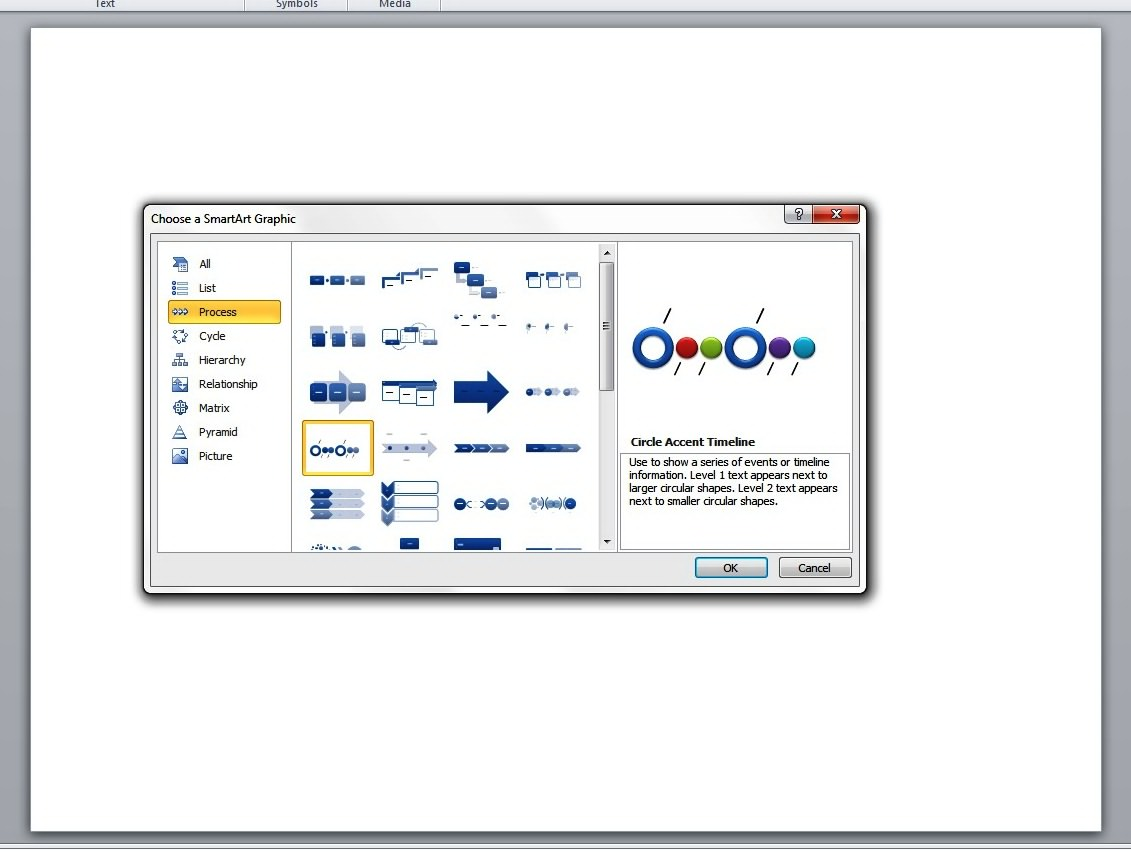
Now let’s create a basic timeline with the help of SmartArt. You can start by opening a blank PowerPoint slide. Point the cursor to the Insert tab and click on SmartArt. Then select Basic Timeline.This is under the Process folder or the Circle Accent Timeline. As you hit OK, you will have to enter the necessary elements. (“Level 1 text appears next to larger circular shapes. Level 2 text appears next to smaller circular shapes.”)PowerPoint timeline

Enhancing the Look

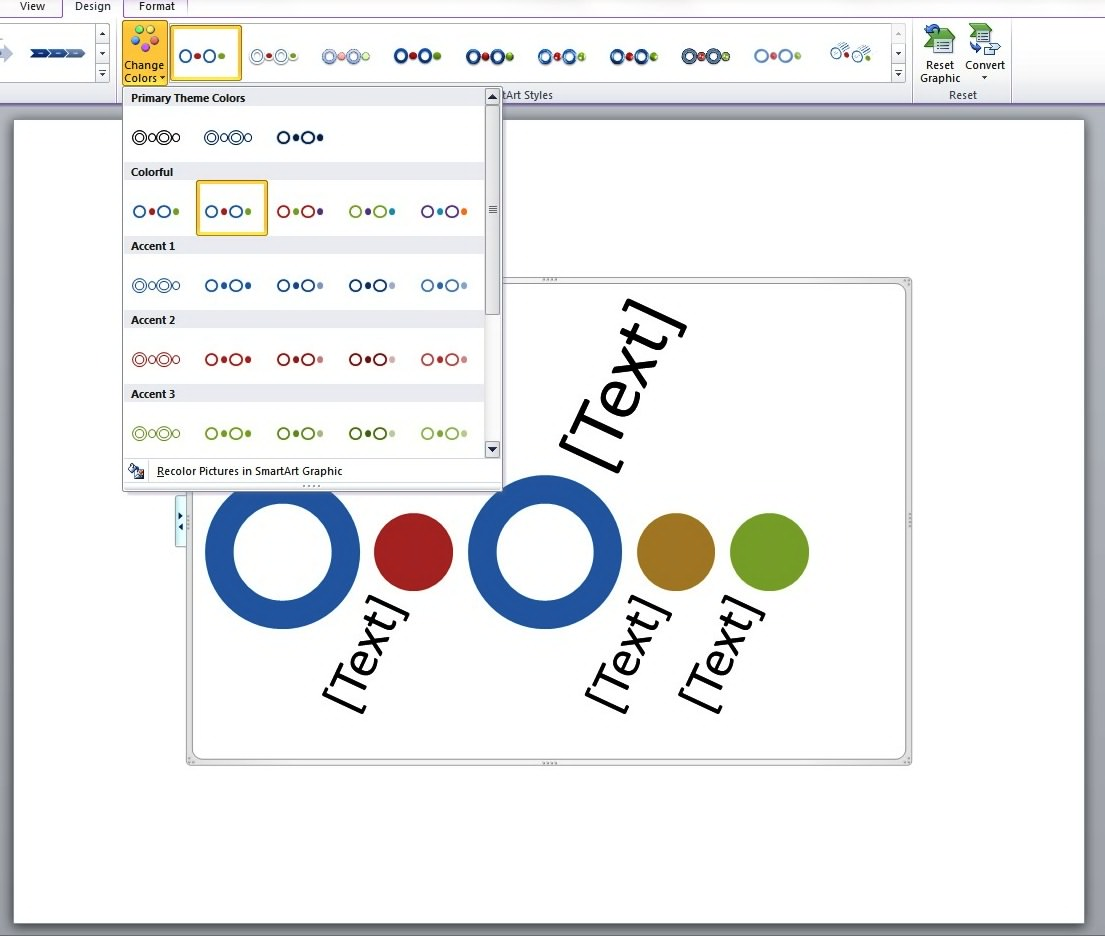
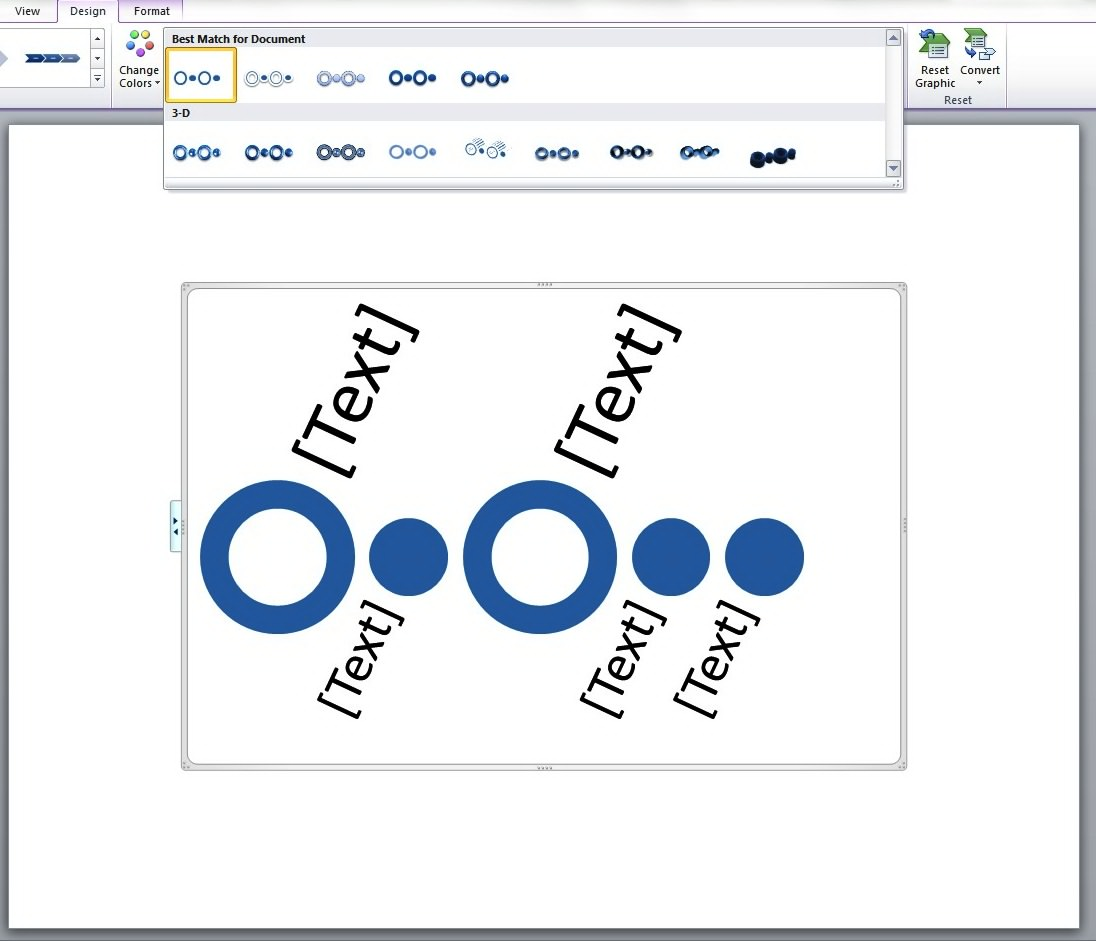
You may change the color of the graphic by clicking on the Design tag and picking the colors and effects that you want for your timeline.timeline2The different shape effects that you may choose include shadow, cartoon, 3D effect and more.template2Adding your content and doing a bit of tweaking completes the process. With some practice, you will soon be able to create a more complex PowerPoint timeline design.SmartArt is an excellent functionality in PowerPoint that provides you with a wide range of visual options. Keep in mind, though, that it is still up to you to determine the appropriate graphic that matches your content. Because at the end of the day, SmartArt is simply a PowerPoint tool at your disposal that you can wield to your advantage.

References

Learn More about SmartArt Graphics.” Office Support. Accessed May 14, 2014.”Basic PowerPoint Timeline Creation: Shapes and Tables.” SlideGenius, Inc. May 09, 2014. Accessed May 14, 2014.

About SlideGenius SlideGenius.com is your PPT presentation design guru for your business. Based in San Diego, California, SlideGenius has helped more than 500 international clients enhance their presentations, including those of J.P. Morgan, Harley-Davidson, Pfizer, Verizon, and Reebok. Call us at 1.858.217.5144 and let SlideGenius help you with your presentation today!

What Makes an Effective PowerPoint Presentation?

content

PowerPoint Design

powerpoint presentation

powerpoint presentation specialists

An effective PowerPoint presentation can make a lot of difference in facilitating a business meeting or making a sales pitch.Can you imagine spending the entire time speaking in front of an audience without something to attract their attention? Nothing beats having a visual aid to back you up, not to mention keep your audience awake.Of course, you need to work on making your PowerPoint powerful enough to communicate your message effectively. So what makes a presentation effective?

Design

In terms of PowerPoint presentation design, the main consideration should be legibility. One of the most common mistakes that many presenters make is stuffing their slides with entire blocks of texts. PowerPoint presentation specialists would advise you to avoid this.Apart from making the slides look illegible and boring, it creates the impression that you are not prepared. This could put a dent on your professionalism and credibility.In general, the layout isn’t meant to detract the viewer’s gaze. It should be able to highlight your points. Keep the text large enough for easy reading, with the color contrasting well with the background.If you’re using images, make sure they don’t detract from the message. They should work to support the text, not overpower it. According to Inc.com‘s Eric Markowitz, consistency is essential in establishing a visually engaging deck. Make sure you know your brand, and you stick to it.

Content

Regardless of the message you want to communicate, you need to make sure that the content is presented clearly. The best way to do this is by organizing whatever you have to say into three main points.Whatever details you want to include, they should all lead to those points.Creating an outline of your main points can help you organize the flow of your PowerPoint presentation. It can also help you determine the parts of your talk where slides are necessary so you can avoid overusing them. Presentation slides are extremely useful.Overusing them, however, might confuse your audience.

Delivery

Whatever you do, remember to talk to your audience and not to your slides. As a mark of a lazy presenter, reading the slides can tune your viewers out. The important thing is to engage your audience by maintaining eye contact as much as possible.Use your slides only as supporting tools. Just take your main points to heart (without disregarding the amount of time you spend on each of them) and you’re good to go.PowerPoint is an essential tool for business communicators. It can make your life so much simpler.

Conclusion

No matter how animated you can be or how skillful you insert humorous lines in your script, you need a visual tool to bring your ideas to life.Hopefully, these three elements should be able to point you to the right direction in creating an effective PowerPoint presentation.

Reference

Markowitz, Eric. “5 Tips for a Great PowerPoint Presentation.” Inc.com. 2011. Accessed May 8, 2014.

The Power of Professionalism: Unleashing the Full Potential of Your Presentations with a PowerPoint Designer

powerpoint presentation

presentation tips

slides

storytelling

There’s more to creating a PowerPoint presentation than merely choosing a template and inserting stock images. Sure, you can do all those and perhaps more (like adding some custom animations). But these might not be enough to get your message across.Look, you may know how to drive a car, but it doesn’t automatically qualify you to be in NASCAR, right?Admittedly, there’s nothing wrong about doing the heavy lifting yourself. When you’ve taken the time to maximize its features, you’d discover that PowerPoint is indeed a powerful tool that you can use to your advantage.Certain situations, however, really do call for that professional touch. It isn’t a question of aesthetics, but more of a storytelling concern.

Storytelling Advantage

A professional PowerPoint designer understands that stories are what draw an audience to the idea he’s presenting. This means he has to rely on his storytelling skills to communicate effectively. And by storytelling, we don’t mean the way you’d read a tale to little kids before bedtime.It’s more of how a director spins a yarn on the big screen. After all, the nitty-gritty of putting together a PowerPoint presentation is pretty much like what goes on behind the glitz and glamor of the movies.You may have the benefit of a strong star power or striking cinematography, but if the storytelling fails to engage the audience, the movie falls flat. And when this happens, the audience can be very unforgiving.

Design Knowledge

As with producing a movie, making a presentation involves a number of elements. In both cases, making all the disparate elements go well together can help you tell a cohesive story.For example, the use of colors to highlight some points will only work if you align the text in a way that’s comprehensible to your audience. These may be minor details but someone who isn’t familiar with design may miss out on their significance.Professional PowerPoint designers know when to use (or not to use) the right design elements to support the story they want to tell. They have a great eye for detail that allows them to come up with successful slides. They understand that effective presentation design isn’t just about slapping images on every slide.

Conclusion

There are many different elements that go into making a PowerPoint presentation, and only a professional can bring them all together seamlessly. To pull through with a winning presentation, it’s important that your content, delivery, and design go hand-in-hand.Without one, you definitely can’t succeed with the other. And that’s what professionals are there for. If you’re running short on time, or you simply want an expert’s opinion, contact a presentation partner you can trust. The returns on this investment will be worth it. 

References

Top 10 Websites for Presentation Images.” Presentation Magazine. Accessed May 6, 2014.