New templates have traditionally been tested the same way: a few people open it, make a couple of slides, and agree it looks good. That was a reasonable test when the template’s only users were people.
It is not a reasonable test for a template Copilot will learn from. Copilot generates presentations from prompts nobody on the template team will ever see, using source material nobody chose, for audiences nobody anticipated. The only way to know how the template behaves is to generate a lot of presentations deliberately and look at them systematically.
This post lays out a method. It is simple enough for a small team to run and rigorous enough to tell you whether a change actually helped.
Principle: the same prompts, every time
The most important rule is also the easiest to break. Use a fixed set of prompts, and reuse exactly the same set every time you test.
Without a fixed set, you can’t compare. Did the new example slides improve the output, or did you just happen to write easier prompts this time? Did Microsoft’s latest change make things worse, or were today’s prompts harder? A stable test set turns opinions into comparisons.
Step 1: Build the prompt set
Aim for somewhere around fifteen to twenty-five realistic scenarios — enough to cover the variety of what your people make, few enough to review properly. Draw them from real work: recent presentation requests, common deck types, recurring meetings.
Deliberately vary the dimensions that stress a template:
| Dimension | Range to cover |
|---|---|
| Density | light, medium, heavy |
| Intent | inform, compare, recommend, explain, persuade |
| Content | text, data, process, timeline, imagery, mixed |
| Audience | internal team, leadership, executive, external |
| Source quality | well structured, messy, incomplete |
| Source type | prompt only, a document, existing slides |
| Stakes | routine, elevated |
For each prompt, record a few fields so the test is repeatable and reviewable:
- ID and business scenario (“monthly operations update for regional leads”);
- the exact prompt, word for word;
- source material, if any, saved alongside;
- intended outcome — what a good deck would achieve;
- expected behavior — which layouts you’d expect, roughly how many slides, what density.
The goal isn’t to write perfect prompts. It’s to write representative ones. Include the vague, rushed prompts real people write, not only the carefully crafted ones.
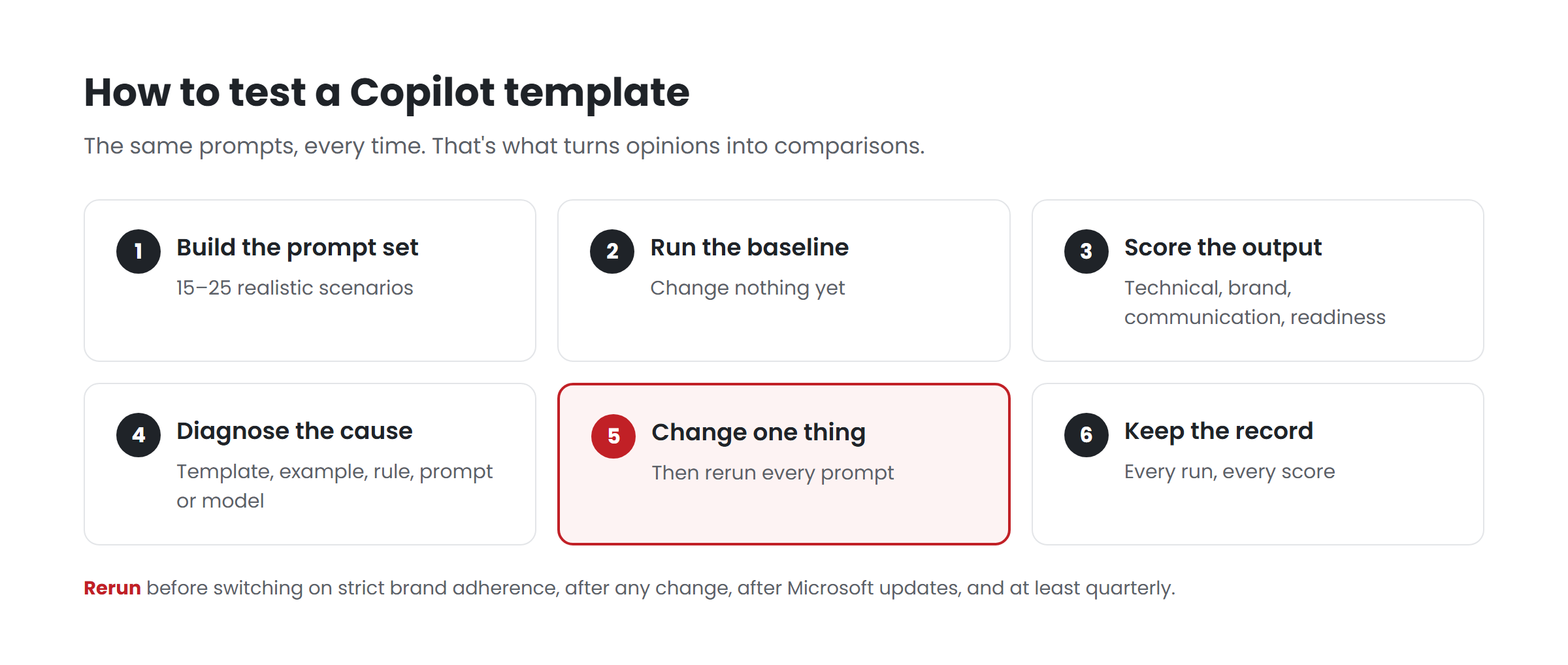
Step 2: Run the baseline
Before changing anything, run every prompt against the current template and save every output. Don’t fix anything yet. This baseline is what every future result will be compared with.
If you’re rebuilding a template, run the baseline against the old one. If you’re building from scratch, run it against the first version that follows Microsoft’s published guidance. Microsoft’s recommendations — representative sample slides at three densities, correct placeholders, theme-defined colors and fonts — are the floor; your testing will show what’s needed above it.
Step 3: Score what comes out
Review each generated deck on four dimensions:
Technical behavior. Did Copilot choose appropriate layouts? Did content land in the right placeholders? Did it fit? Did images and charts behave?
Brand behavior. Correct colors, typography, imagery and visual language? Appropriate density? Would someone recognize it as your organization’s deck?
Communication behavior. Is the hierarchy right? Is the most important point obvious? Does the structure match the intent? Is it understandable without a presenter?
Readiness. Assign each deck one of four grades:
- Ready — usable as generated.
- Minor corrections — cleanup only.
- Remediation — meaningful design correction needed.
- Reconceptualization — the structure is wrong; start over.
The difference between grades 2 and 4 matters enormously. A slide that needs alignment fixes is a small problem. A slide where Copilot chose the wrong way to communicate the content is a different kind of problem, usually with a different cause.
Step 4: Diagnose, don’t just fix
When output is poor, the instinct is to fix the slide. Resist it. Ask what caused the failure:
- the template’s architecture (layouts, placeholders);
- a missing or misleading example slide;
- a density mismatch;
- a brand rule missing or unclear;
- the prompt itself;
- ambiguity in the source material;
- a limitation of the model that no template change will fix.
Then ask: what’s the smallest change to the system that would prevent this failure from recurring? A new example, a resized placeholder, a note instruction, a rule in a Brand Skill. Fixing the system helps every future deck; fixing a slide helps one.
Step 5: Change one thing, rerun everything
Make the change. Rerun the entire prompt set, not just the prompt that exposed the problem. Then compare with the previous run:
- Did the change fix the target problem?
- Did it improve similar slides elsewhere?
- Did it make anything worse?
That last question catches a common trap. A new example that fixes comparisons can start pulling unrelated content into the comparison layout. Only a full rerun reveals it.
Change one thing at a time where you can. If you change five things and the output improves, you don’t know which one helped — or whether one of them hurt.
Step 6: Keep the record
Keep every run’s outputs and scores. Over time the record becomes valuable in its own right:
- it shows which changes actually improved output, and which were theory;
- it separates Microsoft’s rules (published guidance) from your own techniques (proven by your tests);
- it gives you a baseline to compare against when Microsoft changes the product.
When to rerun
- Before switching on strict brand adherence.
- After any change to the template, examples, Brand Kit, note instructions or Brand Skills.
- After significant Microsoft updates — two arrived in September 2026 alone.
- On a regular schedule, at least quarterly, because behavior can drift even when nothing on your side changed.
Key takeaways
- Use a fixed, representative prompt set of roughly fifteen to twenty-five scenarios, and never change it casually.
- Run a baseline before changing anything.
- Score technical, brand and communication behavior, plus a four-level readiness grade.
- Diagnose the cause of each failure, and fix the system rather than the slide.
- Change one thing at a time, rerun everything, and keep the record.
Want your template tested this way? Have your template scored.**
Related reading
- The Copilot-ready template checklist
- Clean up a bloated template before Copilot learns from it
- Rolling out a Copilot template to employees
Sources
- Microsoft Support, Keep your presentation on-brand with Copilot (July 2026)
- Microsoft Support, Manage template settings in your Brand Kit for Copilot in PowerPoint (August 2026)
- Microsoft 365 Message Center, MC1470415 and MC1473166 (Sep 2026)