Don’t let distance get in between you and your audience. Livesteaming your PowerPoint allows you to still be the face of your presentation. Several online platforms can bring your presentation out of the boardroom and into digital spaces. These enable you to reach a wider audience without having to sacrifice your personal presentation style.
While many people may have figured out workarounds to livestreaming, the truth is there are many options, which are not too difficult to navigate once pointed in the right direction. Here are three ways you can livestream your next PowerPoint presentation.
Broadcast Online from PowerPoint
Microsoft itself offers a safe, reliable means to broadcast your PowerPoint presentation online to remote audiences (for PowerPoint 2013 and newer versions).
First, find your presentation and open it up. In the File tab, you can start livestreaming your presentation through the Share button.
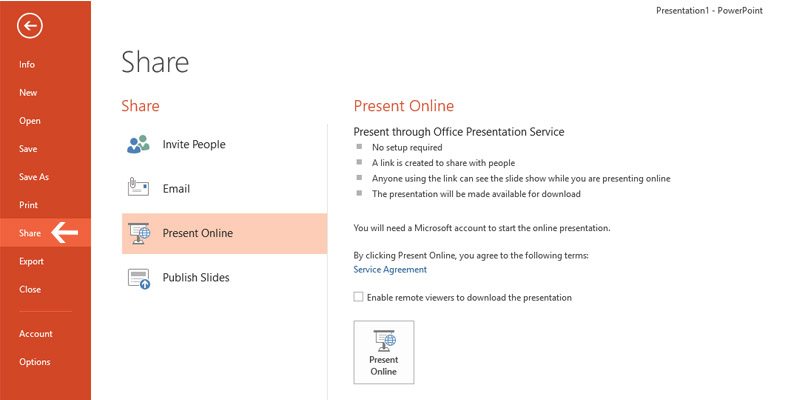
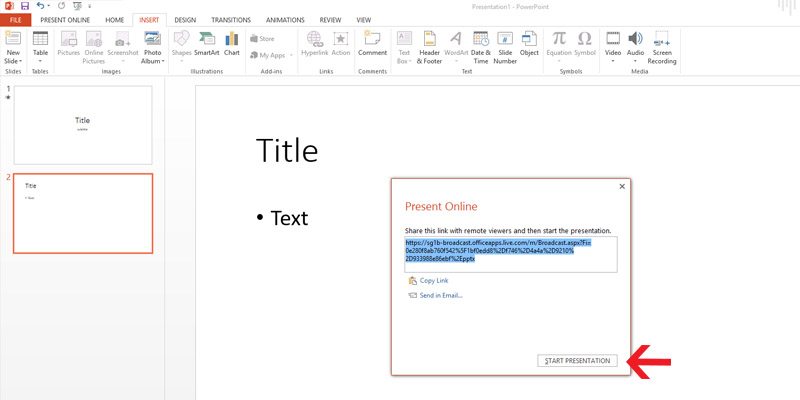
Next click the Present Online button. A dialog box will generate a custom URL for your presentation. You can then copy the link to send directly to your audience.
Once they’ve received the link, click Start Presentation. Viewers will then be able to see your presentation as you guide them through each slide in real time.
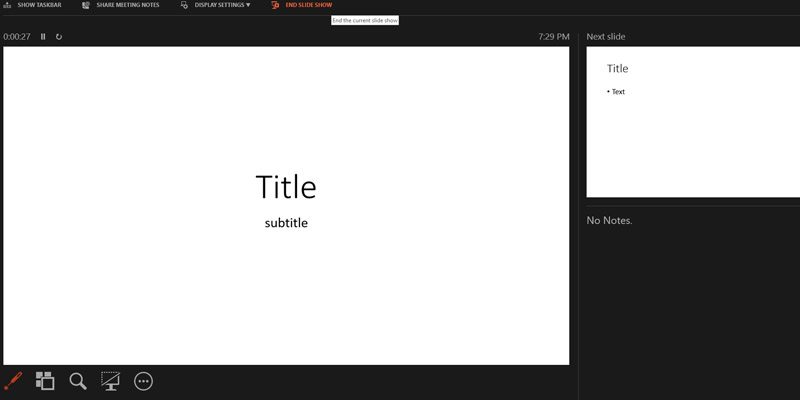
This highlights how Presenter View will appear only on your screen. Your audience will see your slide show as you present it.
Once you’re done, simply hit the End Online Presentation in the Present Online tab.
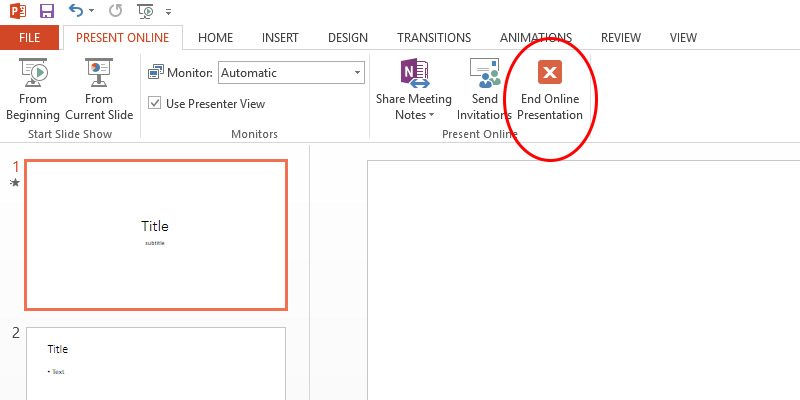
This option is convenient when meeting in person is not possible. However, the slight downside is that some of your original deck’s features may be compromised. All transitions will automatically be set to “fade” from the audience’s view and a file size limit may be imposed on your upload.
In this situation, a concise deck is more advisable for livestreaming to minimize the lag in your loading times.
Use Office Mix
Office Mix is a free downloadable add-on for Office 365 subscribers. It makes livestreaming presentations much easier.
Office Mix retains more content such as audio, video, polls, and quizzes than broadcasting through PowerPoint alone. These features are helpful for presenters seeking to maximize audience engagement. using their deck. Consider reviewing each feature to see which will work best in your presentation, especially as you are livestreaming.
In the Mix tab, you can see Quizzes Video Apps.
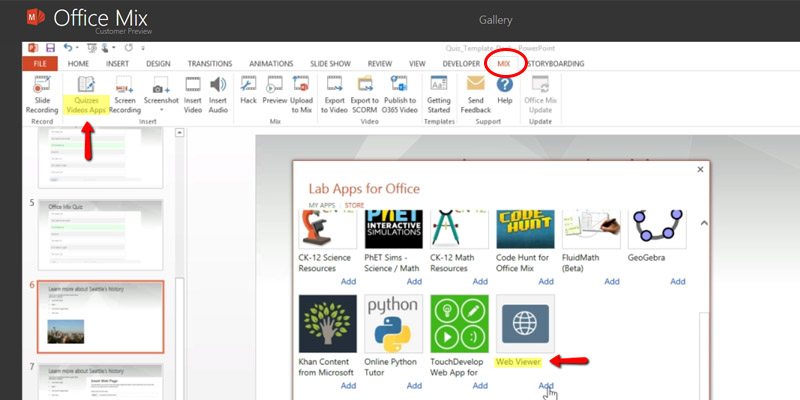
The platform also features “live digital inking.” This is a more hands-on approach that enables you to guide the audience using video, audio, and illustrations. Office Mix offers several helpful tutorials on their site for navigating these useful features.
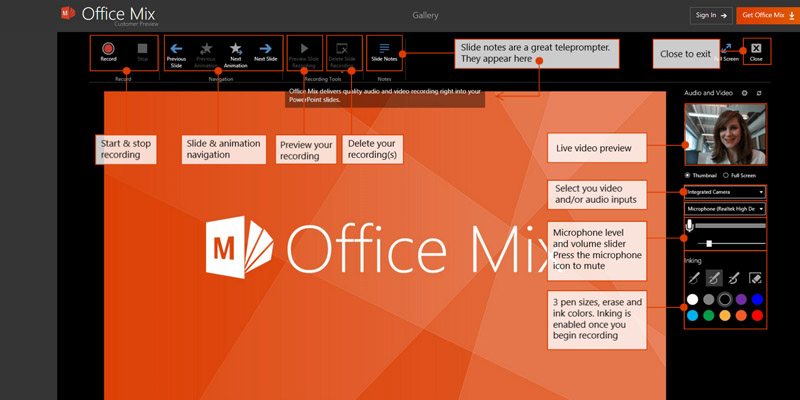
Office Mix requires an internet connection to share your presentation. However, your audience will be able to review your slides after you’ve concluded the presentation. And because Office Mix gathers audience data and feedback for in-depth analysis you can keep track of how your presentation went over with your audience and maximize on keeping track of after-presentation impact.
Upload to Online Platforms
This third option offers the least audience interactivity in the moment but can maximize your audience reach. And it may be the easiest to execute.
If the previous options are unavailable, you can upload and design your presentation on deck hosting platforms such as SlideShare.
Publishing your slides online will allow you to reach out to a wider audience. While you can configure the presentation to be viewed by selected viewers only, default settings keep your deck open for public viewing. Adding tags to your presentation makes it easier to search online, further enabling mass sharing.
These online platforms often require compressing your presentations to a size that websites can handle. While uploading to online platforms can be limited in file size, audiences will be able to view them at their own pace which can be a great benefit for a leave-behind aspect to your presentation.
Livestreaming Design Elements to Enhance Viewer Experience
Your deck plays a key role in the impact of your presentation and there are many ways to make your presentation accessible.
Because the presentation is being streamed from your source, you won’t need to worry about losing any of your custom fonts. That’s a common pain when people send their decks via email. Here are a few other assets that add value and enhance viewer experience:
- Interstitial Graphics: Controls broadcast flow and breaks it into segments
- Overlay Graphics: Media that plays over the main content
- Alert Overlays: Pulls live data from online sources and displays over the stream
You may notice these things on streaming platforms like Twitch. Adding these elements to your presentation can give you a leg-up over other presenters and help you stand out with your audience.
Planning for the Future
Being able to present your deck effectively online will help amplify your message and showcase your skills as a presenter to your audience even while remote. And while working from home or hybrid interactions continue to be the norm, it’s essential to utilize all the tools you have at your disposal. Livestreaming solutions have made it so much easier to deliver a smooth online presentation experience. Take these tips as unique chances to improve your skills for your next big presentation.